Every long PDF collects pages that shouldn’t be there: the blank page your scanner inserted, the outdated pricing sheet, the draft appendix you meant to remove before sending. Deleting pages from a PDF sounds trivial, and it is — once you pick a method that doesn’t wreck the rest of the file.
This guide covers the browser method step by step, then compares it against the four alternatives (the browser print trick, Mac Preview, Word, and Adobe’s free online tool), and explains the two things almost every other guide skips: why your file size often refuses to shrink after deleting pages, and what to do when a page simply won’t delete.
How to Delete Pages from a PDF Online Free (3 Steps)
- Open the file in your browser. Drop the PDF into the Delete PDF Pages tool. Every page appears as a thumbnail, so you’re picking actual pages you can see, not page numbers you have to guess.
- Click the pages you want to remove. Selected pages get marked. Click again to deselect — it’s a toggle, not a commitment.
- Delete and download. The tool rebuilds the PDF without the marked pages and hands you the new file. Layout, fonts, and the remaining pages’ quality are untouched, and since everything happens in your browser, the document never reaches anyone’s server.
5 Ways to Delete PDF Pages, Compared
The browser tool is the method I’d use for most jobs, but not the only one — and for some situations another way wins honestly:
| Method | Needs | File uploaded? | Watch out for |
|---|---|---|---|
| Browser tool (ours) | Any browser | No | Very large files depend on device memory |
| Chrome/Edge print trick | Any browser | No | Re-renders pages — form fields flatten |
| Mac Preview | A Mac | No | Deletes page annotations too |
| Word conversion | MS Word | No | Formatting often breaks — last resort |
| Adobe free online | Adobe account | Yes | Requires sign-in before download |
The Chrome/Edge trick deserves a one-line explainer since it’s genuinely useful offline: open the PDF, press Ctrl+P, set the destination to “Save as PDF,” and type the pages you want to keep (like “1-3, 5”). You’re not deleting pages — you’re printing a copy without them. Good in a pinch; bad for form fields and anything interactive.
Deleting Non-Consecutive Pages (2, 7, 11…)
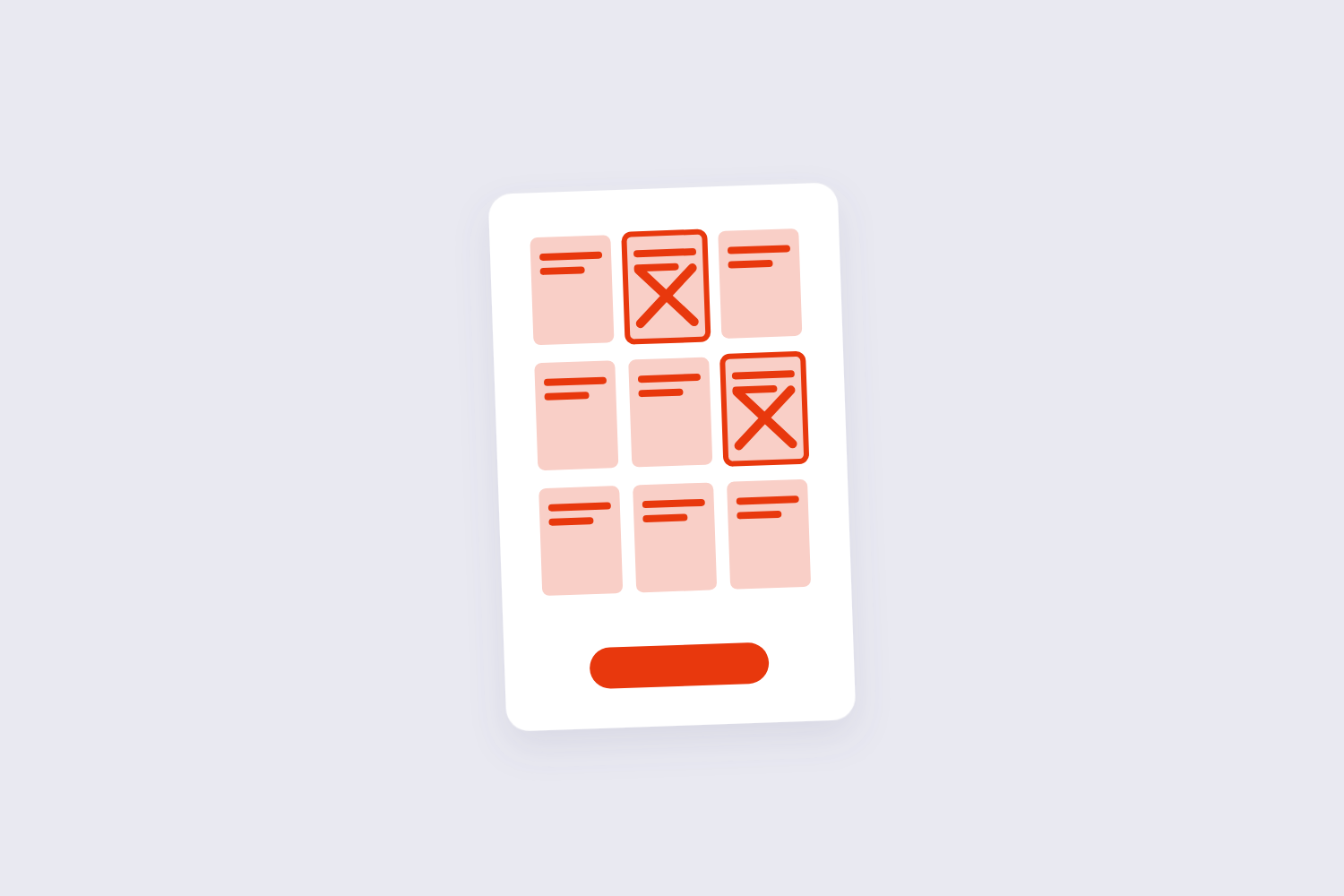
The most common real-world need isn’t “delete pages 3 to 5” — it’s “delete pages 2, 7, and 11.” In a thumbnail-based tool this is exactly as easy as it sounds: click each one. The trap is in tools that only accept ranges; there you’d have to delete 1-2, then 6-10, then 11, re-uploading between rounds and hoping the page numbers haven’t shifted on you.
One mental model that saves mistakes: think in keep terms, not delete terms, when the removals outnumber the survivors. If a 30-page PDF needs only pages 4, 9, and 22, deleting 27 pages is error-prone — extracting the three keepers with the PDF split tool is faster and safer.
Why Doesn’t the File Size Shrink After Deleting Pages?
You deleted half a 40 MB PDF and the output is still 40 MB. Nothing went wrong. PDF editors frequently save changes incrementally — they append the deletion to the file and mark the old pages as unused rather than rewriting the whole document. The data for deleted pages is still physically in there. Adobe’s own community forums document the behavior, including files that get bigger after edits.
The fix is a full rewrite: run the trimmed file through the PDF compressor or re-save it with any tool that rebuilds the document structure, and the dead weight disappears. Two exceptions worth knowing: digitally signed PDFs must keep their incremental structure (removing it breaks the signature), and files dominated by one huge embedded image won’t shrink much no matter what you do — the image lives on the surviving pages.
Page Won’t Delete? Three Causes
It’s password-protected. An open password or restrictions lock blocks editing. Strip the restrictions first with the Unlock PDF tool (if you own the file), then delete pages.
It’s digitally signed. Signatures lock the document against modification by design. You can delete pages, but the signature becomes invalid — which may matter more to whoever relies on it than the page removal itself.
It looks blank but isn’t. Scanners love producing “blank” pages that actually contain a faint scan artifact, so the page has content and survives deletion filters. Thumbnail-click deletion solves this too, because you’re selecting the visible page itself, not asking software to judge blankness.
Frequently Asked Questions
Can I undo deleting a page from a PDF?
Not after you’ve downloaded the result — the removed pages are gone from that file. Keep the original until you’ve checked the trimmed version. Inside the tool, before converting, deselecting a marked page brings it right back.
Do bookmarks and links break when I delete pages?
Links and bookmarks pointing at a deleted page stop working, and page references after it can shift. For a document whose navigation matters — manuals, reports with cross-references — spot-check the table of contents after trimming.
How do I delete pages from a PDF on a Mac?
Open the file in Preview, show the thumbnails sidebar (View → Thumbnails), select the pages, and press Delete — Apple documents the flow. It’s fast and fully offline; it also removes any annotations living on those pages.
Is it safe to upload a PDF to delete pages?
Server-based tools keep your file for a retention window (typically one to two hours) before deleting it — fine for most documents, worth thinking about for contracts. Our tool doesn’t upload anything at all: the pages are removed by JavaScript in your browser, so the file stays on your machine end to end.
Can I delete pages from a password-protected PDF?
Only after removing the protection. If it’s a restrictions-only lock, the unlock tool strips it without a password; if it’s a true open password, you’ll need that password first, then delete pages normally.
What’s the difference between deleting and splitting pages?
Deleting removes chosen pages and keeps one document. Splitting cuts the PDF into separate files — useful when “deleting most of it” really means “keeping a section.” The split tool also extracts page ranges into their own PDFs.
Delete the dead weight, check the page count, and if the file still feels heavy, run it through the compressor. When the survivors just need their order fixed, the reorder pages tool and the rotate tool finish the cleanup.
