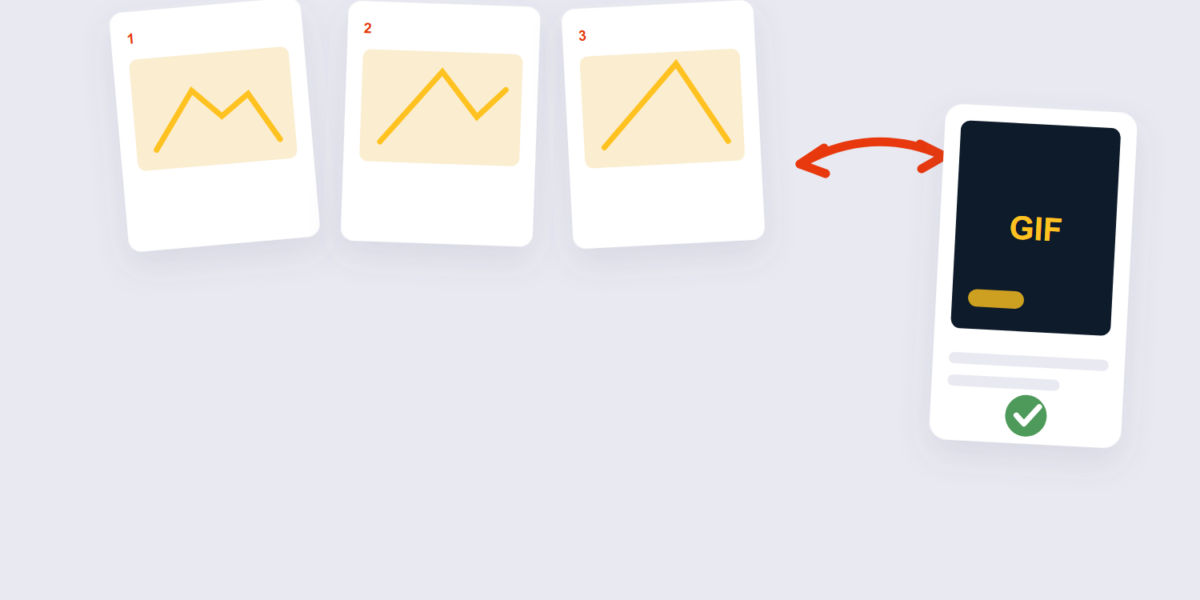
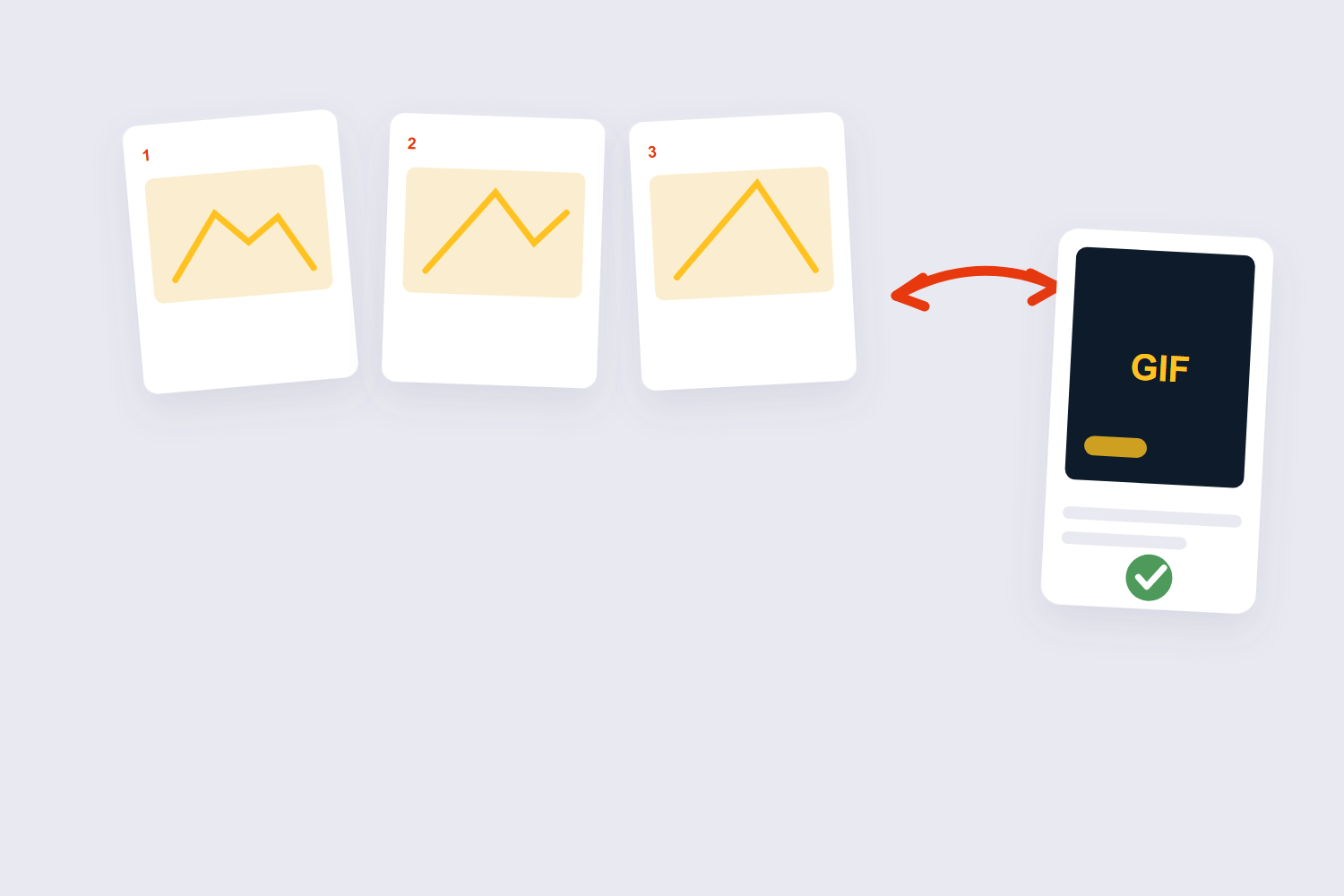
A GIF made from images is basically a flipbook: a stack of pictures shown one after another, fast enough to look like motion. Slideshow previews, product turns, reaction animations, step-by-step demos — all the same trick. And because GIFs are just image sequences, you don’t need video editing skills to make one. You need your images in the right order and one timing setting done right.
This guide builds one with our GIF Maker, then covers the frame-delay logic that separates smooth GIFs from broken ones, the loop settings people get wrong, and how to keep the file size under control — GIFs balloon faster than any other format.
How to Make a GIF from Images Online Free (3 Steps)
- Add your frames. Drop the images into the GIF Maker in the order they should play. Everything runs in your browser — the images never leave your device.
- Set the timing. Choose the frame delay (more on picking a number below) and the loop behavior. Reorder frames by dragging if the sequence needs fixing.
- Generate and download. The GIF assembles and downloads, ready for chat, docs, or a website.
Frame Delay: The Setting That Decides Everything
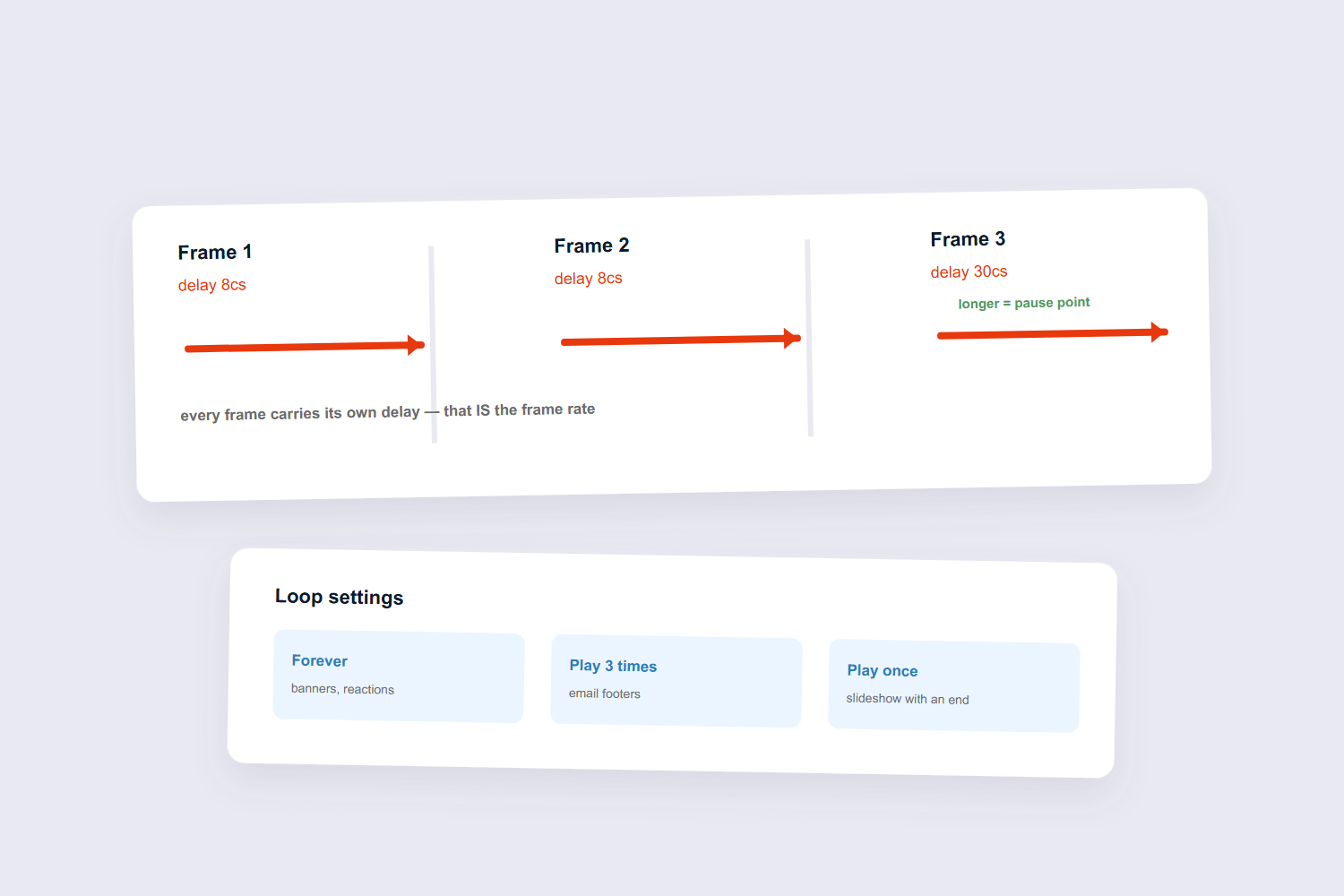
Here’s the fact that explains half of all broken GIFs: the GIF format has no true frame rate. Instead, every frame carries its own delay — the time it stays on screen before the next one. Set every delay the same and the animation runs evenly; vary them and you can hold one frame for a second while others flash past in milliseconds.
Practical numbers, in the centiseconds the format actually uses: a delay of 10 (0.1 seconds) gives a classic stop-motion feel — perfect for step-by-step demos where people need to read each frame. Delays of 2–5 create fast, smooth motion for product turns and reactions. The frame-extraction communities on Reddit standardize around exactly this range, and their one consistent warning: delays below 2 often get clamped by browsers, so ultra-fast GIFs don’t always play as fast as you set them.
| You’re making… | Frame delay | Feel |
|---|---|---|
| Tutorial / step demo | 80–100 | Slideshow — readable |
| Product turn / preview | 5–10 | Smooth rotation |
| Reaction / meme | 2–7 | Snappy, energetic |
Loop Settings, Done Right
GIFs loop by default, and “loop forever” is right for most uses — banners, chat reactions, website accents. But two other options exist and are routinely misused. A fixed loop count (play 3 times, stop) works for email footers where infinite motion is distracting. And a non-looping GIF is the choice for anything that’s really a slideshow with an end — though Reddit threads note that some platforms force GIFs back to looping regardless of the setting, so test where it will actually live.
One etiquette rule from watching a lot of GIFs die on contact: an infinitely looping GIF with no pause at the end reads as broken — viewers can’t tell where the animation restarts. Add a longer delay on the last frame and the loop suddenly feels intentional.
Keeping the File Size Alive
GIFs store every frame in full — that’s why a 5-second GIF can outweigh a 30-second video. Before making a 60-frame monster, three cuts that keep the quality and lose the weight:
- Fewer frames. 10–20 frames cover most product and demo GIFs; beyond 30, size climbs steeply.
- Smaller dimensions. Halving the width cuts the size by roughly three quarters — resize with the image resizer before assembling.
- Fewer colors per frame. GIF is limited to 256 colors per frame anyway; flat graphics compress far better than photos.
And when a GIF has served its purpose and you need the frames back — screenshots, reordering, re-editing — the GIF to Images tool unpacks it frame by frame. The whole pipeline is reversible.
Frequently Asked Questions
How many images do I need for a good GIF?
As few as 3 for a simple flip-flop effect, 10–20 for most product and demo animations. Quality comes from ordering and timing, not frame count.
What frame delay should I use?
80–100 centiseconds for readable step-by-step GIFs, 5–10 for smooth motion, 2–7 for fast reactions. Below 2, browsers often clamp the speed anyway.
Why does my GIF look choppy?
Usually uneven delays across frames or too few frames for the motion. Set every delay equal for even playback, and add intermediate frames if the jump between them is too big.
Can I make a GIF that plays only once?
Yes — set the loop count to 1 in a tool that exposes it. Be aware some platforms override GIF loop settings with their own players.
Why is my GIF so huge?
Full frames at full dimensions. Cut frames, shrink dimensions before assembling, and prefer flat graphics over photos — GIF’s 256-color limit punishes photos hard.
Does making a GIF upload my images?
Not with a browser-based tool — ours assembles the GIF on your device. The frames never leave it, which matters for unreleased product shots and personal photos.
Order the frames, set an even delay, size for the destination. If the finished GIF needs a size trim first, compress its frames with the JPG compressor before assembling — and the resize guide covers the dimension side.
