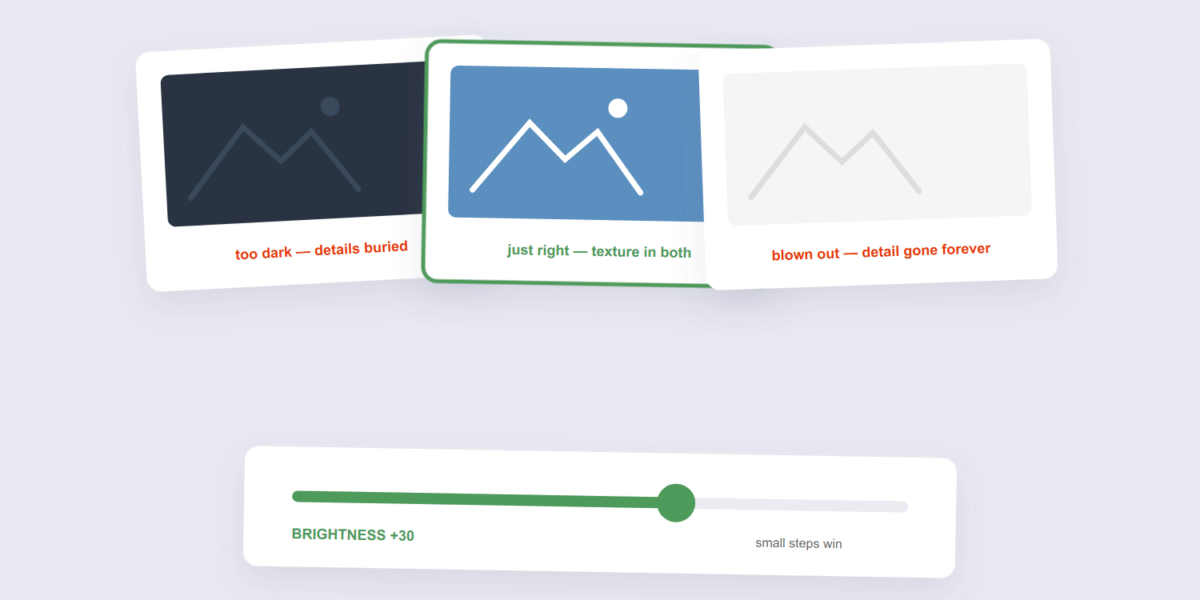
Brightness is the first fix every photo needs and the easiest one to overdo. Too dark and the details hide; too bright and they burn away to pure white. The goal isn’t a brighter photo — it’s a photo where both the shadows and the highlights still hold their information.
This guide covers the adjustment with our Brightness Image tool, the two-tell system for finding the right level, and when brightness is the wrong fix entirely.
How to Adjust Image Brightness Online Free (3 Steps)
- Add the image. Drop it into the Brightness Image tool — processed on your device.
- Adjust. Move the brightness slider in small steps. Watch two areas as you go: the brightest part of the image and the darkest. Both should keep their detail.
- Apply and download. The adjusted photo downloads, dimensions unchanged.
The Two-Tell System for Finding the Right Level
Forget the slider position — judge the result. Tell one: the highlights. Look at the brightest area (a white shirt, a sky, a lamp). If it’s turning into a flat, featureless white patch, you’ve pushed too far — that detail is gone for good. Tell two: the shadows. Look at the darkest area. If it’s becoming a flat black blob, too dark. A well-adjusted photo shows texture in both.
The common trap: dark photos get brightened until they look washed out and grey. If a dark photo looks muddy, it usually needs contrast more than brightness — making the darks darker while brightening only the mid-tones. Brightness lifts everything equally; it’s a blunt instrument, so small moves win.
When Brightness Is the Fix — and When It Isn’t
| Problem | Right fix | Why |
|---|---|---|
| Photo too dark overall | Brightness up, small steps | Global lift is what’s needed |
| Photo looks flat/grey | Contrast first, brightness second | The tones need separation, not a lift |
| Part of the image is too dark | Crop or re-shoot | Global brightness over-lights the rest — crop tool here |
Frequently Asked Questions
Does adjusting brightness reduce quality?
The adjustment itself recalculates pixels without adding blur or artifacts. The quality risk is at the extremes: over-brightening clips detail to pure white permanently. Within sensible limits, it’s safe.
Can I brighten a photo that’s too dark to see?
It depends on how dark. If the file still records faint detail in the dark areas, brightening can reveal it. If the area is pure black in the file, nothing is there to reveal. Try once, gently — the data either exists or it doesn’t.
Brightness or contrast first?
Brightness first, then contrast. Lift the image to a sensible mid-tone, then separate the tones if the result looks flat.
Can I adjust brightness on a batch of images?
Yes — batch processing works, which is handy for a set of photos taken in the same lighting, since they usually need the same correction.
Small steps, watch the highlights and shadows. If the photo needs sharpening after tone fixes, the sharpen tool comes last in the workflow — per our sharpening guide.
