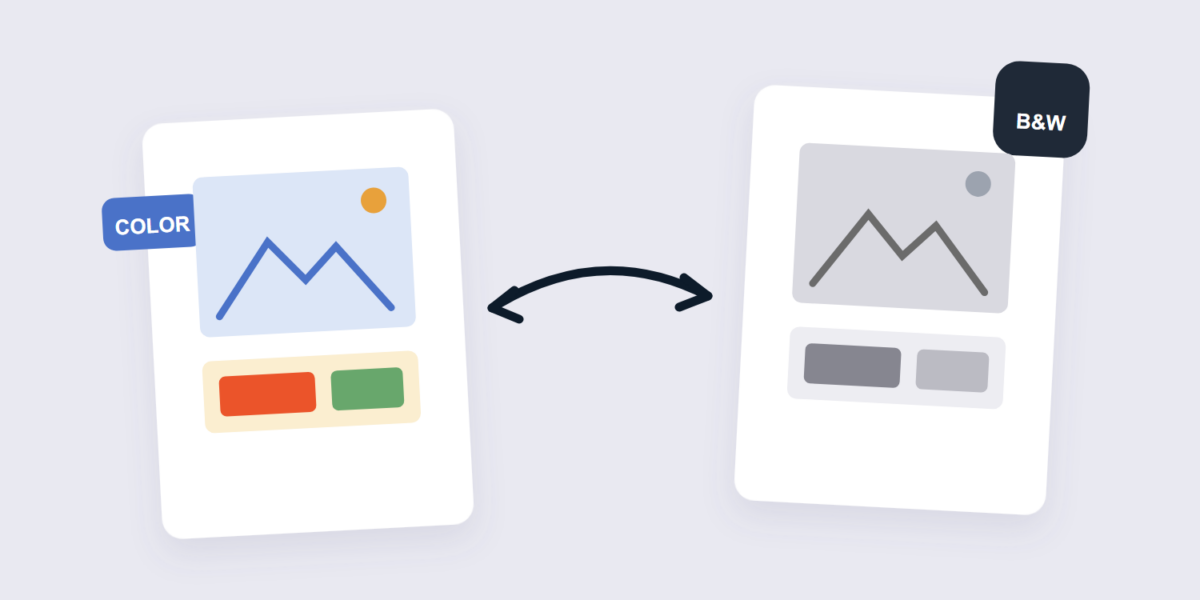
Black and white isn’t the absence of color — it’s a translation, and like any translation, quality depends on how it’s done. The same photo can convert to a rich, tonal monochrome or a flat grey mush, purely based on what happens before and during the conversion.
This guide covers the conversion with our Grayscale Image tool, the preparation step that separates good monochromes from bad ones, and the format notes (grayscale PNGs and JPGs behave differently).
How to Convert an Image to Grayscale Online Free (3 Steps)
- Add the image. Drop it into the Grayscale Image tool — converted on your device.
- Convert. Each color pixel maps to a matching grey tone based on its brightness.
- Download. The monochrome version downloads, dimensions unchanged.
The Preparation Step Everyone Skips
The black-and-white photography guides agree on one thing: fix exposure and contrast before converting. Why it matters so much: color problems that are subtle in a color photo become tonal problems in grayscale. A slightly green-tinted photo looks fine in color, but converts to a flat, lifeless grey because the tint was masking uneven luminance. A well-exposed color photo converts to a rich monochrome.
Concretely: before converting, push the brightness and contrast until the color version looks its best. Grayscale conversion then keeps that tonal depth instead of flattening it.
How the Conversion Maps Colors to Grey
The conversion doesn’t average the colors — it weights them by how the human eye perceives brightness. Green contributes most, red less, blue least. That’s why a red rose and a green leaf with the same “brightness” convert to different greys — and why some photos lose their subject in conversion: a red flower on green foliage can map to nearly identical greys, making the subject vanish. If that happens, adjusting the color version’s brightness per-region first (or picking a photo with stronger tonal separation) solves it.
Format Notes: Grayscale PNG vs JPG
| Use | Format | Note |
|---|---|---|
| Documents, scans, print | Grayscale PNG/PDF | Text stays crisp, no artifacts |
| Photos for sharing | Grayscale JPG | Smaller; 85%+ quality keeps tones smooth |
| Web graphics | Grayscale WebP | Smallest — converter here |
Frequently Asked Questions
Does converting to grayscale reduce file size?
Yes, usually — removing the color channels cuts data, and the simplified tonal information compresses better. The size drop is typically 20–40% before any compression settings change.
Can I convert back to color?
No — grayscale conversion discards the color data permanently. Colorization is an AI-reconstruction job, not a recovery one. Always keep the original.
Why does my photo look flat in grayscale?
Flat monochrome comes from flat color sources. Boost contrast and exposure on the color version before converting — the tonal depth carries over.
Is grayscale good for documents?
Excellent — text scans in grayscale are crisper than color and smaller than full-color scans, and they print more predictably on mono printers.
Prepare, convert, keep the original. For text-heavy scans headed into a PDF, the image to PDF tool collects them — and grayscale scans make smaller PDFs too.
