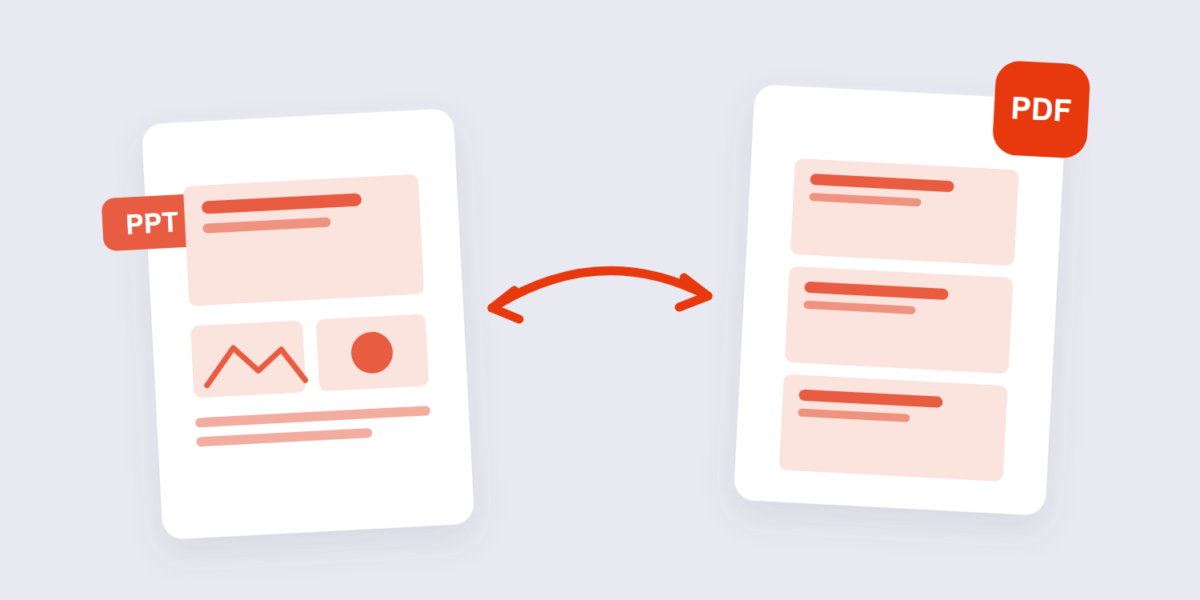
The deck is finished. It looks right on your laptop. And now it has to survive contact with the real world: a conference laptop with none of your fonts, a phone screen at the back of the room, a client who’ll open it in a PDF reader you’ve never heard of. Converting PowerPoint to PDF is how decks stop depending on other people’s software.
This guide covers the conversion itself, the font problem that ruins half of all converted decks (with the two-minute fix done in PowerPoint before you convert), what converts and what doesn’t — animations, honest answer — and what happens to your file during an online conversion.
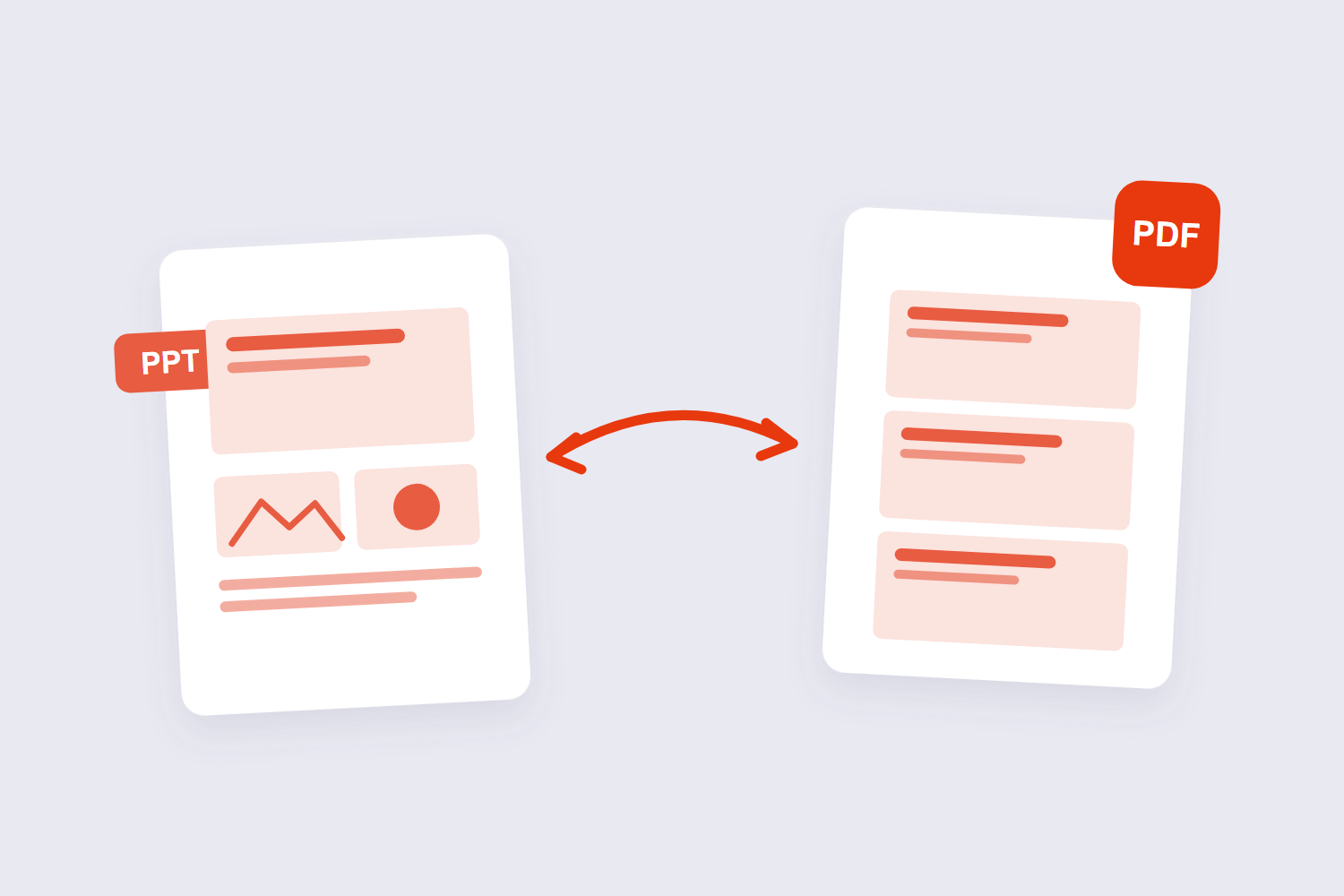
How to Convert PowerPoint to PDF Online Free (3 Steps)
- Upload the deck. Drop your .ppt or .pptx into the PowerPoint to PDF tool. No account, no email.
- Convert. Each slide becomes a fixed PDF page — layout, colors, and images locked in place exactly as designed.
- Download. The PDF opens the same everywhere: presenter’s laptop, client’s phone, print shop. No PowerPoint required on the receiving end.
The Font Problem — and the Two-Minute Fix
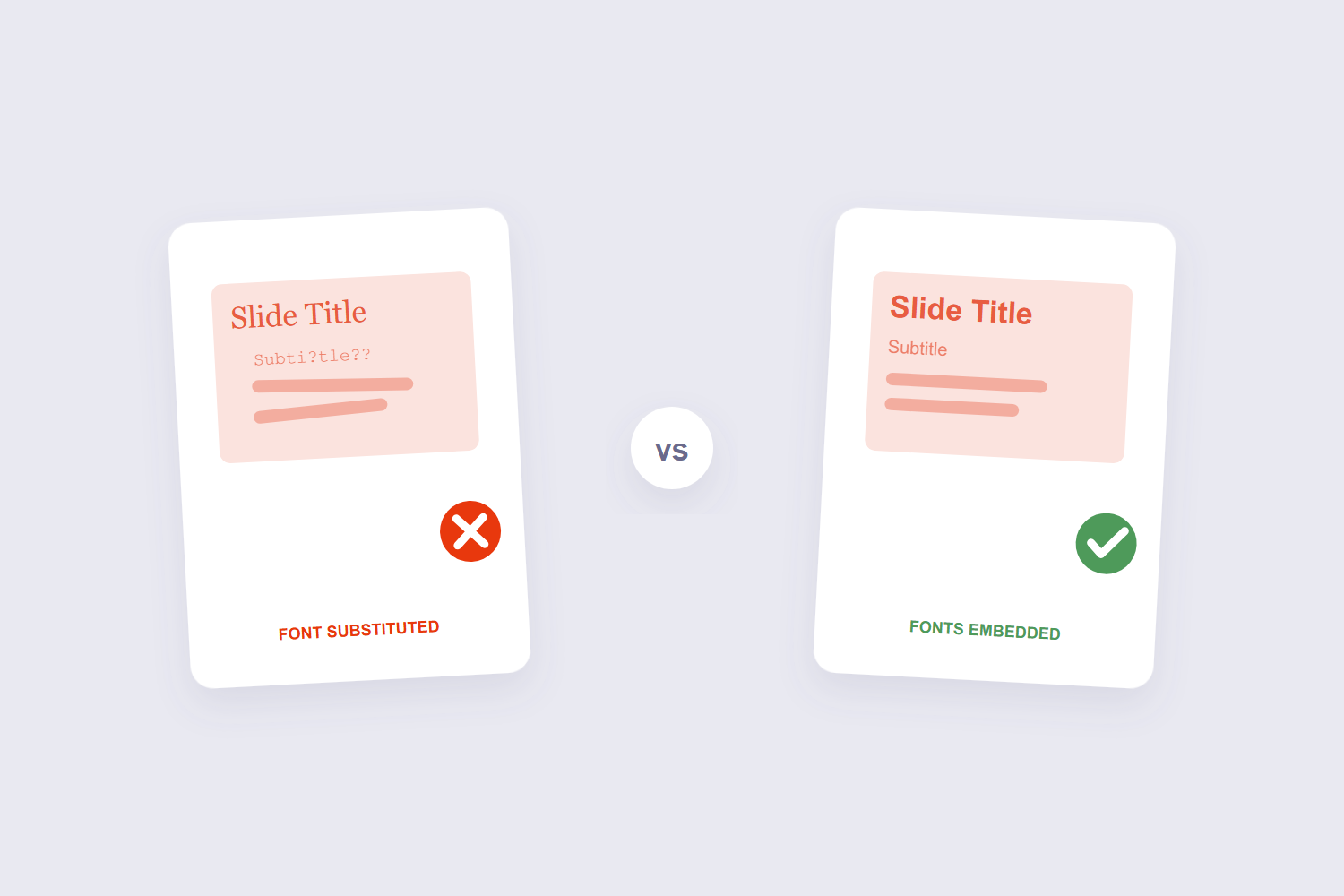
This is the complaint that fills every PowerPoint forum: the PDF comes out with different fonts, shifted text, overlapping titles. The cause is simple — the converting machine didn’t have your fonts. PowerPoint substitutes what’s missing, and substitution cascades: wider letters wrap differently, text boxes overflow, layouts shift.
The fix happens in PowerPoint before any conversion: File → Options → Save → check “Embed fonts in the file” and pick “Embed all characters.” (Detailed walkthrough here.) The fonts now travel inside the .pptx, and the PDF conversion uses them instead of guessing. One honest caveat: some licensed fonts refuse to be embedded — that’s a font-license restriction, not a tool bug, and the practical workaround is switching to a standard font for anything you’ll convert.
TrueType fonts embed most reliably; exotic display fonts are the usual troublemakers. If a client’s brand font keeps breaking, test the embed with one slide before converting a 60-slide deck.
What Converts (and What Doesn’t)
| Element | In the PDF | What to do |
|---|---|---|
| Slides, layout, images, charts | Convert exactly as designed | Nothing — this is the win |
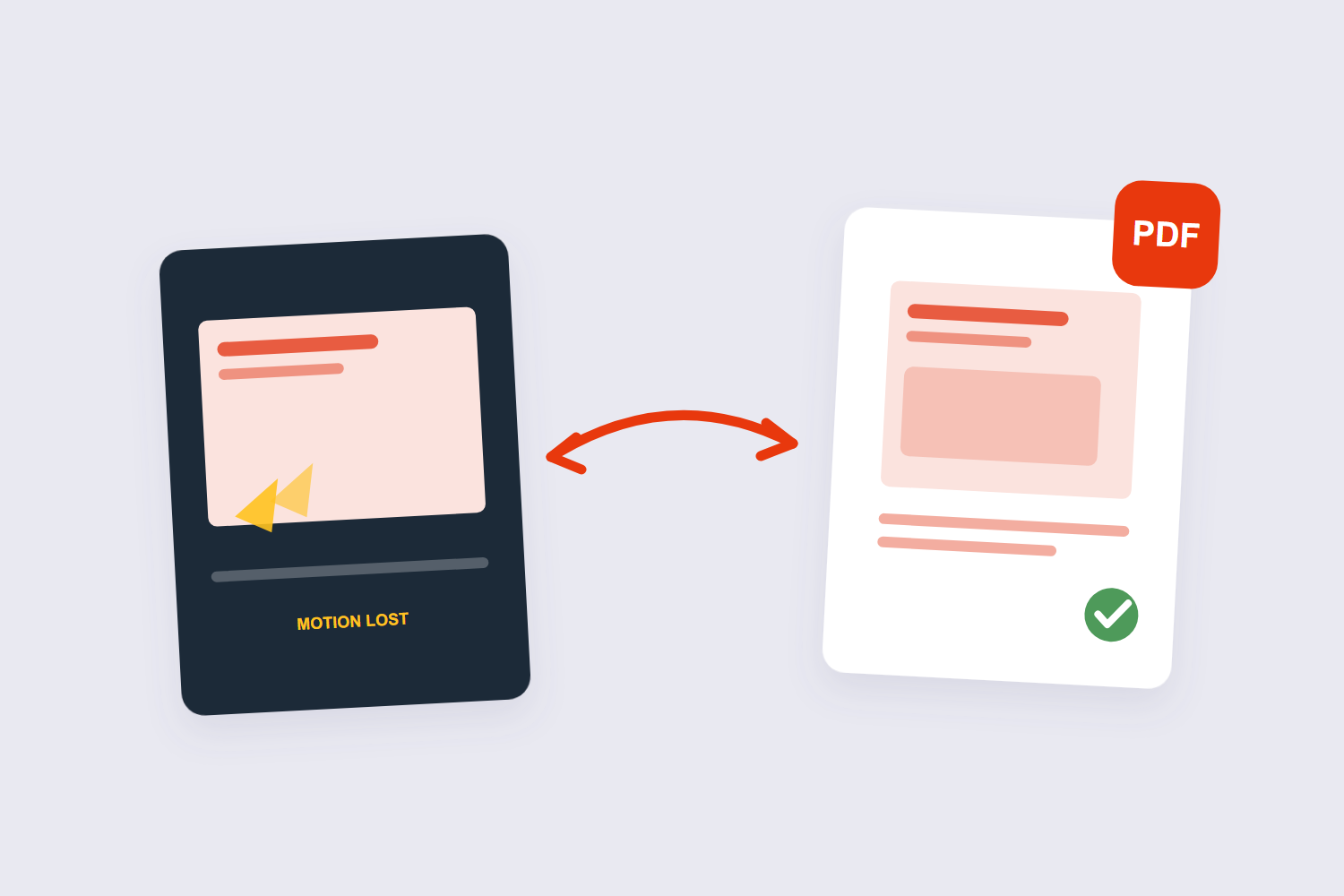
| Animations & transitions | Gone — PDF is static | Send the .pptx when animation matters |
| Speaker notes | Not in the standard slide export | Export notes pages from PowerPoint if needed |
| Embedded videos | Static frame only | Link the video alongside the PDF |
That table is also the decision rule for “should I even send a PDF?” If the deck’s argument depends on build-up animations or an embedded video, the PDF loses the argument. The usual cause of a shifted Word-to-PDF conversion is fonts the converter cannot find. Word documents reference fonts by name; if the converting machine does not have that font, it substitutes the closest match and every line break can move. If it depends on looking identical everywhere — which is most business decks — the PDF wins every time.
What Happens to Your File
Slide conversion is heavier processing than page-level PDF edits, so this tool converts on a secure server: the transfer is TLS-encrypted and files are automatically deleted within an hour of processing — the tool’s page states plainly that nothing is read or shared beyond that window. For standard decks that’s a reasonable trade. For decks containing genuinely confidential material, desktop PowerPoint’s own File → Save As → PDF keeps the file local end to end.
One workflow note for bigger packages: decks often travel with supporting documents. Convert each file separately, then combine everything in order with the PDF merge tool — and if the result gets heavy, the compressor trims it before emailing.
Frequently Asked Questions
Why do my fonts change when I convert PPT to PDF?
The converting machine lacked your fonts and substituted them. Embed fonts in the .pptx first (File → Options → Save → Embed fonts), then convert — the PDF will use the embedded originals. PowerPoint slides convert to PDF at their slide dimensions — 13.33 × 7.5 inches for 16:9, or 10 × 7.5 inches for the older 4:3 layout. The PDF keeps that page size, so a 16:9 deck prints with margins on A4 paper.
Do animations survive the conversion to PDF?
No — PDF is a static format, so animations and transitions are dropped. Slides convert as they look in their final state. Send the .pptx when motion carries the message.
Can I include speaker notes in the PDF?
The standard conversion produces one slide per page without notes. If you need a notes handout, use PowerPoint’s own “Notes Pages” print-to-PDF option, or paste key notes into the slides before converting.
Is the PDF smaller than the PowerPoint file?
Usually — decks stuffed with videos and editable media shrink dramatically as PDFs. If it’s still too heavy to email, run it through the compressor afterward.
Can I convert just some slides?
Convert the whole deck first, then keep the slides you need — deleting pages from a PDF is a ten-second job with the thumbnail-based delete pages tool.
Does the converted PDF work on phones?
That’s the point. A PDF renders the same on every phone, tablet, and laptop without any app — no PowerPoint mobile quirks, no font substitutions, no layout surprises.
Embed the fonts, convert, check one slide against the original. For turning those fixed slides into images — for social posts or previews — the PowerPoint to JPG tool handles that next step.
