Sooner or later someone asks for a “picture” of your document — a form to post in a group chat, a page to drop into a presentation, a preview for a listing. And Word, despite four decades of updates, still has no Save as Image button. That gap is why this question never dies on every Office forum.
There are three ways people fill it, and one of them quietly ruins quality. This guide covers the proper conversion with our Word to JPG tool, why screenshots lose to it, and what happens to each page of a multi-page document.
How to Convert Word to JPG Online Free (3 Steps)
- Upload the document. Drop your .doc or .docx into the Word to JPG converter. No account, no email step.
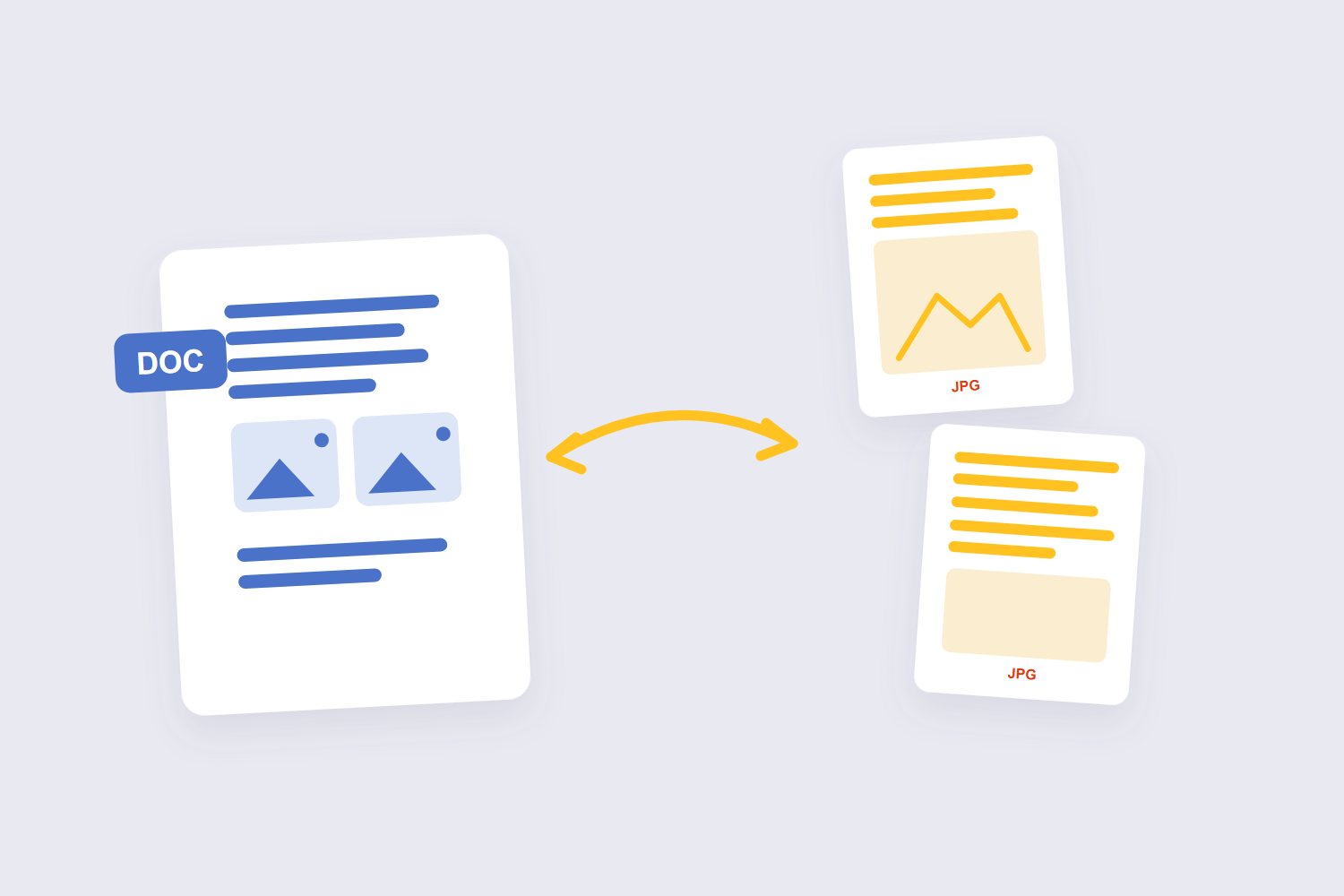
- Convert. The tool renders each page of the document exactly as Word would print it — fonts, tables, images, layout intact.
- Download. One JPG per page, at full page quality. A 4-page document becomes 4 images; no cropping, no scrolling captures.
3 Ways to Get a JPG Out of Word — Compared Honestly
| Method | Quality | Multi-page? | Verdict |
|---|---|---|---|
| Converter tool (ours) | Full page render | One JPG per page automatically | The proper way |
| Screenshot (Snipping Tool) | Screen resolution only | Manual, per visible chunk | Quick single-line grabs only — the standard Reddit quick answer, and it shows |
| PDF route (Word→PDF→JPG) | Full page render | Yes, in two steps | Same result, more clicks |
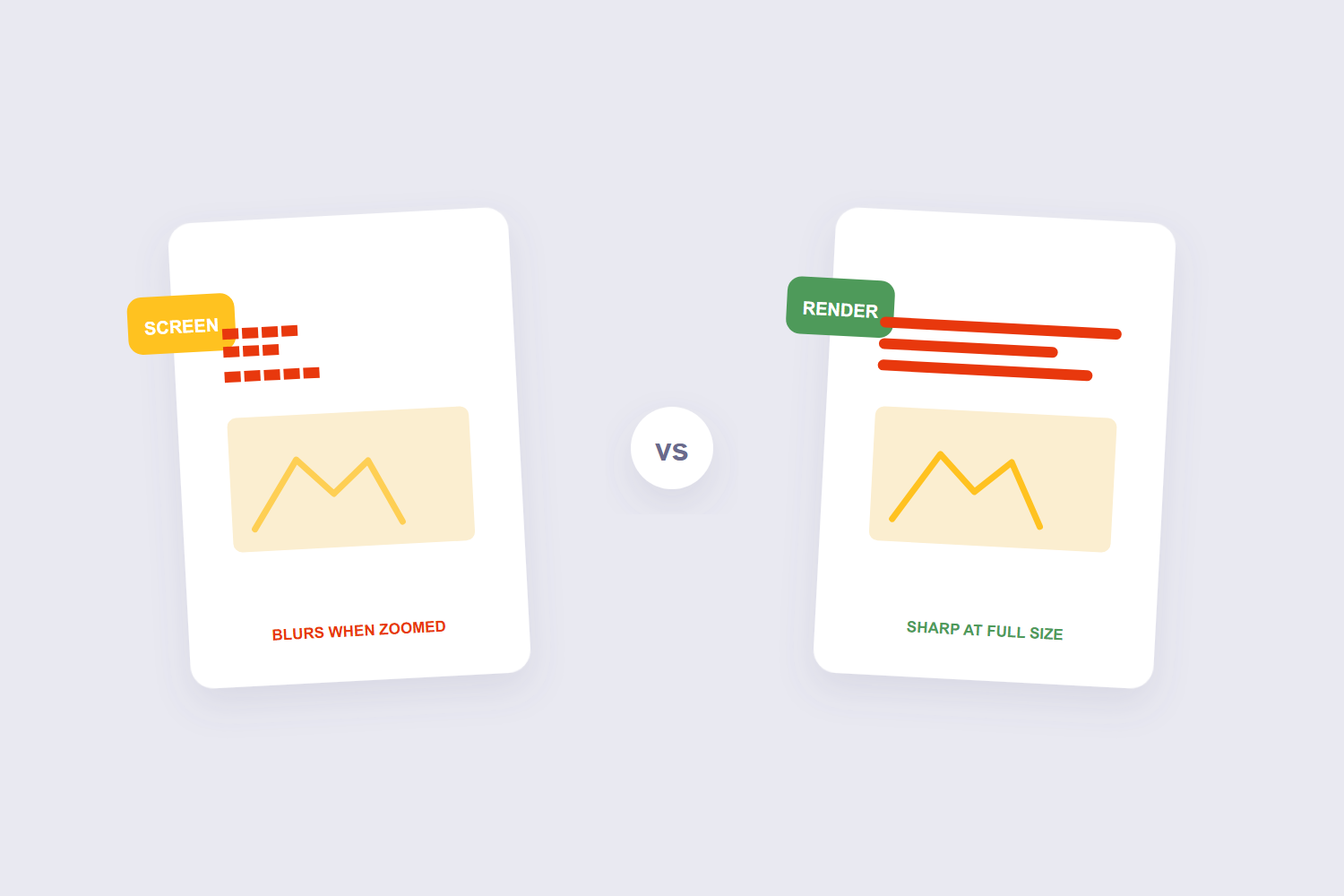
The screenshot method deserves its bad reputation: it captures your screen, not the document, so text lands at screen resolution and the output blurs the moment anyone zooms. Adobe’s own guidance for Word to JPG conversion routes through PDF for the same reason — a page render beats a screen grab every time. Our tool does that render directly, so you skip the middle step.
Multi-Page Documents: One JPG per Page
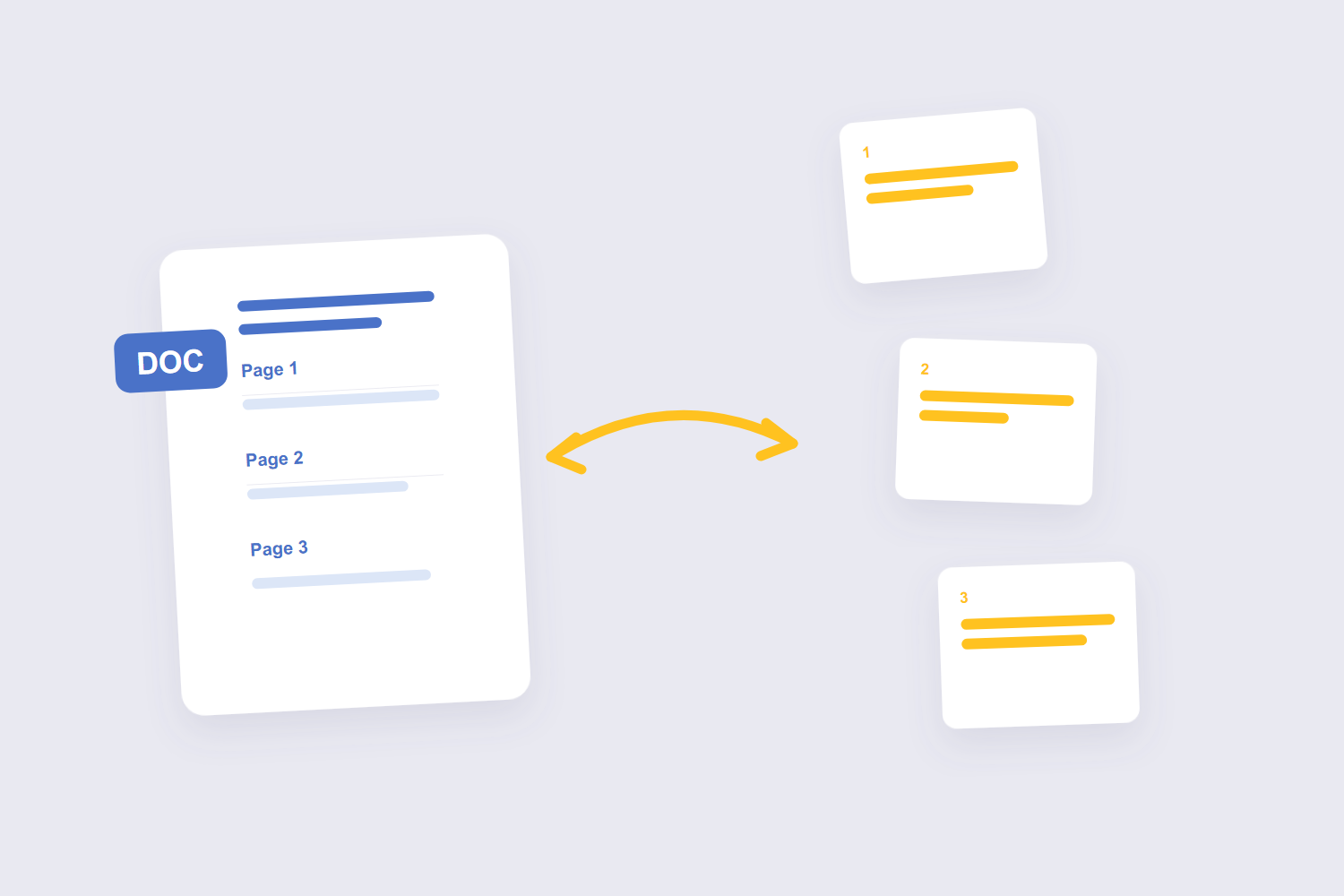
The first thing to understand: a multi-page Word file becomes multiple JPGs — one image per page, because JPG has no concept of pages. That’s usually what people actually want: each page lands as its own sharable image. PDF-to-image conversion has to pick a resolution, and that choice decides the output size. Rendering a page at 72 DPI produces an image roughly 595 × 842 pixels for A4; at 300 DPI the same page is about 2480 × 3508 pixels — eleven times the pixels and a far larger file. If you truly need one long image of the whole document, the honest answer is that no converter does this well — stitching page images vertically in an editor is the only faithful route, and for most uses (chat, slides, listings) separate pages are better anyway.
Page breaks matter here too: a document that flows badly in Word converts badly — the images capture exactly where Word decided to break. A quick print preview before converting catches awkward page ends while they’re still fixable.
What Happens to Your File
Document conversion runs on a secure server rather than in your browser: the transfer is TLS-encrypted and files are automatically deleted within an hour of processing — nothing is read or shared beyond that. JPEG has no alpha channel at all, so any transparency in the source is filled with white (or another colour you choose) the moment you save as JPEG. PNG and WebP both carry alpha. For everyday documents that’s a fair trade. For anything sensitive, desktop routes (Word’s own Save as PDF, then a PDF-to-image step) keep everything on your machine.
Frequently Asked Questions
Why doesn’t Word just have a “Save as JPG” option?
Word is a text processor — its native formats keep text editable. Images are flat pictures, so exporting to one falls to converters. It’s a design decision, not an oversight, though four decades of users have filed it as one.
Does the conversion keep my fonts and tables?
Yes — the pages are rendered as Word would print them, fonts and tables included. The three web formats differ in what they keep. JPEG discards detail permanently to shrink size, PNG stores every pixel losslessly and supports transparency, and WebP can do either — lossy or lossless — usually landing 25–35% smaller than an equivalent JPEG or PNG. The one exception is fonts not installed on the converting system; standard fonts convert identically. The usual cause of a shifted Word-to-PDF conversion is fonts the converter cannot find. Word documents reference fonts by name; if the converting machine does not have that font, it substitutes the closest match and every line break can move.
How do I convert Word to JPG without losing quality?
Use a page-render converter rather than screenshots. The output carries the full page at print quality; screenshots carry only your screen’s resolution and blur when zoomed.
Can I convert only one page of the document?
Convert everything, keep the page you need, and delete the rest of the images — faster than trying to limit the conversion. Each page arrives as its own file, so picking one is trivial.
JPG or PNG for a document image?
JPG for sharing and smaller files; PNG when the page has sharp text you’ll zoom into — PNG is lossless and keeps letter edges crisp. Our PDF to PNG tool handles the PNG version of the same workflow.
Can I turn the JPG back into a document?
Not usefully — a JPG is a picture of text, not text. If the recipient needs to edit, send the .docx or a PDF; images are for viewing and sharing only.
Convert, check the first page against Word’s print preview, share. If your document only needs to become a fixed, uneditable file — not an image — the Word to PDF tool is the one-step version, and our Word to PDF guide covers it fully.
