Cropping is the quiet hero of image editing: the stranger in the corner of an otherwise perfect photo, the dead space above a product shot, the wide screenshot that needs to be a tall story post. No filters, no AI — just deciding what stays in the frame.
Our image crop tool does it in a few seconds, locally in your browser. This guide covers the steps, the crop-versus-resize distinction that prevents most mistakes, and the social media ratios that stop platforms from butchering your framing.
How to Crop an Image Online Free (3 Steps)
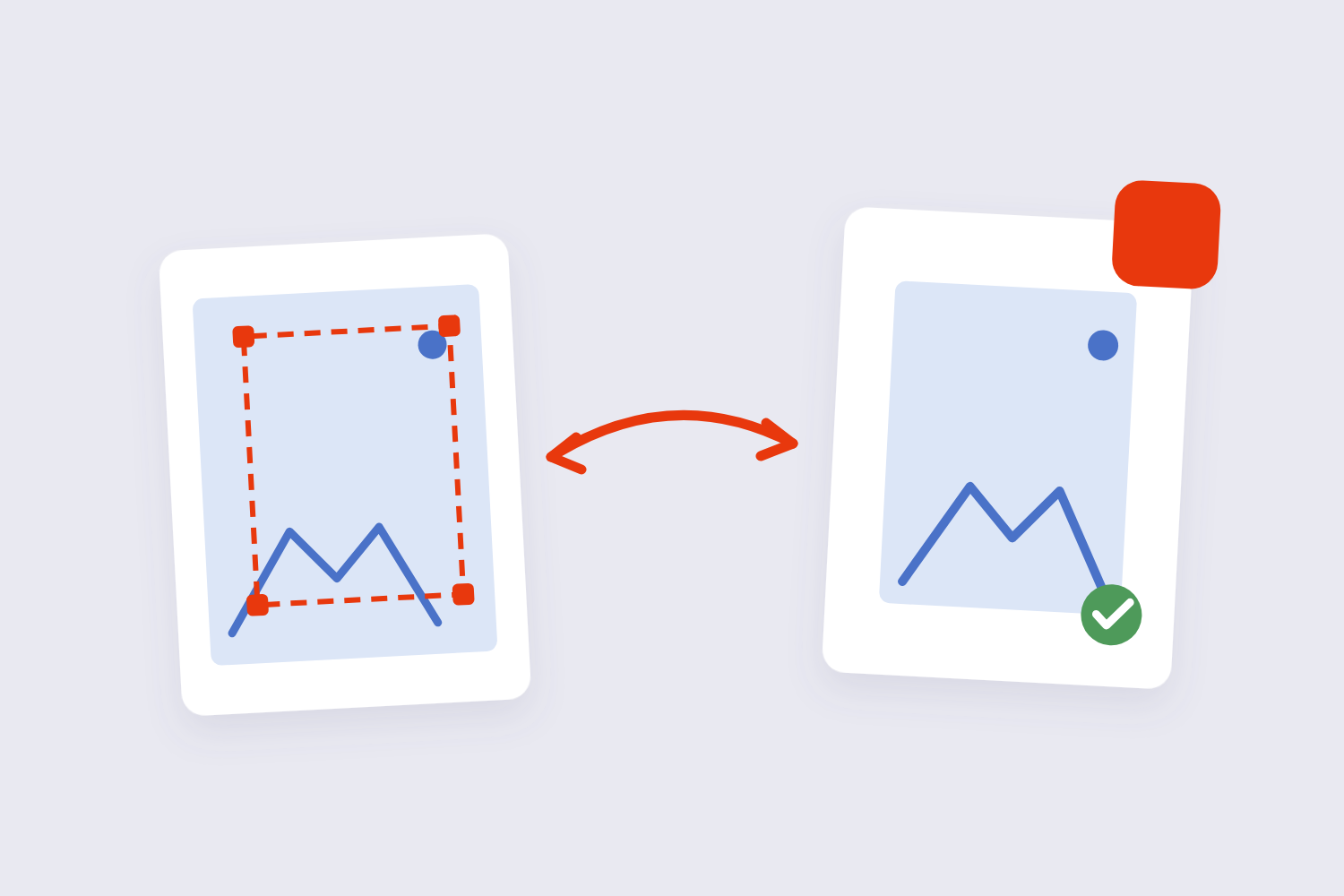
- Add the image. Drop it into the Image Crop tool. The image is processed on your device — nothing uploads.
- Set the crop frame. Drag the handles over the area you want to keep, or lock a preset ratio (1:1, 4:5, 16:9) if the destination demands a shape.
- Crop and download. Everything outside the frame is gone for good, and the kept region keeps its original pixel quality — cropping never softens what survives.
Crop vs Resize: Cutting vs Squeezing
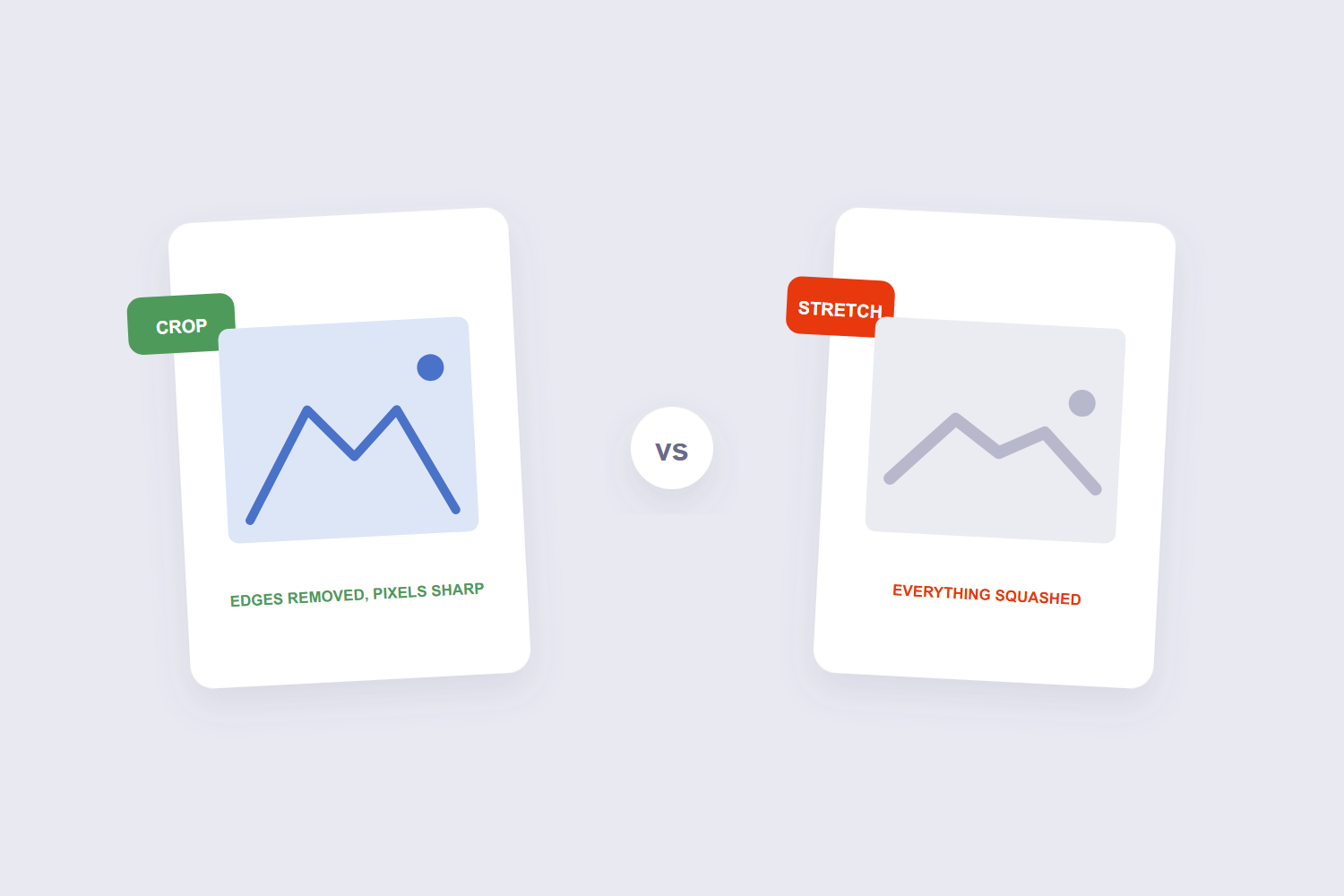
These two get confused because both make images “smaller,” and they do opposite things. Resizing scales the whole image — every pixel gets smaller, the full scene stays. Cropping removes edges and keeps the remaining pixels at their original quality — the scene gets smaller, the detail doesn’t.
| You want… | Do this | Quality effect |
|---|---|---|
| A tighter composition — remove strangers, dead space | Crop | Kept area stays pixel-perfect |
| A smaller file / smaller dimensions of the same scene | Resize | Whole image scales down |
| A square version of a rectangle photo | Crop (1:1), then resize if needed | No distortion — unlike stretching |
The third row is the one that saves faces from funhouse distortion: when a platform demands a different shape, crop to the shape — never stretch. Resizing after a clean crop gives you the exact dimensions without bending anything.
Social Media Ratios Worth Knowing
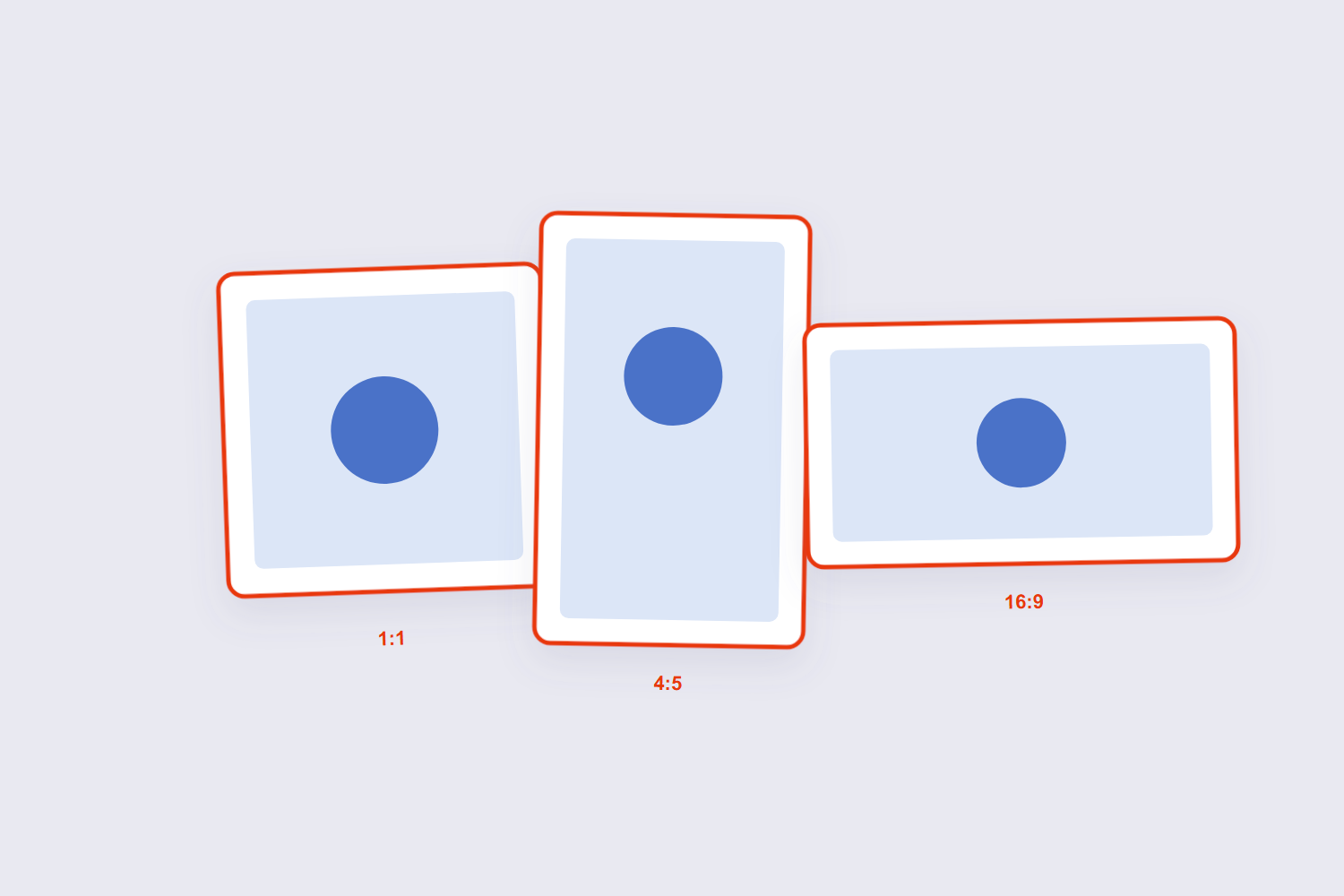
Platforms auto-crop anything that doesn’t match their slots, and their auto-crop has no taste. Cropping to the target ratio yourself keeps the framing decision yours. The numbers that cover most posts, consistent with Adobe Express’s resizing guidance:
| Destination | Ratio | Common pixel size |
|---|---|---|
| Square post / profile picture | 1:1 | 1080×1080 |
| Portrait feed post | 4:5 | 1080×1350 |
| Landscape post / thumbnail | 16:9 | 1920×1080 |
Profile pictures deserve a special note: they render as tiny circles, and the standard advice is to keep the subject’s head in the middle third of a 1:1 crop — platform resize guides all warn that the circle mask eats the corners.
Two Crop Rules From Experience
Leave breathing room. The most common over-crop is hugging the subject so tightly that the photo feels claustrophobic on any screen wider than the crop. Cut the distraction, keep the context.
Crop from a copy of the original. Cropping is destructive — the trimmed pixels are gone from the output file. The tool never uploads your image, but your future self will still thank you for keeping the uncropped master, because the perfect crop for Instagram is wrong for the print you’ll want next year.
Frequently Asked Questions
Does cropping an image reduce quality?
No — the pixels inside the crop are untouched. The image simply has fewer of them. That’s why heavy crops of small images can look soft when enlarged: you’re stretching fewer pixels, not losing quality in the kept ones.
Can I crop an image on my phone?
Yes — the tool runs in mobile browsers with touch-friendly handles. It’s the fastest way to fix framing before posting from the phone.
How do I crop a photo into a circle?
Crop to a 1:1 square with the subject centered — platforms apply the circle mask themselves. For an actual circular image file, our circle crop tool cuts the round version directly.
What’s the best ratio for Instagram posts?
1:1 for square and profile, 4:5 for portrait posts (they fill more screen), 16:9 for landscape. Match the ratio before posting and the platform’s auto-crop never gets a vote.
Can I crop a PNG without losing transparency?
Yes — cropping removes edge pixels only; transparency inside the frame survives. It’s the format conversion to JPG that kills transparency, not the crop.
Is it safe to crop personal photos online?
With a browser-based tool, the image never leaves your device — there’s no upload to judge. That’s the version to use for anything private.
Crop with intent, respect the ratio, keep the master. After cropping, the resize tool hits exact pixel targets, and the compressor trims the file for upload limits.
