Salary slips, signed contracts, scanned IDs — the moment one of these leaves your laptop by email or chat, you’re trusting every server in between. Password protecting a PDF doesn’t make the document paranoia-proof, but it does put real encryption between your file and everyone who isn’t meant to read it, and it takes about thirty seconds.
Most guides stop at the steps. This one also covers what the big tool pages carefully skip: the two different passwords a PDF can carry (and why one of them isn’t really security), how to tell strong encryption from the outdated kind, why “unlock PDF” tools work without knowing your password, and the situations where no online tool — ours included — is the right choice.
How to Password Protect a PDF Online Free (3 Steps)
- Add your PDF. Open the Protect PDF tool and drop the file in. Everything happens in your browser — the document never touches a server.
- Set the password. Type it twice; the tool checks that both entries match. Use a long one. Length beats cleverness: four random words are far harder to crack than “P@ssw0rd!”.
- Encrypt and download. The file comes back encrypted with AES-256 — the strongest scheme the PDF format supports. Anyone opening it from now on needs the password.
The Two PDF Passwords (And the One That Isn’t Real Security)
PDFs can carry two passwords at once, and confusing them is the root of half the bad advice online. The open password (Adobe calls it the document-open password) is real security: without it, the file’s contents are encrypted and unreadable. The permissions password (or owner password) only sets flags — “don’t print this”, “don’t copy text” — and those flags are honored by well-behaved readers and ignored by everything else.
| Open password | Permissions password | |
|---|---|---|
| What it does | Blocks the file from opening at all | Sets print/copy/edit restrictions |
| Is it real encryption? | Yes — content is unreadable without it | No — advisory flags only |
| Can it be bypassed? | Only by cracking (impractical with AES-256 + a long password) | Yes, trivially — many tools strip it in seconds |
| Use it for | Confidential documents | Polite nudges, not protection |
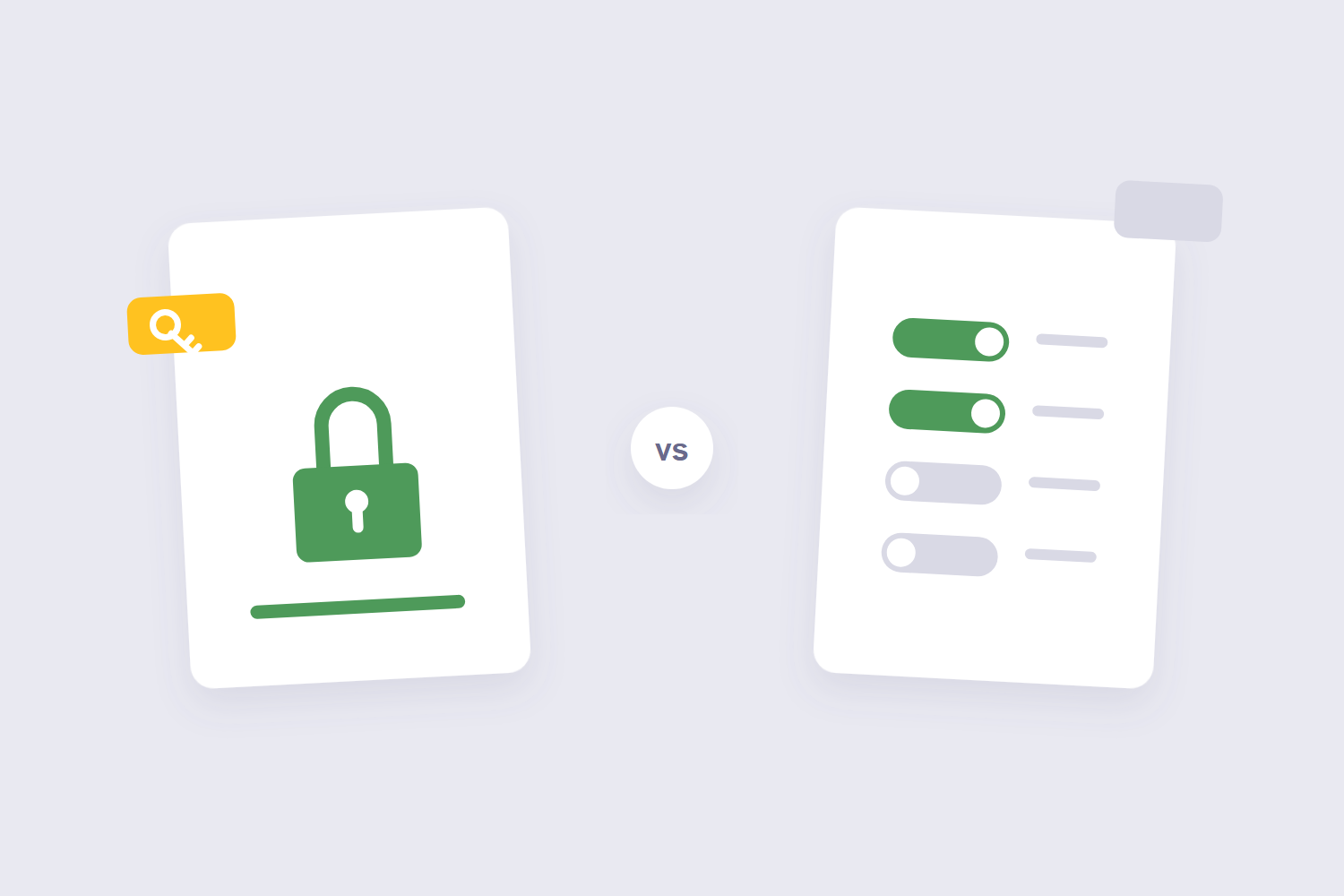
If your goal is “nobody can read my file without the password,” you want the open password. If your goal is “please don’t print my menu PDF,” permissions do that job — just know you’re asking, not locking. Even tool vendors admit it: Sejda’s own encrypt page warns that some applications simply don’t follow the restriction flags.
What Encryption Is Your PDF Actually Getting?
The PDF format has shipped with four encryption schemes over its lifetime, and they are not remotely equal. Legacy files from the 1990s used RC4, a cipher that was formally deprecated in PDF 2.0 because it “no longer offers adequate security.” Anything that still writes RC4 today is producing a lock a hobbyist can pick.
| Scheme | Era | Strength today | Verdict |
|---|---|---|---|
| RC4 40-bit | 1990s | Crackable in seconds | Never |
| RC4 128-bit | Late 1990s | Broken, deprecated | Avoid |
| AES-128 | 2006 (Acrobat 7) | Solid | Fine for most uses |
| AES-256 | 2008+ (Acrobat 9) | Strongest in the format | What you want |
Our Protect PDF tool uses AES-256. One general rule worth carrying with you: if a tool’s page doesn’t tell you which encryption it applies, that silence is an answer. Vendors confident about their cryptography say so.
Why “Remove Password” Tools Work Without Your Password
Ever wondered how websites unlock PDFs they’ve never seen the password for? Now you can answer it yourself from the table above. Most locked PDFs in the wild are permissions-locked — advisory flags — and stripping flags needs no password at all. And files locked with old RC4 encryption fall to brute force because the cipher itself is broken. A file protected with AES-256 and a genuinely long password is a different animal; no free online tool is getting into that one.
This is also why our own Unlock PDF tool can rescue you from a restrictions lock without the password but can’t conjure a forgotten open password out of thin air — nothing can, and any service claiming otherwise deserves suspicion.
When Not to Trust an Online Tool — Including Ours
Most online PDF tools upload your file to a server, encrypt it there, and send it back — deleted from their storage an hour or two later, if their privacy page is honest. That’s an acceptable trade for most documents, but it’s still a copy of your sensitive file sitting briefly on someone else’s machine. Our encryption tool takes a different route: the encryption runs in your browser via JavaScript, and the file never leaves your device — you can watch it work with your Wi-Fi unplugged.
Even so, there are cases where I’d skip every online tool, browser-based or not: anything covered by medical-privacy law, active legal discovery documents, credentials databases — work where the consequences of a mistake are career-ending and a desktop, offline tool costs nothing. Good security includes knowing when the convenient option isn’t the right one.
And one habit that matters more than the tool you pick: send the password through a different channel than the file. PDF attached to an email? The password goes by text message or a phone call. Same-channel delivery means anyone who intercepts the file got the key in the same envelope.
What If I Forget the Password?
Short version: it’s gone. A true open password with AES-256 has no recovery path — the encryption was doing exactly what you asked it to. Store the password in a password manager the moment you set it, or keep a note in a safe place. If the file is permissions-locked instead, the unlock tool will strip it without any password.
A sensible pre-flight for important documents: encrypt a copy, try opening it with the password on a second device, then delete the unencrypted original. Thirty extra seconds, and it catches typos before they cost you the file.
Frequently Asked Questions
Is a PDF password actually encryption?
The open password is — the file’s contents are mathematically scrambled without it. The permissions password isn’t; it just sets advisory flags that compliant readers follow. This is Adobe’s own distinction too, between document-open passwords and permissions passwords.
Can free Adobe Reader add a password to a PDF?
No. The free Reader can open password-protected files but can’t create the protection — Adobe reserves that for paid Acrobat, their online tool with sign-in, or alternatives like the browser-based tool above.
How do I stop someone from printing or copying my PDF?
Set the permissions flags — that’s exactly what they’re for. Be aware they’re advisory: a determined reader with any stripping tool removes them in seconds. If content truly must not circulate, don’t distribute it in PDF form at all.
Can a PDF password expire after a date?
Standard PDF encryption has no expiry mechanism — the password works forever. Time-limited access needs a DRM platform, and those reintroduce the very server-trust problem encryption was solving.
What’s a strong password for a PDF?
Long and unguessable beats complex-but-short. Four unrelated words (“cobalt-mirror-tundra-9”) are stronger than an eight-character symbol soup and much easier to type on a phone keyboard. Whatever you pick, store it somewhere safe immediately — you can’t recover it later.
Can I remove a password from a PDF I own?
Yes — if you know the open password, open the file and re-save without encryption, or use our PDF unlock tool with the password. Restrictions-only locks come off without any password at all.
Encrypt the file, share the password on a different channel, keep a copy of the password somewhere you won’t lose it. And if the document also contains pages nobody needs to see, trim them first with the delete pages tool — the least sensitive PDF is the one with less in it.
