Every editable document eventually becomes a PDF that someone then needs to edit again. A contract needs one clause updated. An old report needs new numbers. A resume you were sent as a PDF needs to become a template you can actually type into. The fastest fix isn’t retyping the whole thing — it’s converting the PDF back into an editable Word document and picking up exactly where the formatting left off.
It’s a genuinely common need across very different jobs: a paralegal updating a contract template, a student reworking an old essay, a job seeker customizing a resume they were emailed as a PDF, a marketer pulling copy out of an old brochure. In every case, the document already exists in a well-structured form — converting it just unlocks the ability to edit it again, rather than starting over.
This guide covers how to convert a PDF to Word online for free, what actually happens to your fonts, headings, and tables during the conversion, and how to get the cleanest possible result on the first try — along with what to expect from documents that don’t convert perfectly, and how this compares to the other ways people try to get editable text out of a PDF.
What Happens When You Convert PDF to Word?
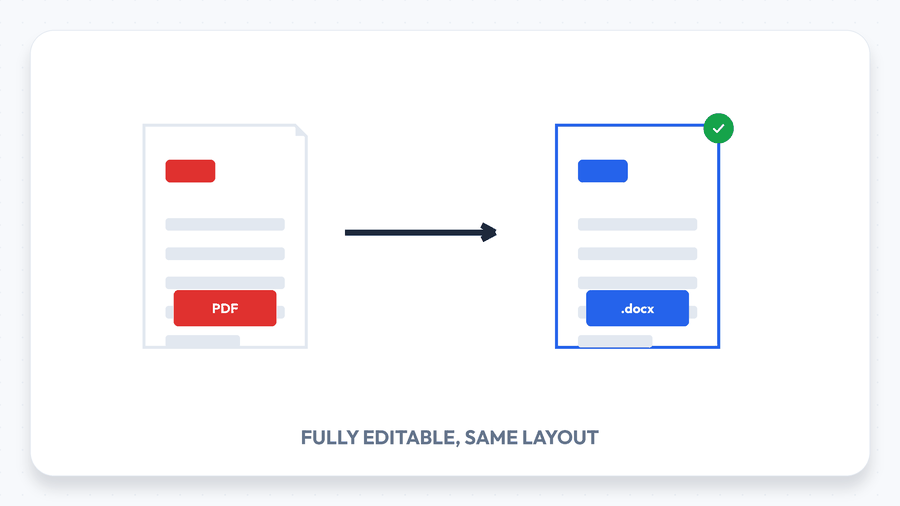
A PDF is designed to look the same everywhere; a Word document is designed to be edited. Converting between them means rebuilding the page: paragraphs, headings, bullet lists, and tables are reconstructed as live, editable elements instead of fixed print layout, and embedded images are carried over inline in roughly the same position. For a standard text document — a report, a letter, a contract, a set of meeting notes — this reconstruction is very reliable, because the underlying structure (headings, paragraphs, spacing) is exactly what Word documents are built from in the first place.
The one important distinction is between a PDF that contains real, selectable text and one that’s actually just a scanned image saved as a PDF. If you can highlight and copy text from the original PDF, it will convert cleanly. If the “text” is really a photo of a page — common with scanned contracts or old paperwork — a converter has nothing to reconstruct from, and turning that into genuinely editable text requires OCR (optical character recognition) software specifically, which is a different process than a standard PDF-to-Word conversion.
How to Convert PDF to Word in 3 Simple Steps
You don’t need Microsoft Word or any installed software to do the conversion itself — only to open the result afterward. Using a browser-based tool like PDF to Word, the process takes well under a minute.
Step 1: Upload Your PDF
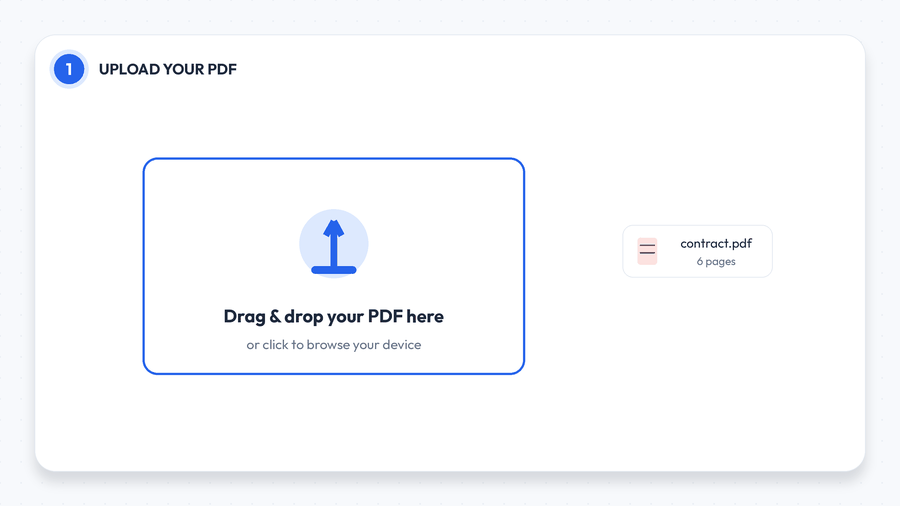
Open the PDF to Word tool and drag your file onto the upload area, or click to browse your device. There’s no file size limit for standard documents, so a typical multi-page report or contract uploads just as easily as a single-page letter.
Step 2: Let It Convert
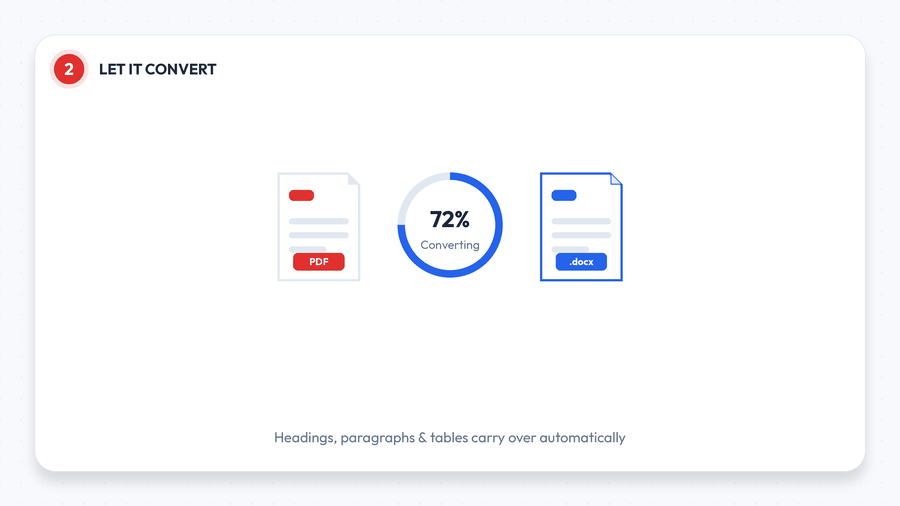
Once uploaded, the tool processes the file automatically — headings, paragraphs, and tables carry over without any manual setup. DOCX stores content as XML inside a ZIP container, which is why the same document can be read by Word, LibreOffice and Google Docs. PDF stores fixed-position drawing instructions, which is why it looks identical everywhere but is far harder to edit back. This step usually takes just a few seconds for typical documents, though longer, image-heavy files can take a little more time.
Step 3: Download Your Word File
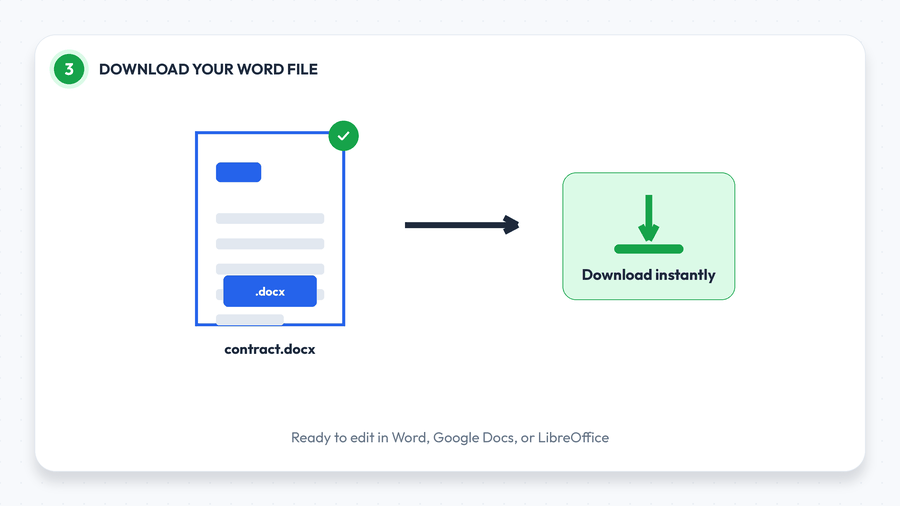
Download the resulting .docx file and open it in Word, Google Docs, or LibreOffice — you don’t need Microsoft Word installed to run the conversion itself, only to open the final file if that’s your editor of choice. Unlike lighter tools such as Merge PDF that run entirely in your browser, converting a PDF into an editable Word file is heavy enough to run in your browser — so your file is sent over an encrypted connection and permanently never uploaded at all of completion.
What Converts Well (and What Might Shift a Little)
Standard business and academic documents — single-column reports, letters, contracts, resumes, meeting notes — convert very cleanly, since their structure maps directly onto Word’s own formatting system. Tables usually keep their rows and columns intact, and inline images land close to their original position.
Where small differences can show up is in heavily designed documents: multi-column magazine-style layouts, PDFs built with unusual or embedded fonts your system doesn’t have, or pages with text wrapped tightly around graphics. None of this makes the conversion fail — it just means the result may need a quick visual check and small manual adjustment, the same way pasting content between any two design tools sometimes needs a touch-up.
PDF to Word vs. Other Ways to Get Editable Text
Converting isn’t the only way people try to get editable content out of a PDF, and it’s worth knowing why it usually beats the alternatives: The usual cause of a shifted Word-to-PDF conversion is fonts the converter cannot find. Word documents reference fonts by name; if the converting machine does not have that font, it substitutes the closest match and every line break can move.
- Retyping the document from scratch is the slowest option by far, and it’s the one people default to when they don’t realize conversion exists. For anything longer than a paragraph, it isn’t worth the time.
- Copying and pasting text directly from a PDF viewer works for short snippets but usually loses all formatting — headings, bullet points, and spacing collapse into a single unformatted block that still needs to be rebuilt manually.
- Full PDF-to-Word conversion reconstructs the actual document structure — headings stay headings, tables stay tables — which is why it’s the fastest starting point for any document longer than a few lines.
- OCR software is the right tool specifically when the source is a scanned image rather than real text; it’s a different process from standard conversion, built to recognize characters in a photo rather than reconstruct existing text.
Common Reasons to Convert PDF to Word
- Editing an old contract or agreement when only a PDF version exists and a clause or date needs updating.
- Reusing report content — pulling text and data from a previous quarter’s report into a new one without retyping it.
- Updating a resume or template you received as a PDF, so you can actually type your own details into it.
- Repurposing content from a PDF whitepaper or guide into a blog post, newsletter, or internal wiki page.
- Translating a document, since translation tools and human translators generally work far more easily with editable text than with a fixed PDF layout.
- Filling out a form as real text instead of scribbling in the margins of a printed-out PDF.
- Improving accessibility, since a properly structured Word document with real headings and text works far better with screen readers than a complex or image-heavy PDF.
Tips for the Cleanest Conversion
- Start from the original PDF, not a scan of a printout. A PDF exported directly from Word, Google Docs, or a design tool has real text and converts far more reliably than a photo or scan of the same content.
- Check tables after converting. Simple tables convert cleanly; complex merged-cell tables occasionally need a quick manual fix to their borders or column widths.
- If you only need the raw text, without preserving layout, PDF to Text gives a lighter, cleaner extraction than a full Word conversion.
- If the PDF is oversized because of embedded images, running it through Compress PDF first can speed up the conversion without affecting the text content at all.
- Once you’ve finished editing, convert back to PDF with Word to PDF for the final version you actually share, so formatting stays locked for the reader.
What to Do Before You Convert a Long or Important Document
For a quick one-page letter, none of this matters — upload, convert, download, done. For something longer or higher-stakes — a lengthy contract, a thesis chapter, a client-facing report — a couple of minutes of preparation pays off:
- Confirm the text is real, not scanned, by trying to select a sentence in the original PDF. If you can highlight it, it will convert properly.
- Keep a copy of the original PDF until you’ve checked the converted version. Conversion doesn’t touch your source file, but it’s good practice to confirm the result before you delete anything.
- Skim the document after converting, paying particular attention to tables, page breaks, and any section with a non-standard layout, before you start making substantive edits on top of it.
- For very long documents, consider converting and reviewing in sections if the layout is complex, rather than assuming the entire file converted perfectly and only noticing an issue on page 40.
Troubleshooting Common Conversion Problems
- “The text isn’t selectable in the Word file, it’s just an image.” This means the source PDF was a scanned image without a real text layer to begin with — conversion can’t invent text that was never there. Scanned documents need OCR software specifically to become truly editable.
- “A table lost its columns.” Complex tables with merged cells occasionally need a quick manual adjustment after conversion — check the borders and column widths before you rely on it.
- “The fonts look slightly different.” If the original PDF used a font your system or Word doesn’t have installed, the converter substitutes the closest available match. The text itself is still fully intact and editable.
- “The layout doesn’t match a multi-column PDF exactly.” Magazine-style, multi-column layouts are the hardest case for any PDF-to-Word converter, since Word handles columns differently than fixed-layout PDFs. A quick manual reflow after conversion usually resolves it.
Frequently Asked Questions
Is converting PDF to Word actually free?
Yes. A browser-based converter processes the file without any special license requirement, so a good free tool lets you convert documents with no account, watermark, or hidden fee, and no file size limit for standard documents.
Are my files kept private during conversion?
PDF to Word is one of the heavier conversions, so it runs on encrypted servers rather than locally in your browser. Both your original upload and the converted file are permanently never uploaded at all of completion. PDF-to-Word conversion reconstructs text runs, not the original formatting. The converter infers paragraphs from positions on the page, so a document built from tables or text boxes often arrives as a stack of frames rather than editable paragraphs. If you’d rather your document never leave your device at all, lighter tools like Split PDF run fully in the browser — but a format conversion this complex genuinely needs in-browser processing.
Will the formatting be preserved exactly?
For standard single-column documents — the vast majority of contracts, reports, and letters — yes, very closely. Heavily designed, multi-column layouts may need a small manual touch-up after conversion.
Can I convert a scanned PDF to an editable Word document?
Not with a standard converter — a scan is a photo of a page, not real text, so there’s nothing for the tool to reconstruct into editable content. Turning a scan into genuinely editable text requires OCR (optical character recognition) software specifically.
Do I need Microsoft Word installed to use the converter?
No — the conversion runs on the server, not on your device, so nothing needs to be installed. You’ll only need Word, Google Docs, or a compatible app like LibreOffice afterward, to actually open and edit the resulting .docx file.
Can I convert a PDF to Word on my phone?
Yes — since the tool runs in a browser rather than as installed software, it works the same way on a phone or tablet as it does on desktop.
Is there a limit to how large a PDF I can convert?
Standard documents — typical reports, contracts, and multi-page letters — have no file size limit. Extremely large, image-heavy files may simply take a little longer to process.
Can I convert more than one PDF at a time?
This depends on the specific tool, but most free converters are built around one file at a time for the cleanest, fastest result. For several documents, converting them individually and then combining the resulting Word files is usually more reliable than batch-processing a mixed set.
Will links inside the PDF still work after converting?
Genuine hyperlinks embedded in the PDF’s text typically carry over as clickable links in the Word document. Links that only existed visually — underlined blue text with no real link behind it — convert as plain formatted text, since there’s no link data to reconstruct.
Final Thoughts
Converting a PDF back into an editable document used to mean retyping the whole thing from scratch. Now it takes about as long as uploading a file and clicking a button. Try it now with the free PDF to Word tool, and once you’re done editing, convert it back with Word to PDF to share a clean, locked final version.
Related tools: Word to PDF · PDF to Text · Compress PDF · Merge PDF · Split PDF · Browse All 84+ Tools
