Two big reasons people extract text from a PDF: they need to actually use the words — paste a report into an email, feed a document to ChatGPT, drop a contract into a translation tool — or they’re tired of copy-paste mangling every paragraph. The text is sitting in the file; the job is getting it out intact.
This guide covers the clean way to do it, why copying from a PDF inserts a line break at the end of every visual line (the single most common complaint on every PDF forum), and how to handle scanned documents, where the “text” you see is actually a picture of text and needs a different approach entirely.
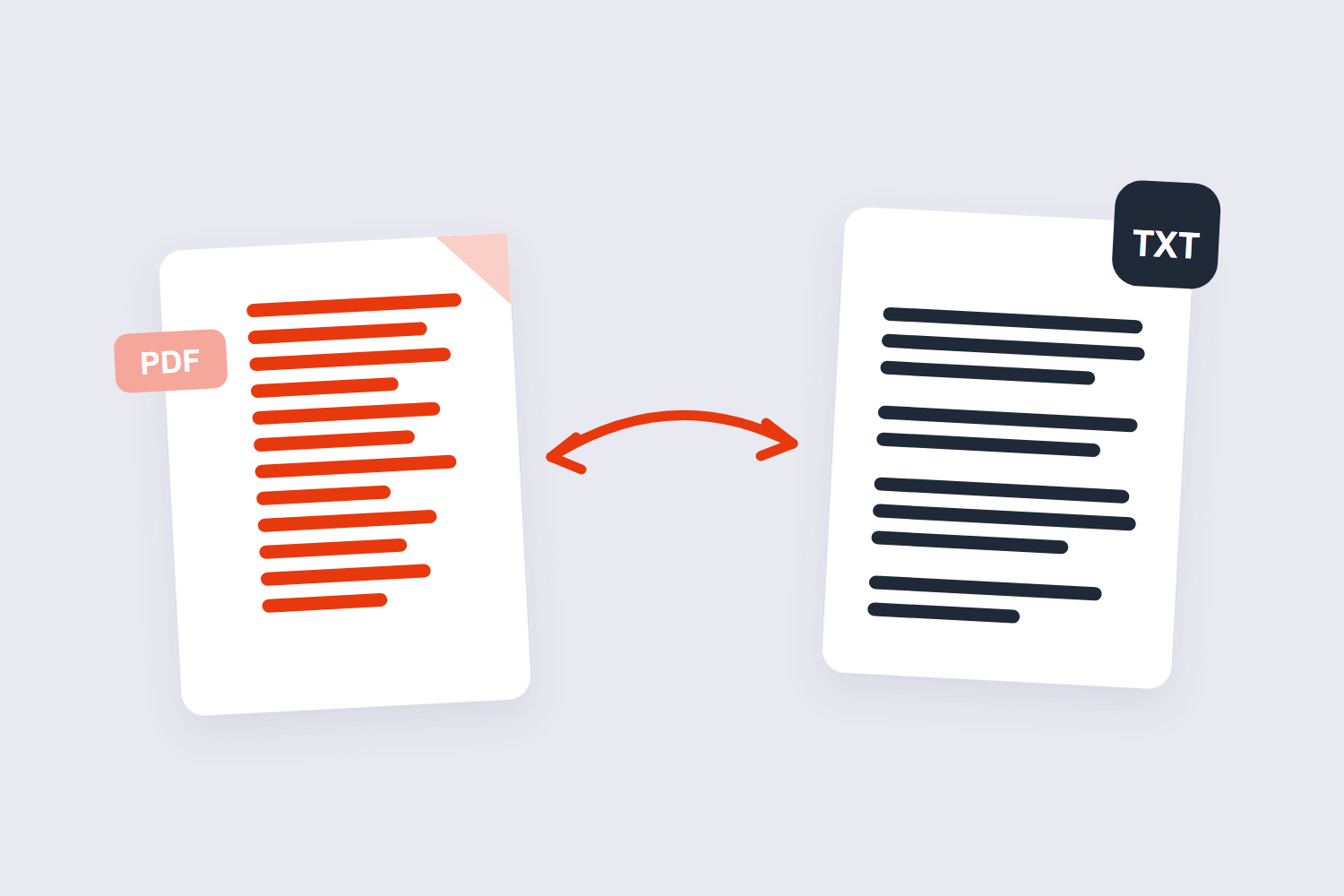
How to Extract Text from a PDF Online Free (3 Steps)
- Add the PDF. Drop your file into the PDF to Text tool. It reads the file with JavaScript running in your browser — the document never gets uploaded anywhere.
- Let it pull the text layer. Every searchable PDF carries an invisible text layer alongside the visuals. The tool reads that layer and rebuilds the text in reading order.
- Download the .txt file. One plain-text file comes out, ready to paste into an email, a word processor, or an AI chat without cleanup.
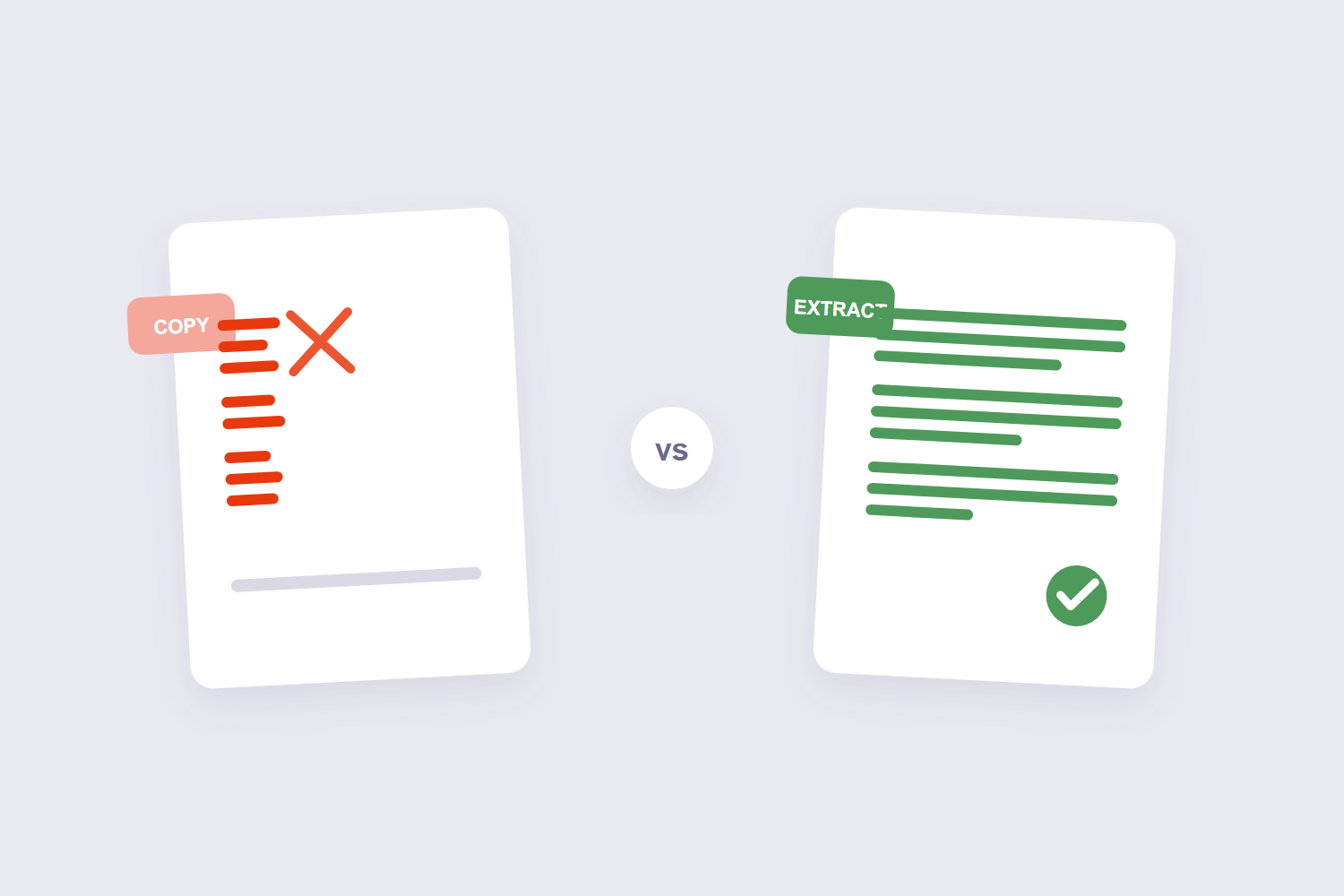
Copy-Paste vs Extracting: The Line-Break Problem
You’ve seen this a hundred times. You copy two paragraphs from a PDF, paste them into an email, and every single line ends with a hard return — because the PDF stores text line-by-line for display, and your clipboard faithfully copies each visual line as its own paragraph. The words are all there; the flow is destroyed.
Extraction tools read the text stream rather than the visual layout, so paragraphs come out as paragraphs. For a one-line copy, Ctrl+C is fine. For anything longer than a screen, extraction is the difference between ten minutes of deleting line breaks (or hacking a Find & Replace for them) and just… having the text.
| Method | Good for | The catch |
|---|---|---|
| Ctrl+C copy | A line, a sentence | Hard return at every visual line break |
| Text extraction | Pages, chapters, whole documents | Complex layouts (multi-column) can reorder |
| PDF to Word | Editing with formatting intact | Overkill if you only want plain text |
| OCR | Scanned paper documents | Only needed when there’s no text layer |
Scanned PDFs and the 5-Second Ctrl+F Test
Here’s the fact that explains half of all “why won’t this work” questions: scanned PDFs contain no text at all — each page is a photograph of paper, and a photograph of words is not the same as words. No extraction tool can pull text that doesn’t exist.
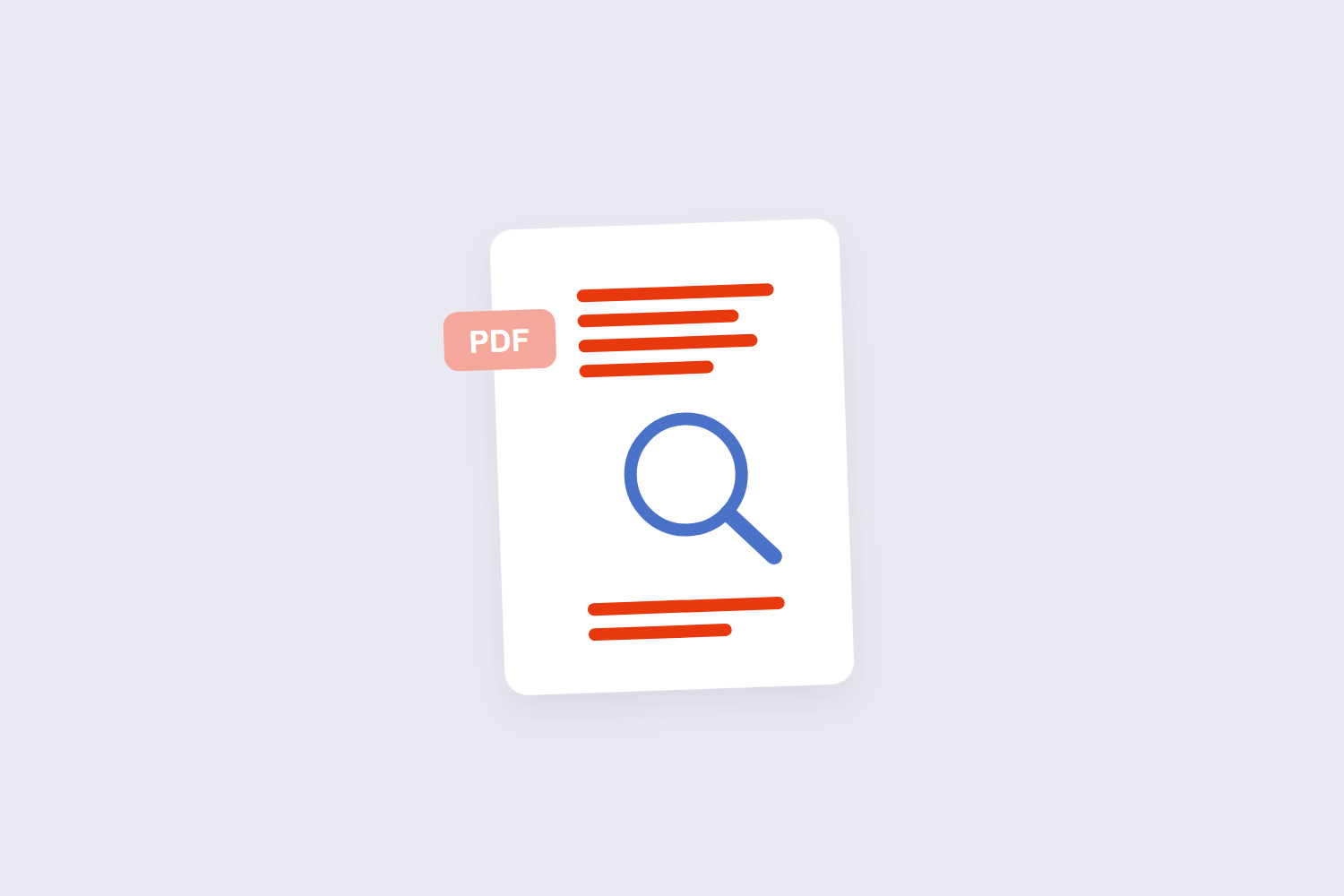
The five-second test: open the PDF and press Ctrl+F. Search for any word you can plainly see on the page. If search finds it, there’s a text layer and extraction will work. If it finds nothing, you’re holding a scan — and you need OCR (optical character recognition), software that looks at the picture of the text and recognizes the letters. OCR works well for printed pages and badly for handwriting; even iLovePDF’s own guide warns handwriting gives unreliable results.
Getting PDF Text Ready for ChatGPT and AI Tools
The quiet reason text extraction searches keep climbing in 2026: people are feeding documents to AI. Text extraction only returns text stored as text. A scanned page is a picture of words, so extraction returns nothing until OCR runs — and OCR output always needs proofreading, because it guesses at ambiguous characters rather than reading them. ChatGPT, Claude, and their cousins handle pasted plain text far more reliably than file uploads, and building any kind of document-search setup starts with clean text files. A garbled extract produces a garbled answer regardless of which AI you feed it to. Deleting pages does not shrink a PDF as much as you would expect. The removed pages’ objects become unreferenced but often stay in the file until it is saved with a linearising or garbage-collecting writer, which is why a 40-page cut to 30 can still weigh nearly the same.
Practical workflow: extract the text first, skim it for obvious reorder problems (tables and multi-column layouts are the usual suspects), then paste it into the AI tool. Privacy matters double here — with a browser-based tool like ours, the contract you’re summarizing never leaves your machine before you choose to share it with the AI. Server-based converters can’t make that claim; Sejda’s tool, for instance, uploads your file and deletes it after two hours.
Privacy: What Happens to Your File
Our text extractor runs entirely in your browser — the PDF is parsed on your device and nothing is transmitted, which is also why there’s no page-count or file-size quota. For HR documents, contracts, medical letters, anything you wouldn’t email to a stranger, local processing is the version of this task I’d use. For genuinely sensitive material, the same rule applies as always: an offline tool is the most conservative option of all.
Frequently Asked Questions
Why can’t I copy text from my PDF?
Almost always one of two reasons: the PDF is a scan with no text layer (run the Ctrl+F test above), or the file has copy restrictions set. Splitting or merging rewrites no image data. The pages are copied as objects and the new file gets a fresh cross-reference table, so a 100 MB document splits into parts that together occupy roughly the same 100 MB. Extraction still works on the first case’s rendered text only with OCR; restricted files need the restriction removed first.
How do I remove the line breaks when copying from a PDF?
Extract the text instead of copying — paragraphs come out whole. If you’re stuck with copied text, Find & Replace in any word processor can swap the breaks, but extraction skips the problem entirely. Extracting images from a PDF returns whatever the PDF stored, which is not always what you see. A logo placed as a vector is not an image at all and will not extract; a photo that was downsampled on import comes out at the downsampled resolution, not the original.
Does extracting text from a PDF keep the formatting?
Plain-text extraction gives you the words, not the styling — no bold, columns, or tables. If you need the formatting preserved for editing, use the PDF to Word tool instead; it rebuilds the document structure.
Can I extract text from a scanned PDF?
Not directly — scans have no text layer to extract. You need an OCR tool that recognizes the letters in the page images first. Expect good results on clean printed pages and poor ones on handwriting.
Why is my extracted text garbled or in the wrong order?
Two usual causes: multi-column layouts get read straight across both columns, and some PDFs store text in an odd internal order. Extracting section by section (split the PDF first) usually untangles it.
Is it safe to extract text from a confidential PDF online?
With a browser-based tool, yes — the file is processed on your device and never uploaded. With server-based tools, your document rides through their infrastructure even if they delete it after an hour or two; pick based on how sensitive the document is.
Extract, skim, done. If the goal is actually editing the document rather than reusing its words, the PDF to Word converter keeps the layout, and our PDF to Word guide walks through it.
