Invoices, monthly reports, timesheets, price lists — spreadsheets are how work actually lives, and PDF is how it gets shared. Converting Excel to PDF freezes your numbers in a layout nobody can quietly edit, which is exactly why accountants and managers have shipped reports this way for decades.
But spreadsheets break in conversion in a way Word documents don’t, because a worksheet has no pages until somebody decides where they start and end. That’s where the classic complaint comes from: the PDF that cuts off your last three columns. This guide covers the quick conversion, the fix for the cut-off problem (done in Excel, before any converter touches the file), what happens to multi-sheet workbooks, and what happens to your file along the way.
How to Convert Excel to PDF Online Free (3 Steps)
- Upload your spreadsheet. Drop your .xlsx or .xls file into the Excel to PDF converter. No account, no email required.
- Convert. The tool renders each worksheet into PDF pages, preserving cell layout, fonts, and number formatting as they appear in the file.
- Download the PDF. Check the output — especially the right-hand edge of wide sheets — before sending it onward. If anything’s clipped, the next section is your fix.
Why Your PDF Cuts Off Columns — and the Fix (Do This in Excel First)
Here’s the thing almost every converter page refuses to explain: a wide spreadsheet cannot fit on a portrait A4 page at 100% scale. Something has to give. Excel’s default answer is “print what fits, cut the rest,” and every converter that respects the file’s print settings inherits that decision. The cut-off columns aren’t the converter being lazy — they’re Excel’s stored print layout being obeyed.
So the fix lives in Excel, takes about twenty seconds, and travels with the file:
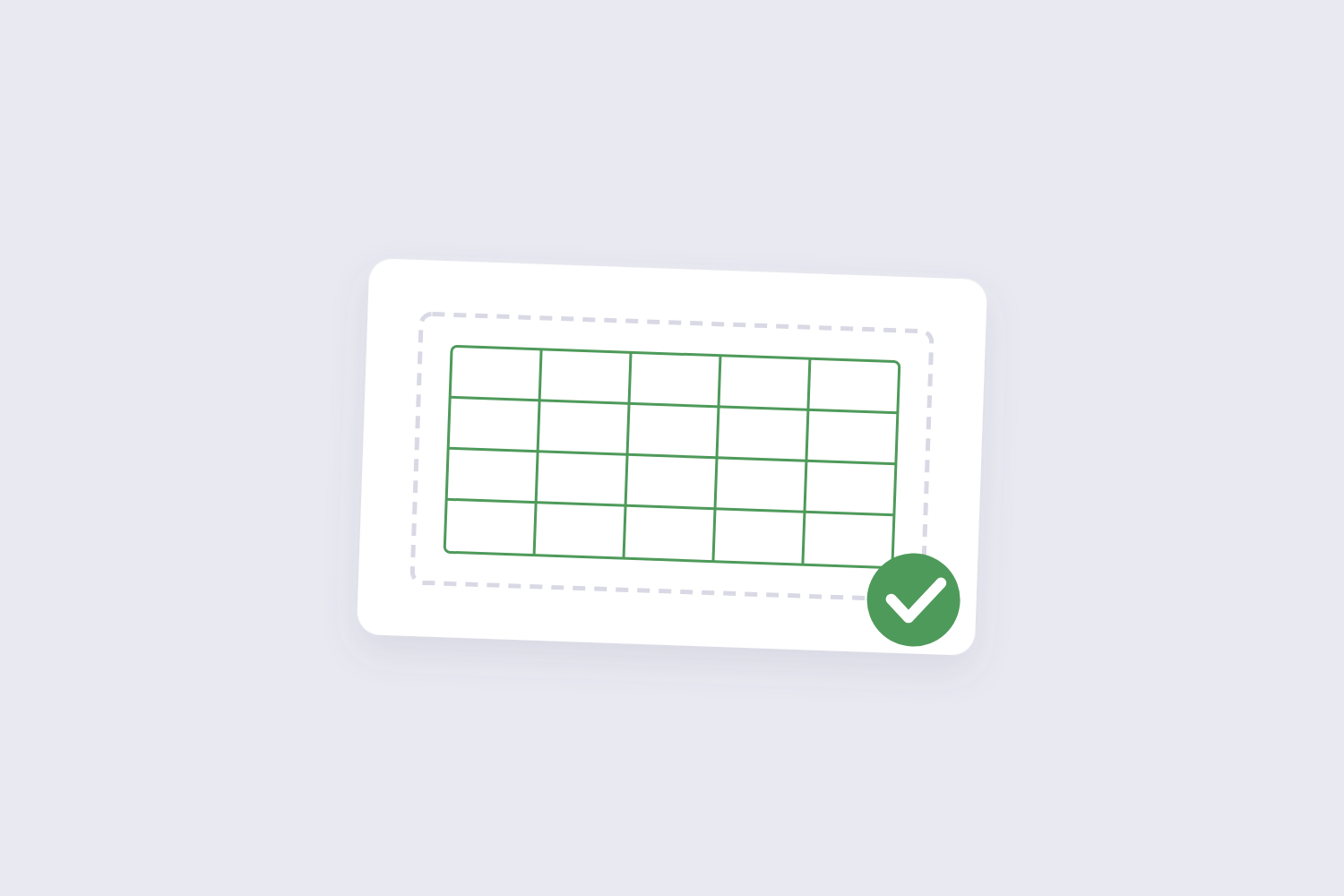
- Scale to Fit: Page Layout tab → Scale to Fit group → set Width to “1 page” (leave Height automatic for long sheets). Excel now shrinks the sheet until every column fits across one page.
- Landscape orientation: same tab → Orientation → Landscape. Wide tables get dramatically more room; combine with the scale setting for the cleanest result.
- Print area: if your sheet has stray data far to the right or below, select the real table and set Page Layout → Print Area → Set Print Area, so empty cells don’t stretch the layout.
- Row heights for wrapped text: wrapped cells that were never resized get clipped — select all rows and auto-fit row height before converting.
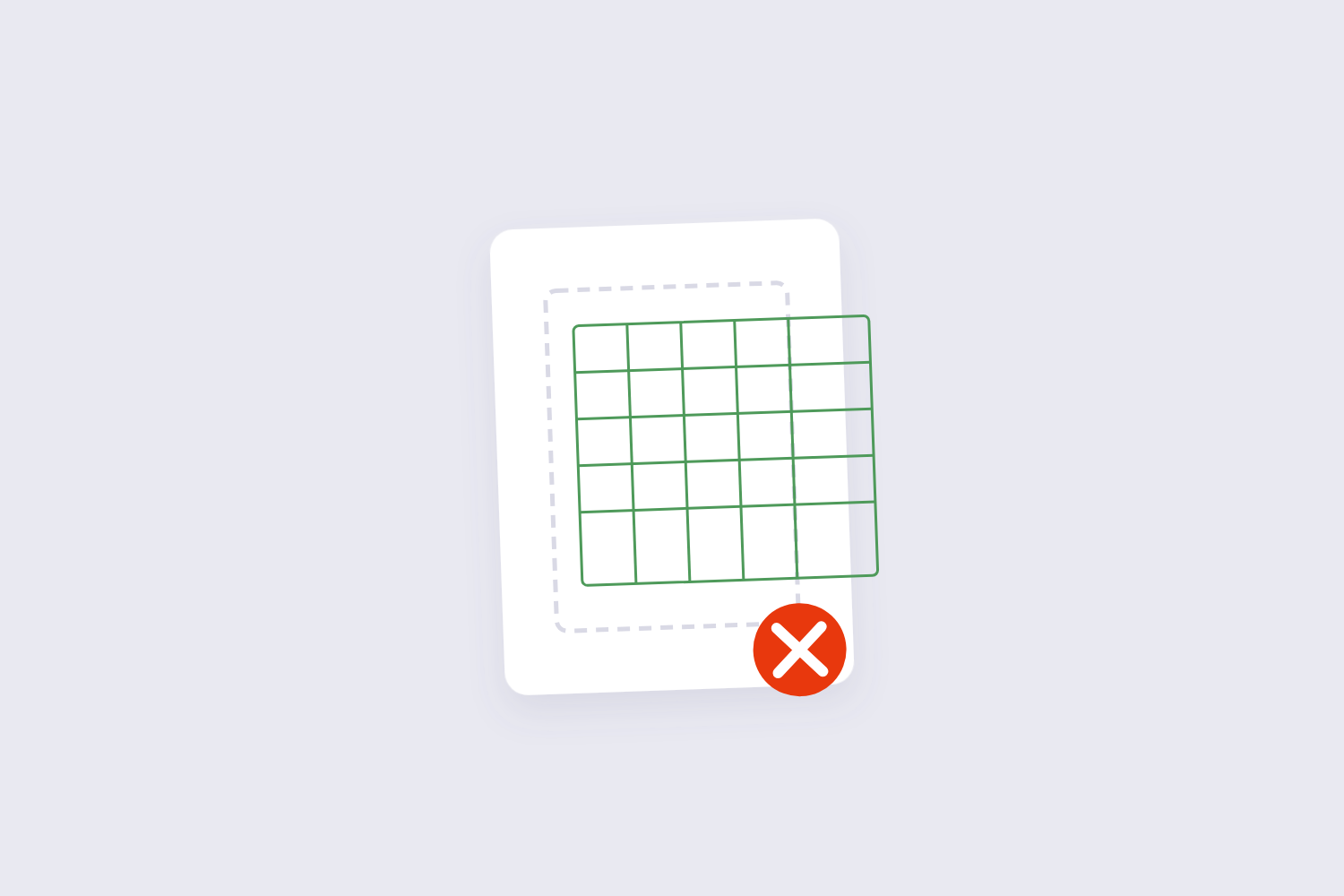
Then check the result with Excel’s own preview (Ctrl+P shows the page breaks) before converting. Sixty seconds of previewing beats converting four times and still shipping a clipped report.
Which Method When: Excel Desktop vs Online Converter
Excel’s built-in File → Save As → PDF produces the same result as any converter — it obeys the same print layout — and Microsoft documents that internal spreadsheet links get lost in the process, whichever route you take. So the choice is really about convenience and control:
| Method | Best for | Needs | Limitation |
|---|---|---|---|
| Excel Save As PDF | Full control (page range, per-sheet scope) | Excel installed | Desktop only, license cost |
| Online converter (ours) | Quick jobs, shared machines, phones | Any browser | Layout obeys the file’s print settings |
| CSV → PDF | Plain exports (no formulas/formatting) | Any browser | CSV has no formatting to keep — dedicated tool here |
That last row matters more than it looks: a CSV file is plain text with none of Excel’s formatting, formulas, or multiple sheets — it’s a fundamentally simpler animal than an .xlsx. If your “Excel file” is actually a CSV export from some system, use the CSV tool and skip wondering why your formulas didn’t survive (they were never there).
What Happens to Multi-Sheet Workbooks?
A workbook with five tabs converts to a PDF with five sections, one after another in sheet order. Two things to check before sending it anywhere: hidden sheets (they don’t convert — which can be exactly what you want or a nasty surprise) and sheet order (the PDF follows workbook order, so rearrange tabs first if the reading order matters).
Formulas themselves never appear in the PDF — only their calculated values, which is precisely why PDFs make good report formats. If you need the recipient to keep working with the data, send the workbook; if you need them to stop editing your numbers, the PDF is the point.
What Happens to Your File
Spreadsheet conversion is heavier work than page-level PDF edits, so this tool processes files on a secure server rather than in your browser: the transfer is TLS-encrypted, and files are automatically deleted within an hour of processing — the tool’s own pages state that nothing is read, stored, or shared beyond that window. For typical business documents that’s a perfectly reasonable trade.
For genuinely sensitive data — payroll with personal identifiers, unreleased financials — the same rule from every honest guide applies: use desktop Excel’s built-in Save As PDF, which never involves any server. Match the tool’s trust level to the document’s sensitivity rather than asking any online tool to be something it isn’t.
Frequently Asked Questions
How do I convert only one sheet of a workbook to PDF?
In desktop Excel: File → Save As → PDF → Options → choose “Active sheet(s)” instead of the entire workbook. In an online converter, copy the sheet into a new workbook first, then convert — simpler than fighting the scope settings.
Does Excel to PDF keep formulas and formatting?
Formatting (fonts, colors, borders, number formats) and calculated values are preserved; formulas themselves convert to their current values. A PDF is a static picture of the sheet at conversion time.
Why is my Excel to PDF split across many pages?
Because the sheet is wider or taller than one page at 100% scale. Set Scale to Fit → Width: 1 page for the columns, and use Height: 1 page only if the table is small enough to stay readable — shrinking a long table to one page produces unreadable 4-point text.
Is the converter free without watermarks?
Yes — no watermark, no sign-up. For comparison, some free tiers elsewhere run daily task limits (Smallpdf’s free plan allows about two tasks per day), so check the limits before committing to a tool for batch work.
Can I convert Excel to PDF on my phone?
Yes — the converter works in mobile browsers. The cut-off-columns fix still needs desktop Excel (the mobile app hides the page-layout controls), so do layout-sensitive conversions at a computer.
How do I combine several converted reports into one PDF?
Convert each file separately, then merge them in order with the PDF merge tool. Word documents join the same way — our Word to PDF guide covers that conversion.
Fix the print layout in Excel first, convert second, and preview the right-hand edge before anything ships. If the finished report is too heavy to email, the PDF compressor trims it down without touching the layout.
