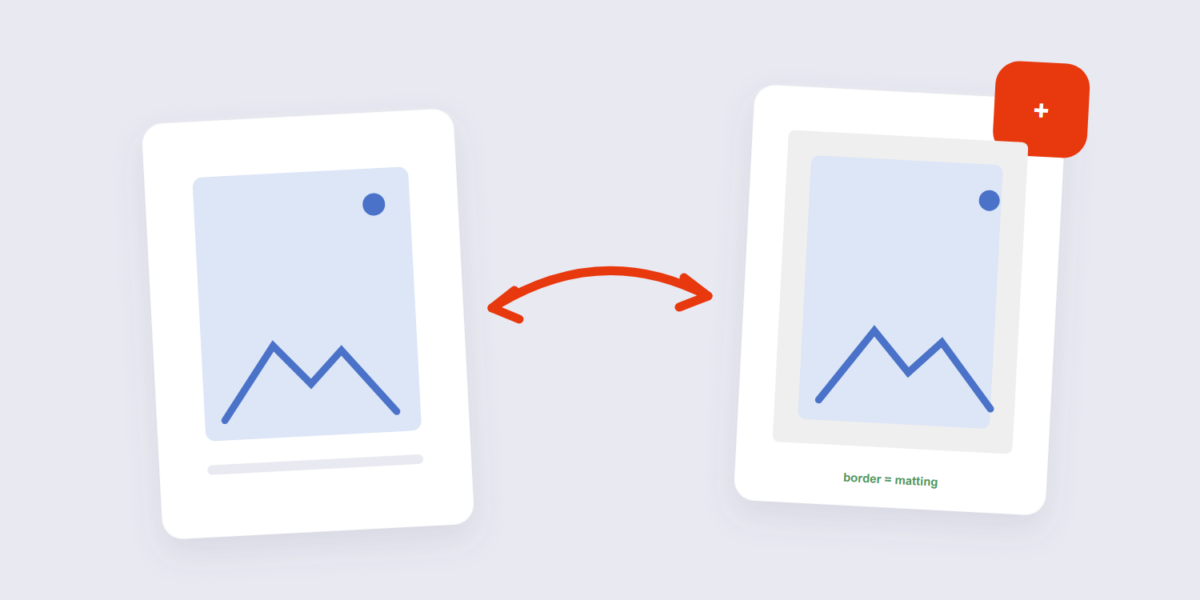
A border is the simplest edit that changes how an image reads. Thin white borders make busy photos breathe on white pages. Colored borders brand product shots. Black borders turn casual snapshots into framed prints. The image never changes — it just gains an edge.
This guide covers adding borders with our Add Border tool, the border styles that actually look good, and the one technical detail (final dimensions) that matters when a platform demands exact sizes.
How to Add a Border to an Image Online Free (3 Steps)
- Add the image. Drop it into the Add Border tool — processed on your device.
- Set width and color. Pick a border width and match the color to your design (or classic white/black).
- Apply and download. The bordered image downloads with the border cleanly added on all four sides.
Border Styles That Actually Look Good
Matching the background color is the classic move: a white border around a photo going onto a white page reads as elegant matting, and a black border does the same on dark pages. For product shots on marketplaces, a subtle same-tone border separates the image from busy page backgrounds without shouting. Thick borders read as retro poster art — but that’s a design choice, not a default.
The technical note that matters: the border adds to the final dimensions. A 1000×800 image with a 20px border becomes 1040×840. If a platform demands exact input sizes, resize after adding the border, not before — otherwise the border pushes the image out of spec.
Frequently Asked Questions
Does adding a border reduce image quality?
No — the original pixels are unchanged; the border is new, solid-color area added around them.
What border width looks best?
Between 2% and 5% of the image’s shorter side is the safe range. Below 2% it disappears; above 10% it competes with the image.
Can I add borders to multiple images with the same width?
Yes — batch mode applies the same border to all images, which keeps a set of product shots consistent.
Match the background, mind the final dimensions. If the bordered images need a watermark for protection too, the watermark tool handles that — and our watermark guide covers PDFs as well.
