Merged reports that arrive with no page numbers at all. Printed decks where the pages shuffle out of order the moment someone drops the stack. A 60-page PDF where “go to page 12” means counting thumbnails. Page numbers are the smallest feature in any document and the one people miss the most once they’re absent.
Adding them to a finished PDF takes under a minute with our page numbers tool — no Acrobat, no re-exporting from the original app. This guide covers the steps, the cover-page problem (skip it or count it? both, actually), why the “just print it with numbers” workaround breaks documents, and the one thing about PDF page numbers that surprises everyone: they don’t update themselves.
How to Add Page Numbers to a PDF Online Free (3 Steps)
- Add the PDF. Drop the file into the Add Page Numbers tool — every page shows as a thumbnail so you can see exactly what you’re numbering. The work happens in your browser; the file is never uploaded.
- Set position and style. Choose one of six positions (top or bottom, left, center, or right), then set the starting number, pick a page range if you only want numbers on part of the document, and adjust font, size, and color to match the document.
- Apply and download. The numbers are stamped onto the pages and the finished PDF downloads. Check the first numbered page before sending it onward — ten seconds well spent.
The Cover-Page Question: Skip It or Count It?
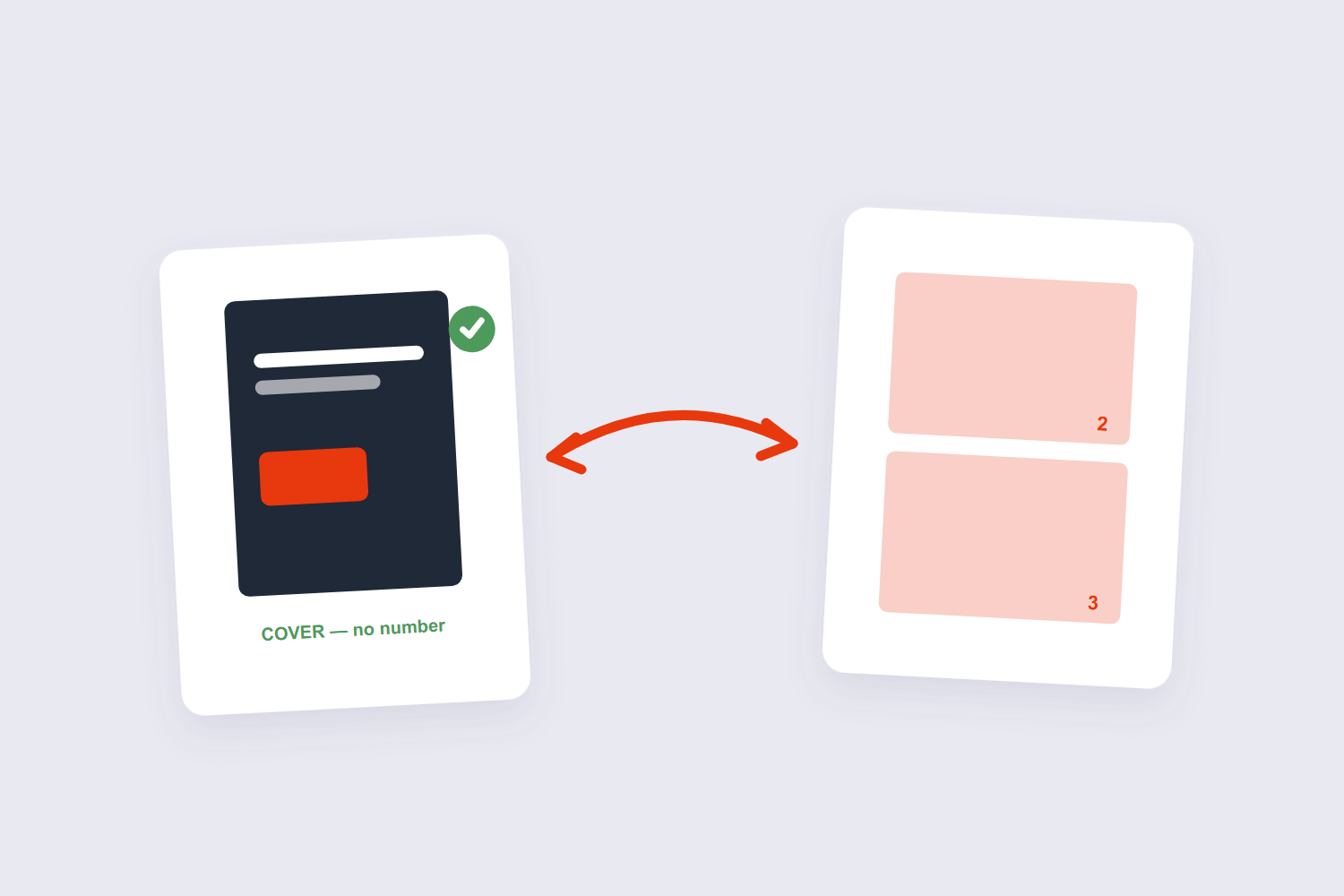
Every document with a cover runs into the same decision, and there are genuinely two right answers. Count the cover but don’t print a number on it: the title page is page 1 silently, the first content page shows “2,” and printed page numbers always match the PDF page count. Don’t count the cover: the first content page shows “1,” which looks cleaner but means printed numbers disagree with what PDF viewers report.
Our tool handles the first style directly — set the starting number so the numbering begins where you want, and use the page-range setting to keep the cover unnumbered. For formal submissions, the first style is the safer bet, because a reviewer who types “page 5” into a PDF reader should land on the page that says 5. (Designers have debated this exact question for years — both camps have a point.)
Why “Just Print It with Numbers” Backfires
The workaround gets suggested in every forum thread: open the PDF, print it to a new PDF with page numbers turned on in the print dialog. It technically works. It also re-renders every page, which flattens form fields, can shuffle image quality, and adds a second layer of “printed by…” headers if you’re not careful with settings. Scanned documents come out looking subtly worse, and nobody can tell you exactly why until they compare the files side by side.
Stamping numbers directly onto the existing pages — what a dedicated tool does — touches nothing else. The pages you had are the pages you keep; a small text element joins each one. Same job, none of the side effects.
The Surprise: Page Numbers Never Update Themselves
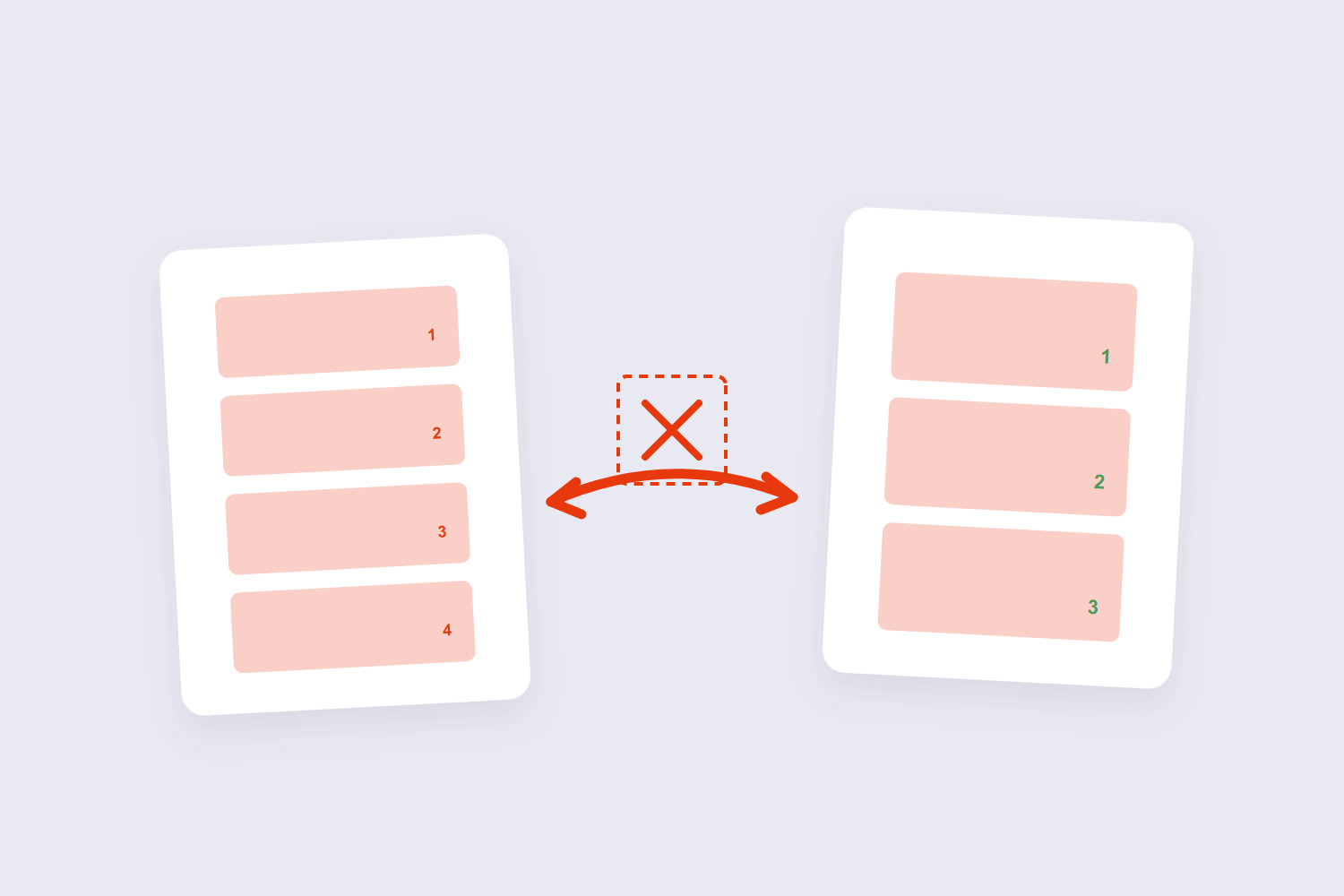
This is the fact worth knowing before any big document job: PDF page numbers are ink, not logic. Adobe’s own FAQ admits the numbers don’t auto-update — delete page 4 from a numbered 20-page PDF and page 5 still says “5.” Word processors renumber as you edit; PDFs don’t, because the numbers are just drawings on pages.
The practical workflow that avoids the mess: finish all the structural editing first — delete, reorder, insert — and add numbers last. If you’ve already numbered and then edited, re-stamp: run the file through the numbering tool again (or clean the pages up first with the reorder tool and the delete pages tool, then number the result).
Numbers Not Showing? Two Usual Causes
They’re behind the content. Full-bleed images and dark page backgrounds swallow a number placed in the same spot — Reddit’s DocHub community runs a steady stream of “my numbers are invisible” threads for exactly this reason. Fix: move the position to an empty corner, or pick a lighter color. The six-position grid exists precisely because documents have different dead zones.
The printer cuts them. Numbers placed too close to the page edge can fall into the printer’s unprintable margin — the PDF shows them, paper doesn’t. Nudge the margin setting inward a few millimeters and they survive printing.
Frequently Asked Questions
How do I add page numbers but skip the cover page?
Two settings together: use the page range to start numbering at page 2, and set the starting number to 2 so the cover counts silently. If you want the first content page to show “1” instead, start the numbering at 1 on page 2.
Can I number only some pages of a PDF?
Yes — set a page range (from and to) and the tool numbers only those pages. Handy for numbering just the appendix of a long report, or re-numbering a section after edits.
Will the numbers update if I delete or reorder pages later?
No — PDF page numbers are static. Do your structural edits first, number last. If a numbered document has to change, re-stamp the numbers after the edit.
Can I match the numbers to my document’s font and color?
The tool offers font, size, and color settings — match them to the document header style for a native look. For dark pages, white or light-gray numbers are the standard fix.
What is Bates numbering — does this tool do it?
Bates numbering is the legal-industry convention of stamping every page with a unique prefixed ID (like ABC-0001). Our tool handles straightforward numbering; the prefixed, zero-padded legal format needs a dedicated Bates feature, which Adobe reserves for its paid plans. If you only need sequential numbers, this tool covers it.
Is it safe to add page numbers online?
With a browser-based tool, the document is processed on your device and never uploaded — fine for confidential material. Server-based tools upload the file first; check their deletion policy for anything sensitive.
Structure first, number last, check the first page. If the document still needs its sections assembled, the merge tool combines files in order — and our merging guide walks through that job.
