Sooner or later, everything asks for a PDF. Job applications, university portals, visa paperwork, tenant forms — they want one document, properly ordered, and they want it in PDF format even though what you’re actually holding is a camera roll full of JPGs. Converting those images into a single PDF is the whole trick, and it takes about a minute.
This guide covers the job end to end using our JPG to PDF converter: the basic conversion, combining several images in the right order (front and back of your ID, for example), the page-size settings that make the difference between a screen file and a printable one, and the iPhone quirk that trips up half the people searching for this.
How to Convert JPG to PDF Online Free (3 Steps)
You don’t need an app, and you don’t need to email photos to yourself. The conversion happens right in the browser:
- Add your images. Open the JPG to PDF tool and drop in one image or fifty. The tool runs entirely in your browser — your photos are never uploaded to any server.
- Arrange and adjust. Drag the thumbnails into the order you want. Pick a page size if the PDF is headed for a printer or an official portal (more on that below).
- Convert and download. One PDF comes out, one page per image, in your chosen order. No watermark, no sign-up, no “you’ve used your free conversion today” wall.
Combining Multiple JPGs Into One PDF (Where Order Matters)
This is the part most people actually need, and the part most converter pages skip entirely. When a portal asks for one PDF, it usually means one ordered document: cover letter first, CV second. ID front, then ID back. Assignment page 1, then page 2 — not whatever order your file manager felt like listing them.
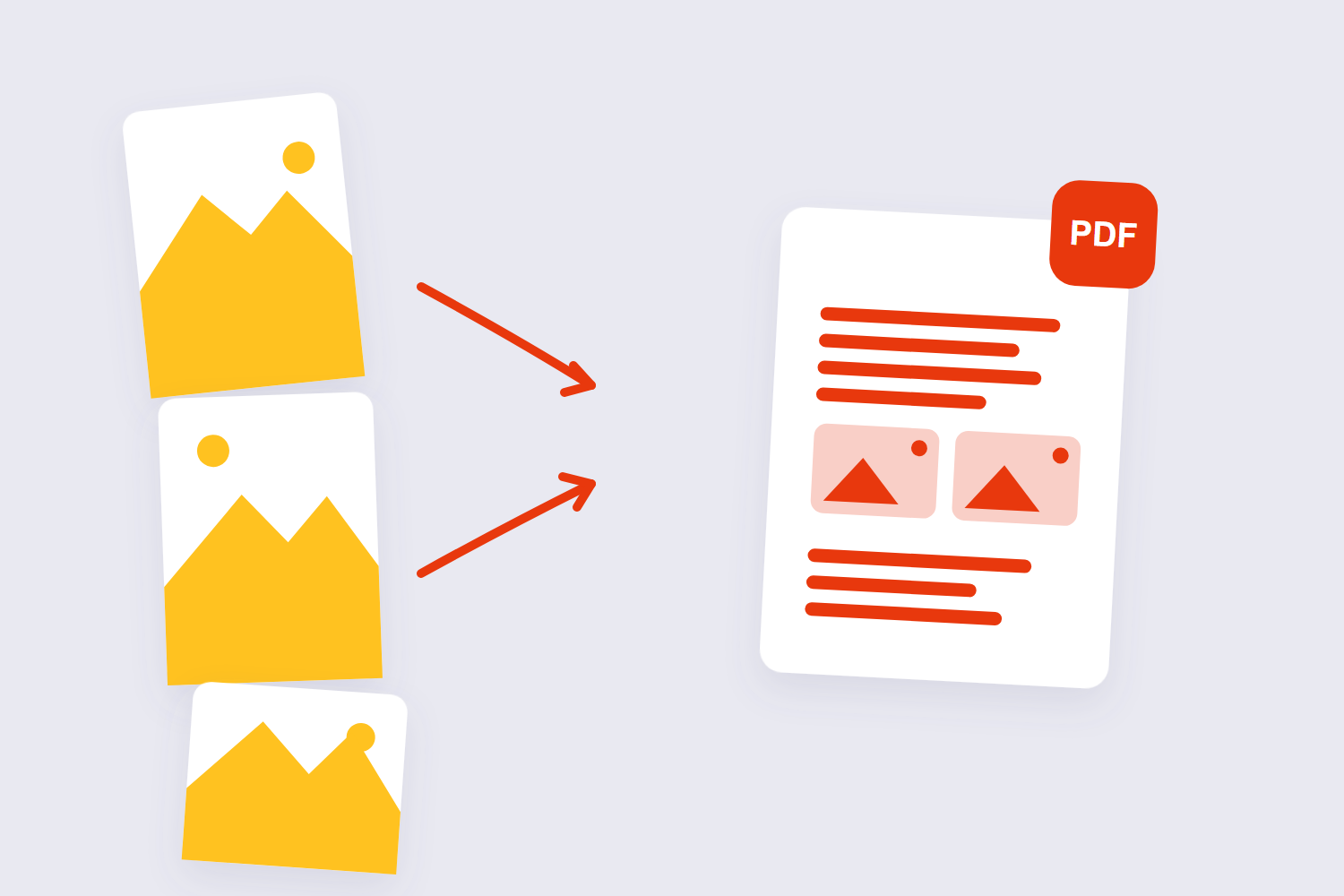
In our tool, every image shows up as a thumbnail you can drag into place before converting. Two tips from experience: number your files (01-front.jpg, 02-back.jpg) before uploading if the order is critical, because the tool starts them in filename order; and double-check the last thumbnail before you hit convert — it’s the one nobody looks at, and it’s where the wrong photo usually hides.
If your images are already spread across several PDFs instead, convert them first and then combine everything with the PDF merge tool.
Page Size, Orientation and Margins — Make It Printable
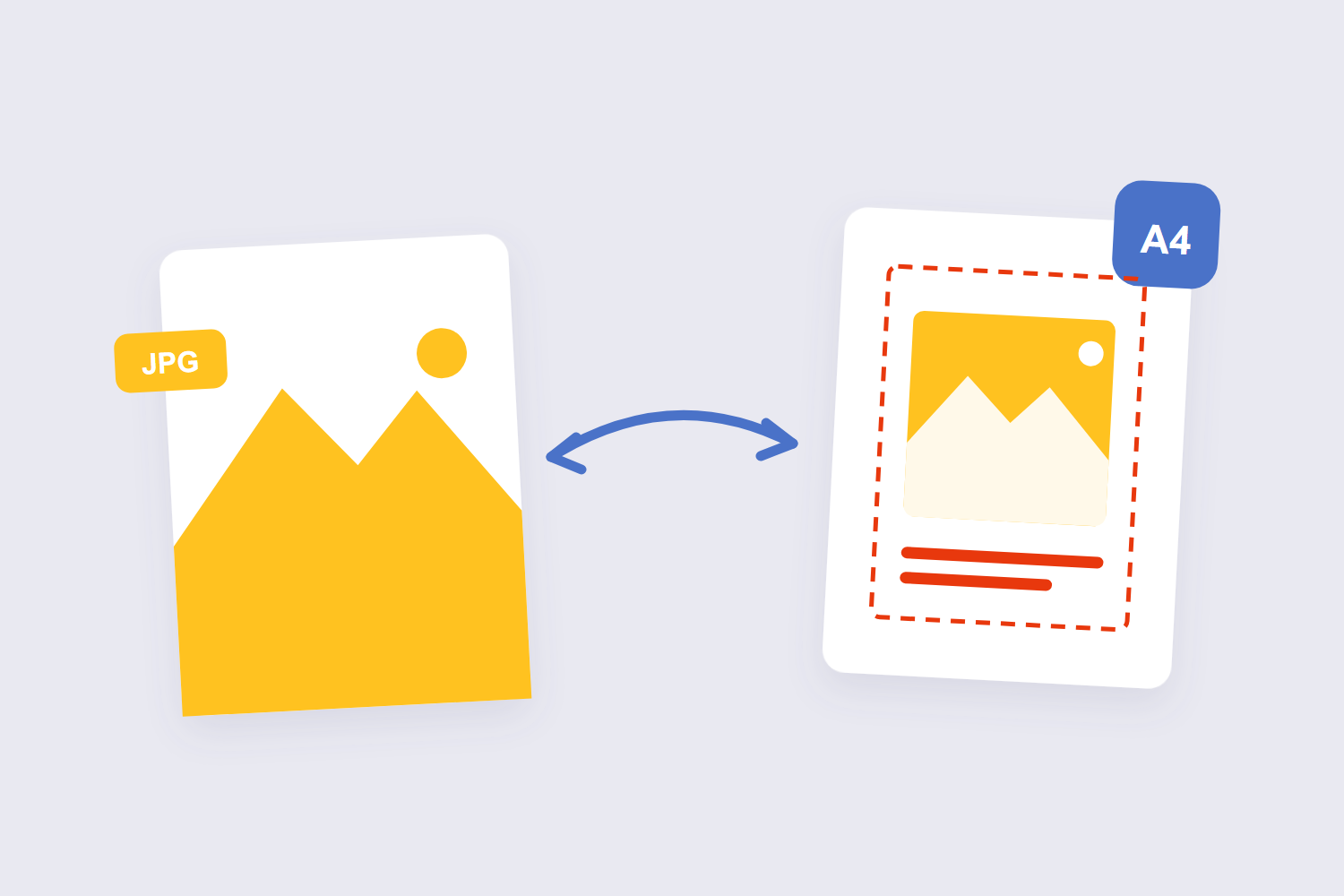
Here’s a distinction nobody tells beginners about: a PDF built from photos can be “fit to image” (each page exactly the shape of the photo) or set to a real paper size like A4 or US Letter. Fit-to-image looks perfect on a screen. The moment the document is headed for a printer or an official form, you want the paper size — otherwise the printer scales, crops, or letterboxes your pages unpredictably. The three web formats differ in what they keep. JPEG discards detail permanently to shrink size, PNG stores every pixel losslessly and supports transparency, and WebP can do either — lossy or lossless — usually landing 25–35% smaller than an equivalent JPEG or PNG.
| Situation | Page size to pick | Why |
|---|---|---|
| Emailing or uploading for a person to read | Fit to image | Photos keep their natural shape, no borders |
| Official submission (job, university, visa) | A4 (or Letter in the US) | Matches what reviewers print on |
| Scanned documents, receipts | A4 portrait | Standard filing size |
| Landscape photos or certificates | A4 landscape | No sideways pages in the middle of the file |
Will My Photos Lose Quality?
No — and this is the part worth understanding. A PDF is a container: your JPG gets embedded inside it pixel-for-pixel, the same file, just wrapped. Quality is only lost if a tool decides to re-compress your images on the way in. PDF-to-image conversion has to pick a resolution, and that choice decides the output size. Rendering a page at 72 DPI produces an image roughly 595 × 842 pixels for A4; at 300 DPI the same page is about 2480 × 3508 pixels — eleven times the pixels and a far larger file. Ours doesn’t.
The math that actually decides print quality is your photo’s resolution. A US Letter page printed at 300 DPI — the standard for sharp text — needs roughly 2550×3300 pixels. Phone cameras from the last decade take photos far larger than that, so a phone photo converts to a perfectly printable PDF page. A screenshot won’t; screenshots are screen-sized (around 1080 pixels wide) and will look soft printed at full page width.
The iPhone HEIC Problem
Half the “my images won’t convert” messages trace back to one thing: iPhones save photos as HEIC by default, not JPG. Many portals and Windows PCs reject HEIC outright — Apple’s own support forums are full of people discovering this mid-submission, and Windows technically needs a paid codec extension to open the format.
Two fixes. The permanent one: on the iPhone go to Settings → Camera → Formats and choose “Most Compatible” — future photos save as real JPGs. The one-off fix: convert the HEIC files first (AirDrop or email them to yourself and save as JPG, or use an online converter), then build your PDF. And check what you’re actually submitting — a file named .jpg that was renamed from .heic is still a HEIC inside, and some upload validators notice. JPEG has no alpha channel at all, so any transparency in the source is filled with white (or another colour you choose) the moment you save as JPEG. PNG and WebP both carry alpha.
Is It Safe to Convert JPG to PDF Online?
Depends on where the work happens. Server-based converters upload your photos — the Passport scan, the ID, the salary slip — before converting. Their privacy pages are honest about it: files sit on their infrastructure and get deleted after an hour or so, with per-file size caps (Adobe’s free tool runs a 100 MB upload cap despite marketing “no size limits”, and dedicated services like JPG2PDF stop at 20 files per batch).
Our image to PDF converter never uploads anything — the conversion is JavaScript running on your device, which is why there’s no file-count or size ceiling and why it keeps working after your Wi-Fi drops. For photos of IDs and passports, that’s the version I’d personally use. For genuinely sensitive paperwork, an offline desktop tool is still the most conservative route — no article should pretend otherwise.
Frequently Asked Questions
How do I convert JPG to PDF on my iPhone?
Easiest native route: open the Files app, and use its built-in scanner — or the Notes app scan button — which captures documents straight to PDF (Apple documents both). For JPGs already in your Photos, open our JPG to PDF tool in Safari and convert them there; nothing gets uploaded.
How do I convert JPG to PDF on Android?
The Google Drive app has a built-in scan button that saves documents as PDFs to your Drive (Google’s guide is here). For existing JPG files, open our converter in Chrome and follow the same three steps — it works the same on mobile as on desktop.
How many images can I put in one PDF?
With a browser-based tool like ours, as many as your device can comfortably hold — there’s no artificial file-count cap, because nothing is being uploaded anywhere. Server-based converters typically stop at 20–30 files per batch on free plans.
Can I combine JPG, PNG and other formats in the same PDF?
Yes. The converter accepts mixed image formats in one batch — JPG, PNG, WebP and more — and each becomes a page in the order you arrange. You don’t need to normalize formats first.
Why is my PDF bigger than my photos added together?
Usually it isn’t, but if it is: the PDF is wrapping each photo unchanged plus a little structural overhead per page. A few percent of overhead is normal. If the total is dramatically larger, the tool re-encoded your images at a higher setting than the originals — switch tools.
Can I go the other way — PDF back to JPG?
Yes. Our guide to converting PDF to JPG covers it, and the PDF to Image tool renders each page as its own image, same privacy model, same no-watermark rule.
That’s the whole workflow: images in, one ordered PDF out, quality untouched. If part of your application is still a Word document, the Word to PDF tool converts it first so everything arrives in one consistent format.
