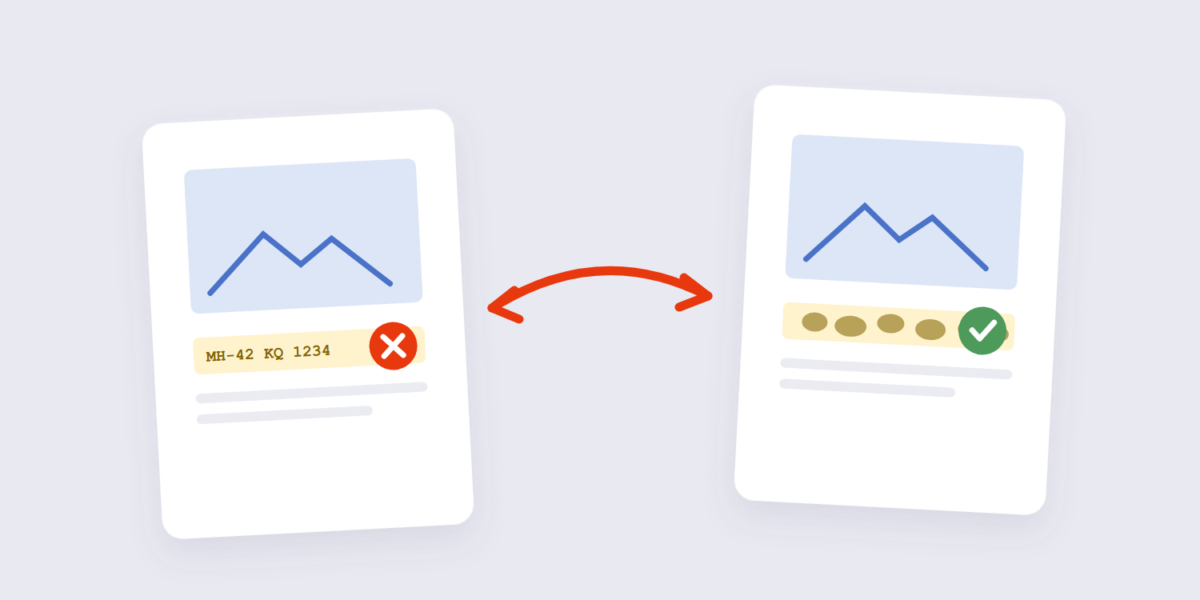
Blur gets used for opposite reasons: to destroy information (faces, license plates, addresses in screenshots) and to de-emphasize it (soft backgrounds that let a subject stand out). Both jobs need the same control — how much blur, applied where — and both fail when the blur is too light.
This guide covers blurring with our Blur Image tool, the strength rules that keep private details actually private, and the one mistake that defeats the whole purpose.
How to Blur an Image Online Free (3 Steps)
- Add the image. Drop it into the Blur Image tool — processed on your device, nothing uploaded.
- Set the blur strength. Higher = softer. For hiding details, go stronger than feels necessary; for background softening, stay subtle.
- Apply and download. The blurred version downloads, dimensions unchanged.
Blurring for Privacy: The Strength Rule
The most common blur failure is being too gentle. A light blur on a face or a license plate can sometimes be reversed or guessed around — especially text, where human brains fill in the gaps from letter shapes. Blurring for privacy is not reversible, but it is not automatically safe either. A Gaussian blur with a small radius can sometimes be partially inverted; a solid block over the region is the only method with no reconstruction risk. The rule for privacy jobs: blur until the information is genuinely unrecoverable, not until it looks soft. Text needs heavy blur; faces need enough to destroy identifying features; a slight haze protects nobody.
For documents and screenshots, one alternative worth knowing: instead of blurring the whole area, crop it out entirely with the crop tool when the information isn’t needed at all — removal is stronger than any blur.
Blurring for Design: The Background Move
The design use of blur is subtler: softening a busy background so a foreground subject pops. Product photography, profile photos, banners — a controlled background blur creates depth without any fancy equipment. The strength rule here is the opposite of privacy: the viewer should feel the softness, not see it. If the blur’s edges or smearing are noticeable, it’s too strong.
| Job | Strength | Rule |
|---|---|---|
| Hide text / plates / addresses | Maximum | Unrecoverable, not just soft |
| Hide faces | Heavy | Destroy identifying features |
| Soften a background | Subtle | Feel it, don’t see it |
Frequently Asked Questions
Can a blurred photo be un-blurred?
Heavy blur is genuinely irreversible — the detail is mathematically destroyed. Light blur can sometimes be sharpened back toward readable, which is exactly why privacy blurs must be heavy. Flattening merges every annotation, form field and layer into the page’s own content stream. Afterwards the fields are no longer interactive and the annotation objects are gone — which is why a flattened PDF is smaller and cannot be edited back. AI “deblur” tools reconstruct plausible guesses, not the original data.
Does blurring reduce the file size?
Yes, usually — blur smooths out fine detail, and smoother images compress better. A blurred JPG often shrinks noticeably on re-save.
Can I blur only part of an image?
The tool blurs the whole image; for partial blurs, crop the sensitive region, blur it separately, and combine — or use a photo editor with region selection. Flattening a form removes its interactive fields permanently. If the form will ever need editing again, keep the unflattened original — the flattened PDF cannot be un-flattened, because the field objects are discarded rather than hidden.
Is blurring a good way to hide information in screenshots?
With heavy blur, yes. With light blur, dangerously no — text prediction and sharpening tools can sometimes recover lightly blurred text. When in doubt, crop the region out entirely.
Heavy for privacy, subtle for design. If the blurred version is headed into a document, the image to PDF tool bundles it — and the JPG to PDF guide covers that flow.
