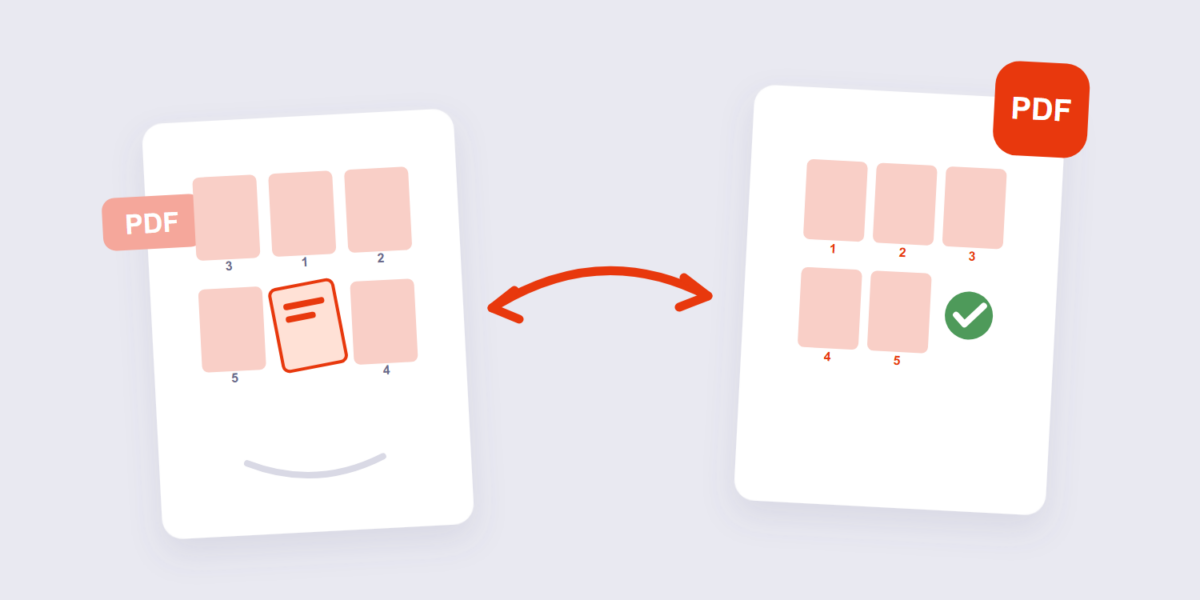
Scanners that output a document back-to-front. Report sections assembled from three different files. A contract that must open with the signature page, not the boilerplate. Page order is one of those things nobody notices until it’s wrong — and then it’s the only thing anyone notices.
Fixing it is drag-and-drop once you have the right view of the file. This guide covers the browser method, what reordering does and doesn’t change inside the PDF, and the honest comparison between browser tools, Mac Preview, and Adobe’s free online option — including the limits each one quietly carries.
How to Reorder Pages in a PDF Online Free (3 Steps)
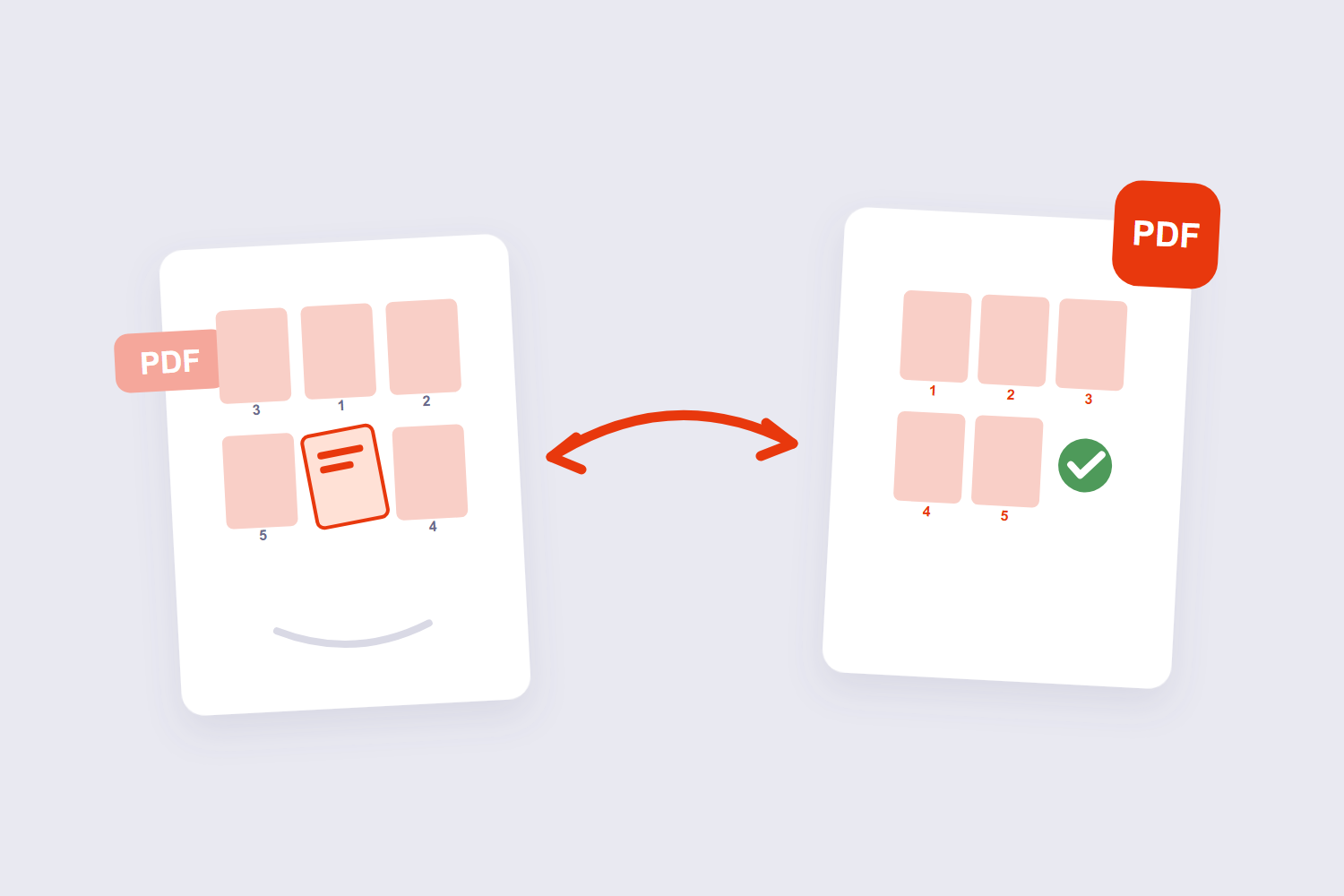
- Open the file. Drop the PDF into the Reorder PDF Pages tool. Every page shows up as a thumbnail — you’re rearranging pages you can see, not page numbers you have to remember.
- Drag pages into place. Grab a thumbnail, drop it where it belongs. Move one page or shuffle a whole section; the tool works right in your browser, so the file never leaves your device.
- Apply and download. The PDF is rebuilt in your chosen order. Content, quality, and layout are untouched — only the sequence changes.
Fixing a Back-to-Front Scan
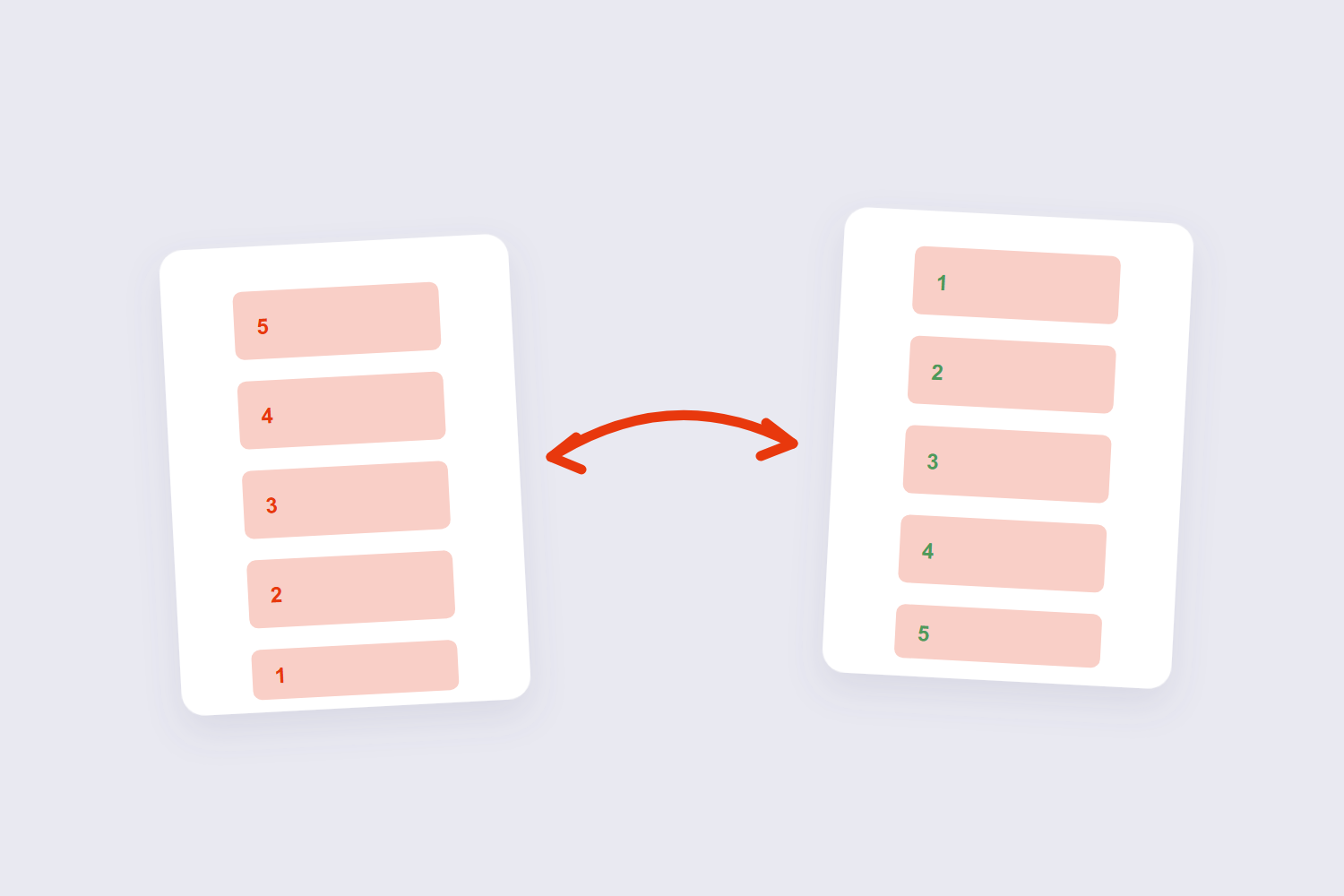
The single most common reordering job: a document scanned in reverse. Sheet-feed scanners pull paper from the top of the stack, and plenty of them deliver the pages last-scanned first — so your 20-page contract opens at page 20. Some desktop tools hide a “reverse” button behind paid plans; the universal fix is dragging: take the last thumbnail and drop it to the front, work through the stack, done. For a long scan it’s a few minutes of dragging, and it beats re-scanning the document.
Prevention tip worth the two seconds: fan the paper stack and check the page order before scanning — feed scanners grab sheets bottom-of-stack first, and knowing your scanner’s habit tells you whether to load documents face-up or face-down.
What Reordering Changes (and What It Doesn’t)
Honest answer, because no competitor page spells this out: reordering re-indexes pages, nothing more. The pages themselves — text, images, annotations — move as complete units, pixel-identical to before. But three things live outside the pages and don’t follow them:
- Bookmarks and tables of contents point at page positions, so they can end up aiming at the wrong place after a shuffle.
- Printed page numbers stay printed on the pages that carry them — a renumbered-looking document is actually pages physically out of sequence (fix that with the page numbers tool).
- Form fields and signatures stay on their pages, but a signature’s meaning can depend on what surrounds it — reordering a signed contract deserves a second look.
Browser Tool vs Mac Preview vs Adobe Online
All three get the job done; the differences are in the friction:
| Option | Needs | Limits | Watch out |
|---|---|---|---|
| Browser tool (ours) | Any browser | No sign-up, no task quota | Very large files depend on device memory |
| Mac Preview | A Mac | Free, offline | Drag-reorder fails on some restricted PDFs |
| Adobe online | Adobe account | 1,500 pages / 100 MB, sign-in required | Upload to Adobe’s servers |
Sejda’s organizer sits in the same free-tier family with 50 pages / 50 MB and 3 tasks per hour — fine for occasional use, tight for a busy week. The genuinely defensible reason to pick a browser-based tool is the combination of no account, no quota, and local processing: the file is read and rebuilt on your machine.
When Pages Won’t Move
The PDF is restricted. Permissions locks can block rearranging — strip them first with the Unlock PDF tool if you own the file, then reorder.
The file is huge. Thumbnail views get sluggish past a few hundred pages. If every drag lags, split the document into sections with the split tool, reorder each section, and merge them back with the merge tool.
The wrong page moved. An easy mistake when thumbnails look similar — check the page number badge on the thumbnail, not just the content preview, before you drop.
Frequently Asked Questions
Does reordering PDF pages reduce quality?
No — pages are re-indexed as complete units and never re-encoded. The text and images on a moved page are pixel-identical to before.
How do I reverse the page order of a PDF?
Drag the pages back to front in the thumbnail view. Dedicated reverse buttons exist in some desktop tools, but for a one-off document the manual reverse takes a couple of minutes.
Can I move pages from one PDF into another?
Yes — our Insert PDF Pages tool drops pages from one file into another at a position you choose. Reorder within each file first so the inserted block lands cleanly.
Do bookmarks still work after reordering?
Bookmarks that point at page positions can mis-target after a shuffle. If navigation matters — manuals, long reports — spot-check the bookmark list after reordering.
Can I reorder PDF pages on my phone?
Yes. The thumbnail drag works in mobile browsers — the same file, same order, nothing uploaded. It’s the quickest fix for a back-to-front scan made on the same phone.
Is reordering the same as organizing a PDF?
“Organizing” usually bundles reordering with deleting, rotating, and inserting pages. If your cleanup involves several of those, our delete pages guide and rotate guide cover the companion tasks with the same tools.
Drag the pages home, check the first and last thumbnail, download. If the finished document needs a table of contents that matches its new order, the page numbers tool renumbers it in one pass.
