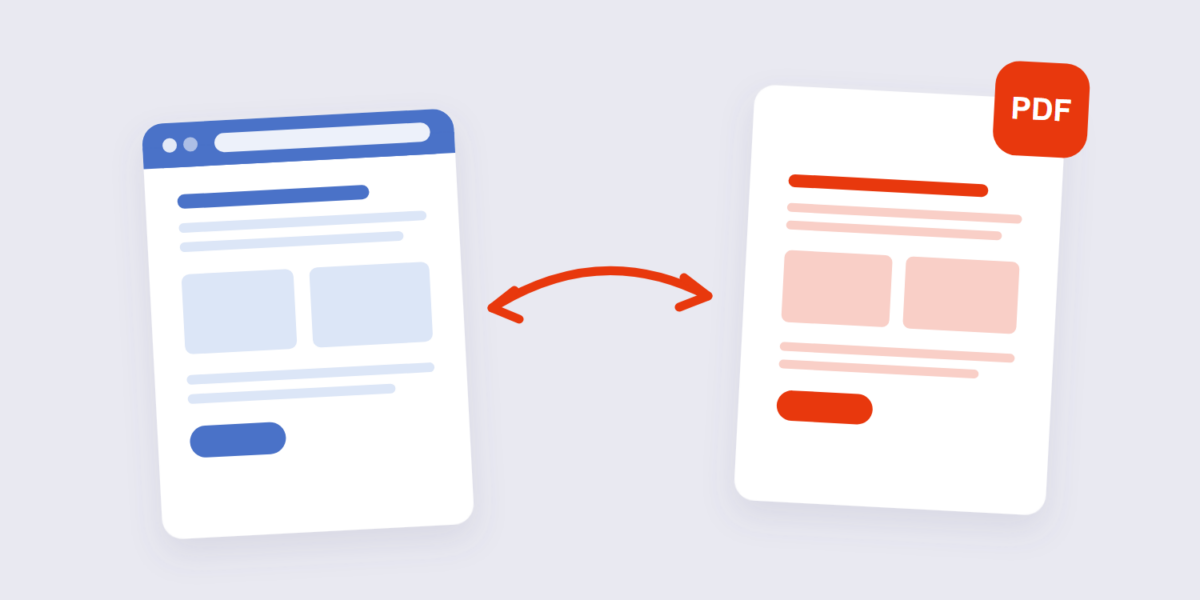
Somewhere between “look at this page” and “here’s a copy you can keep,” every web page needs to become a document: an invoice generated by a web app, a recipe worth archiving, a receipt, a documentation page for offline reading. HTML to PDF conversion is that bridge — and it’s also the step where layouts mysteriously fall apart.
This guide covers the conversion with our HTML to PDF tool, what actually happens under the hood (it explains the breakage), the common failure modes, and the print-CSS fixes that solve the worst of them.
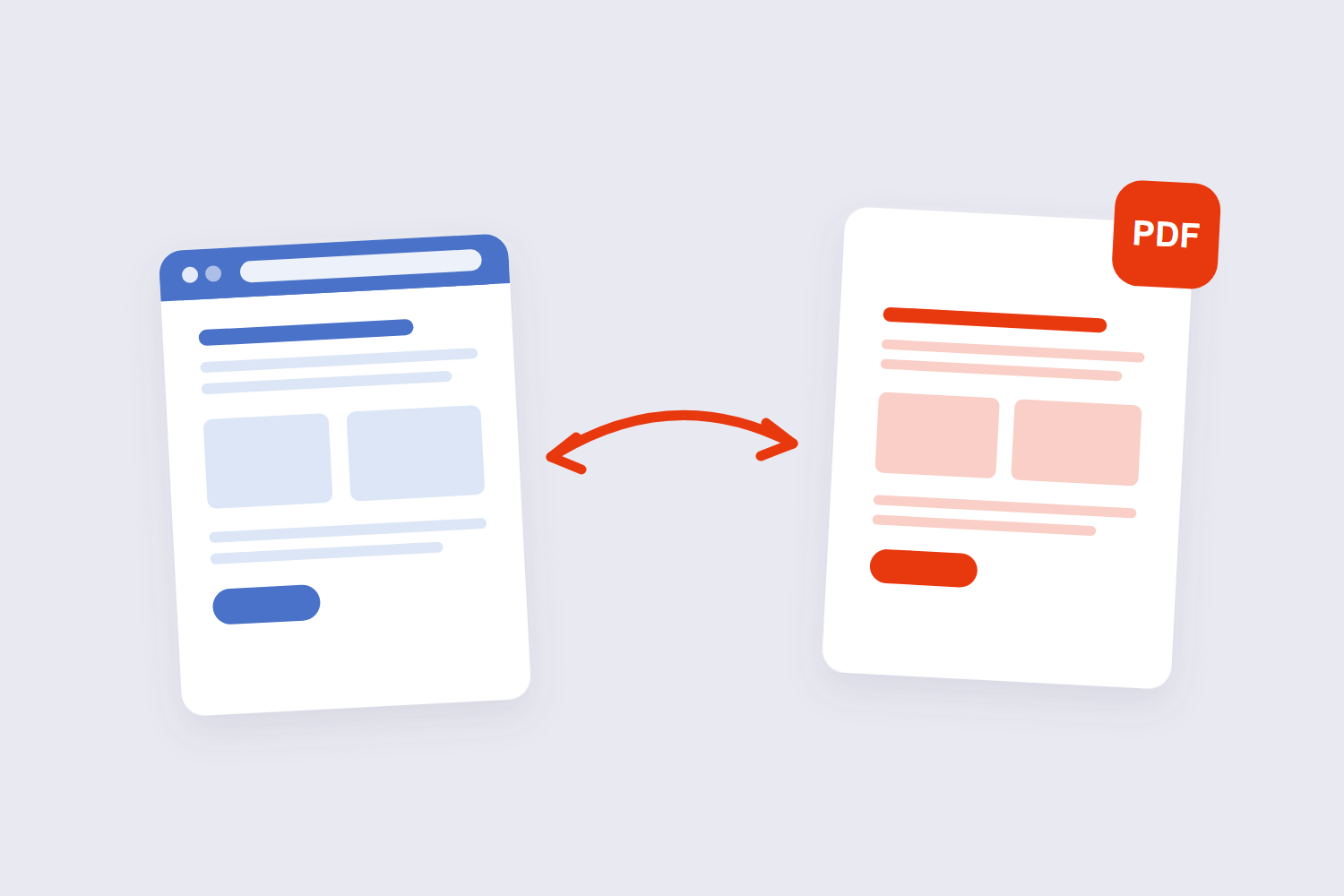
How to Convert HTML to PDF Online Free (3 Steps)
- Give it the page. Open the HTML to PDF tool and paste a page URL — or upload a local .html file if you’re converting your own markup. Everything runs in your browser.
- Let it render. The page is drawn exactly as a browser would draw it, then paginated into PDF pages.
- Download. What you get is the page frozen in time: layout, styling, and images fixed into a document that renders identically everywhere.
How the Conversion Actually Works
There’s no magic translation layer between HTML and PDF — the honest description is that a rendering engine (the same kind of engine that draws pages in your browser) loads the HTML, applies the CSS, and then “prints” the result into paginated pages. A widely-shared r/webdev thread describes the mechanics plainly: the page gets chunked into printable pages and printed to PDF with a headless browser. That’s why results differ between converters — you’re really comparing rendering engines and their print settings.
It also explains the one conversion fact worth knowing: the PDF captures a moment. Pages that load content with JavaScript after a delay, or behind a login, convert as they appeared at render time — often missing the dynamic parts. Static content converts faithfully; app-like pages, less so.
Why Layouts Break (and the Fixes That Work)
| Symptom | Cause | Fix |
|---|---|---|
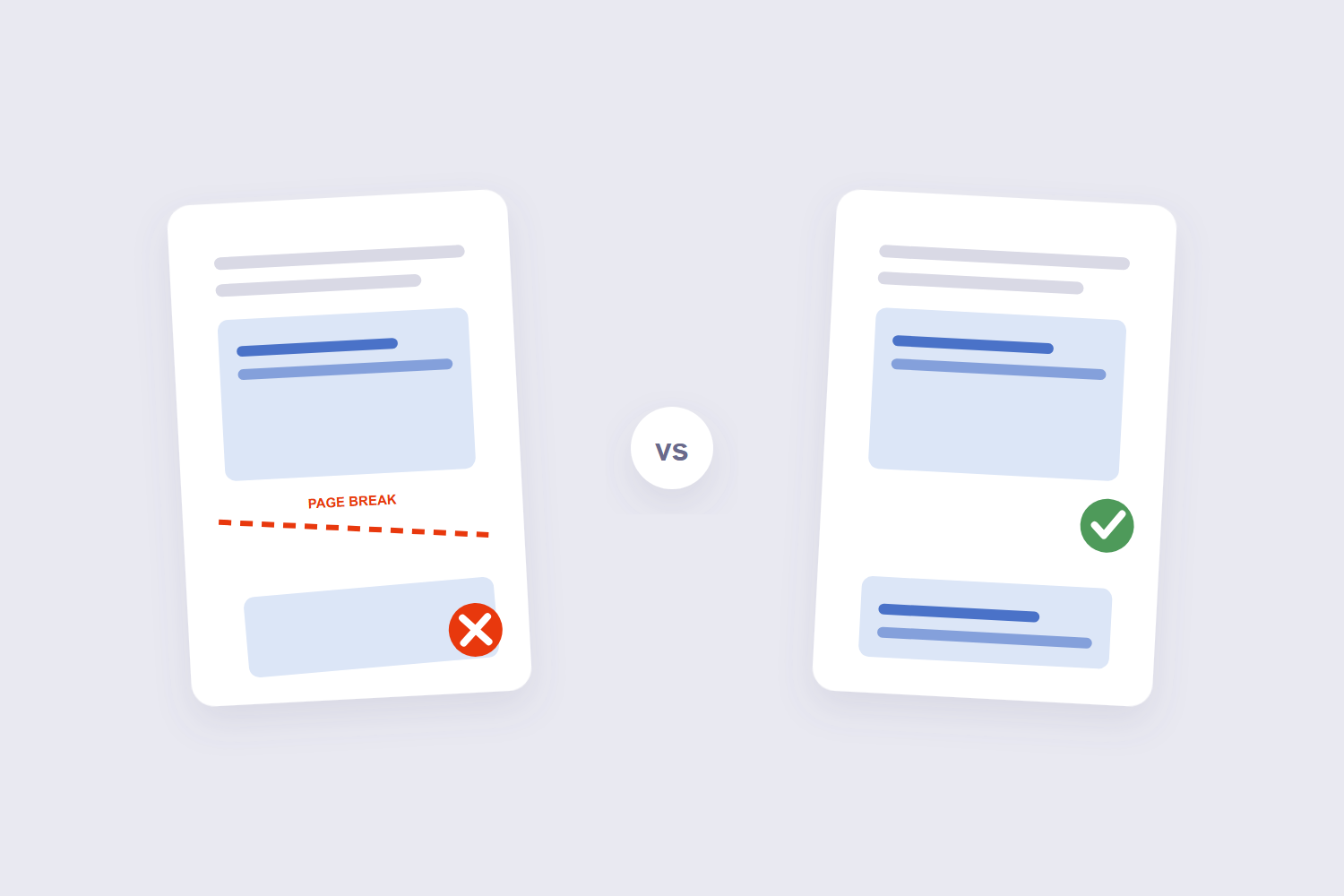
| Content sliced through the middle | Page break lands inside an element | CSS break-inside: avoid on cards/sections |
| Backgrounds and colors missing | Print mode strips backgrounds by default | Enable “background graphics” or CSS print-color-adjust |
| Giant margins or cut-off edges | Screen margins vs paper margins stacking | @page margins in CSS or tool margin settings |
| Images missing entirely | Lazy-loaded images hadn’t loaded at render | Convert static HTML or wait for full load |
If you control the page’s code, these are one-line fixes — a practical rundown of HTML-to-PDF printing issues covers the CSS in detail. If you don’t control the page, your levers are the tool’s settings: margins, scale, and background graphics toggles.
When the Browser’s Ctrl+P Is Enough
Honesty section: for one-off saves of pages you’re viewing, the browser’s own Print → Save as PDF does the same rendering job — developers call it the fastest way for good reason. A dedicated tool earns its keep for three cases: converting local HTML files you’ve written, batch or repeat conversions with consistent settings, and privacy — our tool renders locally in your browser, while “URL to PDF” web services feed the page URL to their servers.
Frequently Asked Questions
Does the converted PDF look exactly like the web page?
Close, not identical. The page is re-laid-out for paper dimensions, so screen-width columns reflow. Pages designed with print styles in mind convert beautifully; everything else needs margin or scale adjustments.
Can I convert a web page that requires login?
Not by URL — a converter can’t see through your session. The practical route: open the page in your browser, log in, and use Print → Save as PDF, which captures your logged-in view.
Why did my images disappear in the PDF?
Usually lazy-loading — images that load as you scroll never loaded before the render. Convert the static file, or scroll the page fully first if you’re using the browser print route.
Is HTML to PDF conversion free?
Here, yes — no sign-up, no watermark, and the conversion runs in your browser. The browser’s Ctrl+P route is also free; paid converters mostly sell automation and API access.
Can I convert HTML to PDF on my phone?
Yes — the tool works in mobile browsers for both URL and file input. Phone screens render pages in mobile layout, so expect the narrow-column version of the page.
Is it safe to convert HTML files online?
With a browser-based tool, yes — the rendering happens on your device and nothing is transmitted. URL-based services necessarily fetch the page from their servers; for internal or confidential pages, prefer local rendering.
Convert, check the page breaks, adjust margins if needed. If the PDF that comes out needs trimming, rotating, or numbering before it ships, the page numbers tool and the crop guide handle the finishing touches.
