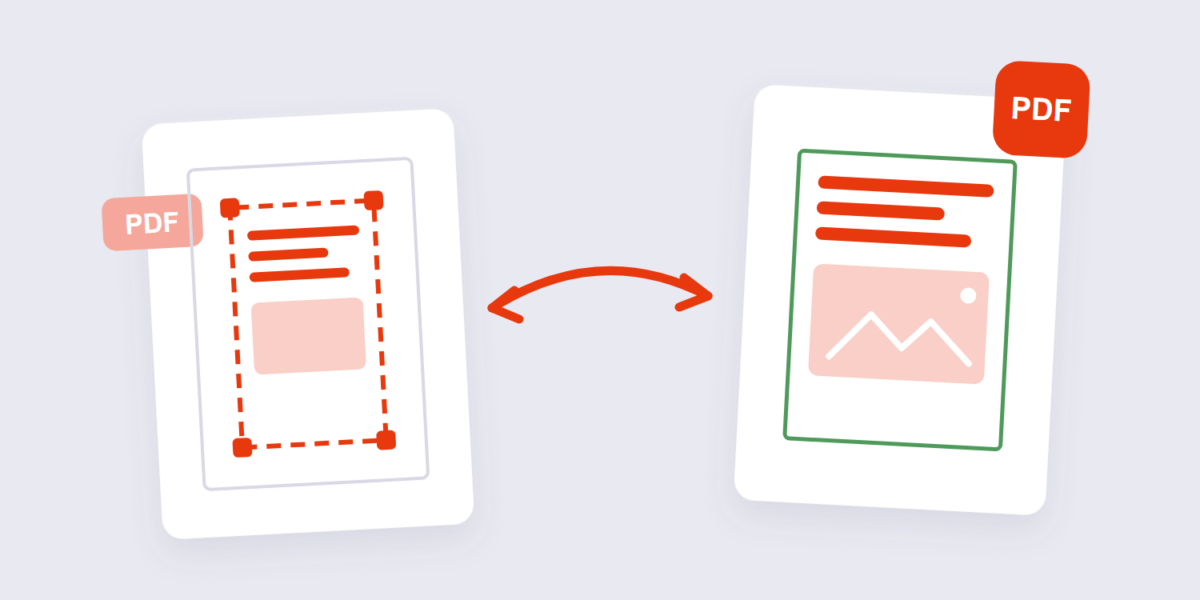
Scanner black bars down the edges. A printed page photographed slightly crooked with a thumb in the corner. Books exported with margins too wide for an e-reader screen. Every one of these is the same job — trim what surrounds the content — and every one of them gets botched by resizing, which shrinks the text instead of cutting the edges.
Cropping is the right tool for all three, and it takes a minute with our Crop PDF tool. This guide covers the steps, the difference between cropping and resizing (people mix them up constantly), what actually happens to the cropped-off content inside the file, and the scanned-document cleanup that fixes black borders in one pass.
How to Crop a PDF Online Free (3 Steps)
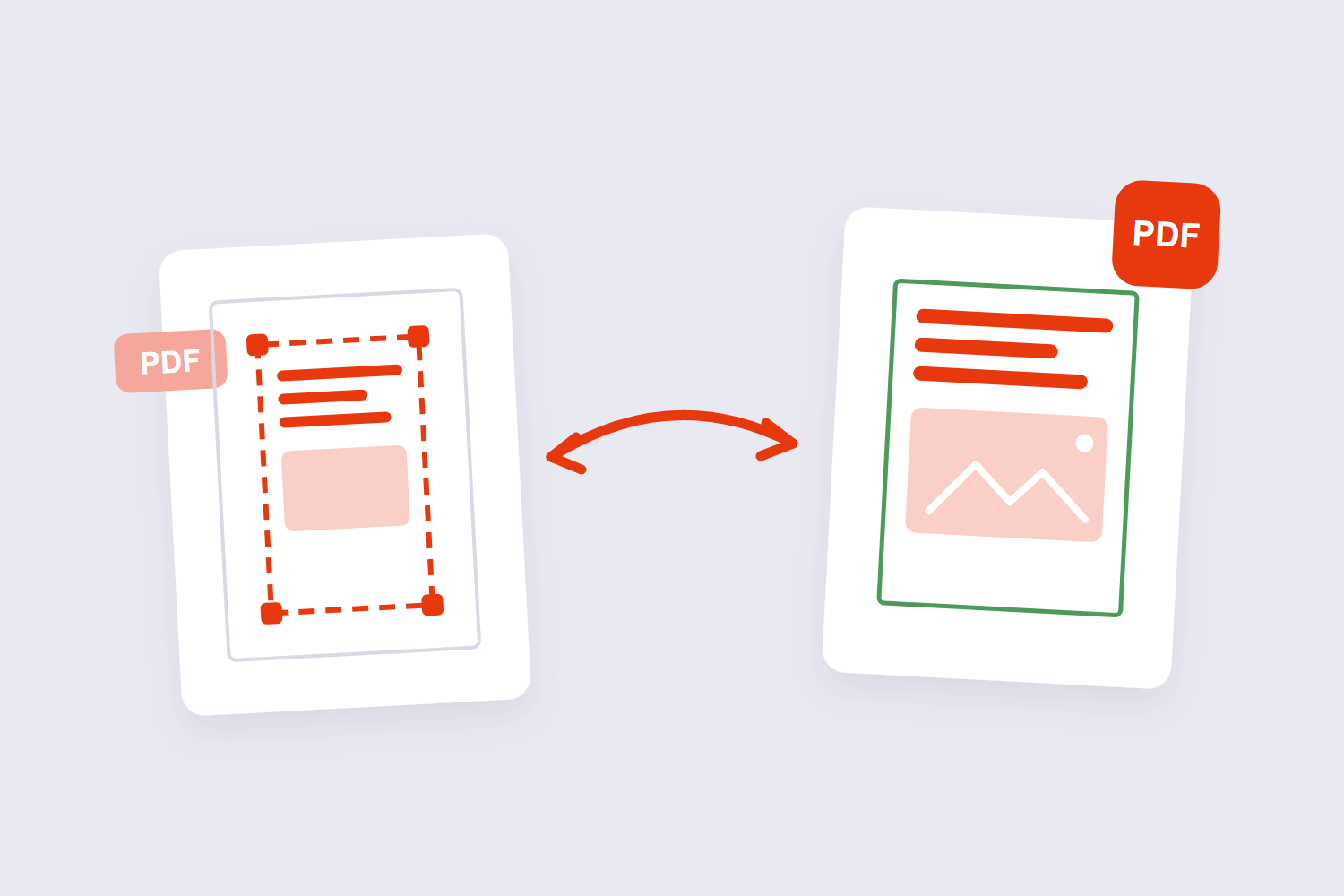
- Add the PDF. Drop it into the Crop PDF tool. Pages appear with their current boundaries visible, and everything runs in your browser — the file never gets uploaded.
- Drag the crop box. Pull the handles in until only the content you want remains. Apply the same crop to every page, or crop individual pages separately when the document mixes layouts.
- Apply and download. The tool writes the new page boundaries and hands the file back. Nothing inside the kept area is scaled or re-encoded, so text and images stay exactly as sharp as they were.
Cropping vs Resizing — They Are Not the Same
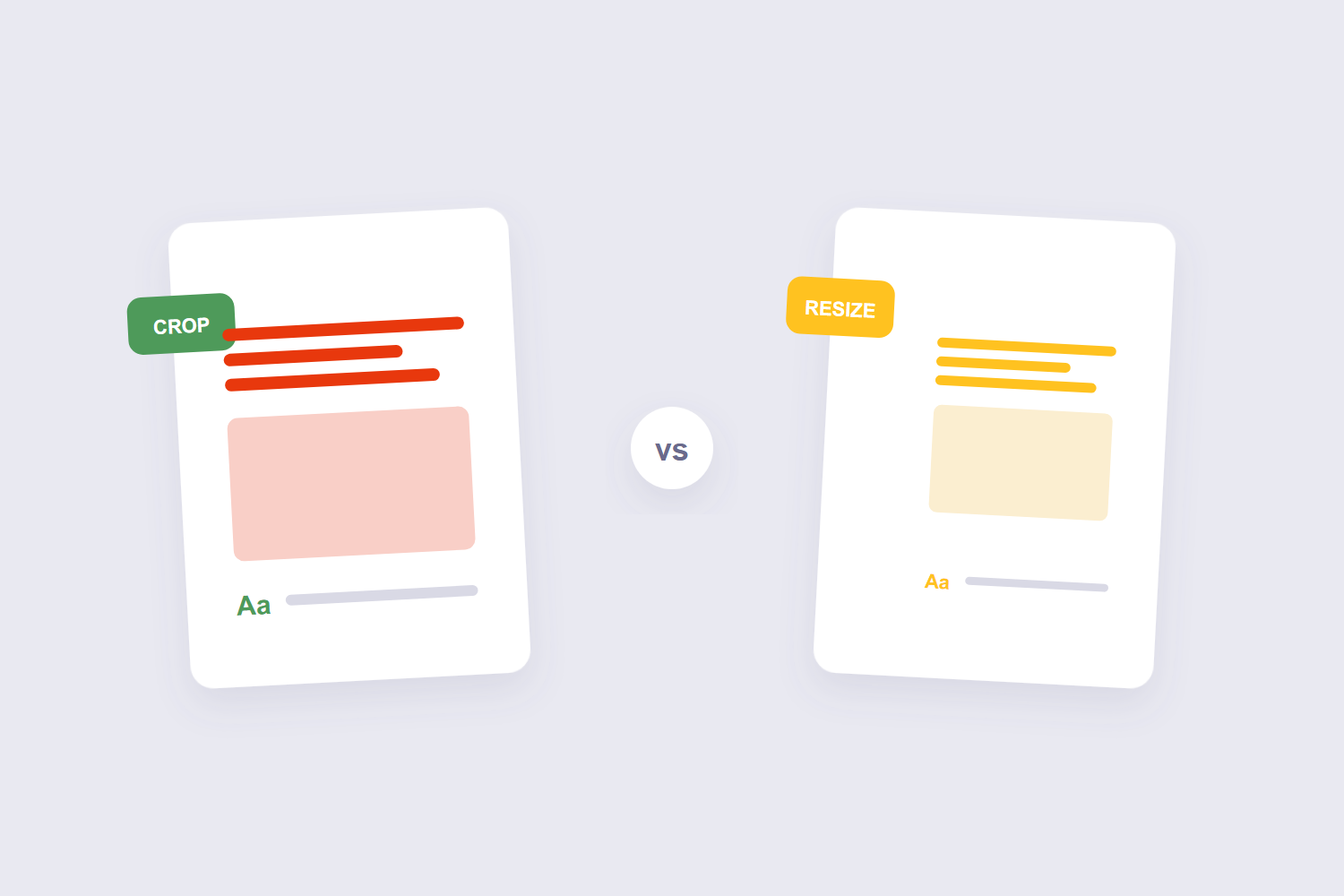
The mix-up happens because both make a page “smaller.” They do opposite things: cropping cuts away the edges and keeps the remaining content at its original size — your text stays the same size, there’s just less page around it. Resizing scales the whole page and everything on it to new dimensions, like shrinking a Letter page to fit A4 — text gets physically smaller.
| You want to… | Do this | Effect on content |
|---|---|---|
| Remove margins, borders, scanner edges | Crop | None — content keeps its size |
| Fit a Letter file onto A4 paper | Resize/scale | Everything shrinks proportionally |
| Tighten a book for an e-reader screen | Crop (then resize if needed) | Margins gone; text unchanged |
A common finishing move: crop the margins first, then resize back to a standard sheet — Adobe’s own guidance treats the two as companion steps (their resize guide covers the scaling side).
The Cropped Content Isn’t Gone (Important)
Here’s the fact almost no tool page admits: a PDF page stores a full-page boundary and a visible-window boundary, and cropping moves the window. The content outside it is hidden, not deleted — Adobe’s own community forums confirm that cropped regions remain inside the file, viewable in tools that display the full page boundary. Sejda’s crop page says the same in its UI.
For tidying margins, this is irrelevant — and even useful, since a crop can be undone. But if you’re cropping to remove something sensitive (a colleague’s comment in the margin, a second page’s edge peeking into a scan), hiding isn’t good enough. Redact the content or rebuild the file instead of trusting a crop. That honesty costs tool vendors nothing and protects you a lot.
Black Scan Borders, Fixed
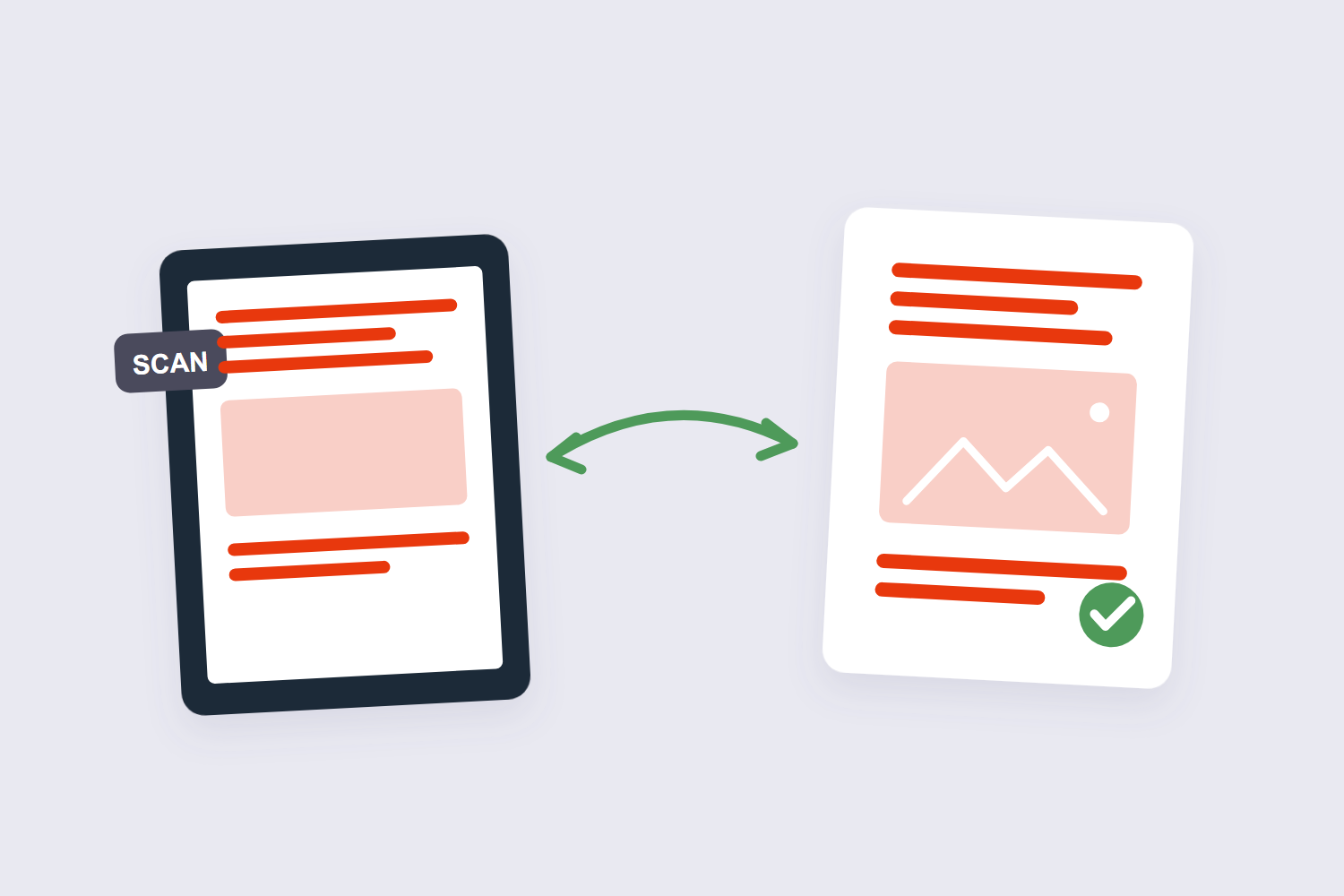
Scans bring their own version of the problem: ragged black edges where the scanner lid didn’t sit flat, or a grey gradient where the page didn’t cover the glass. People try to erase these like image blemishes; the right move is a crop that stops inside the black area, since the border is part of the page image itself. Set the crop box just inside the darkest edge on the first page, apply to all pages, and the whole scan comes back clean.
Skewed pages are the cousin problem — a slight rotation with those black wedges. Cropping in a PDF does not delete anything. It sets the CropBox, a rectangle that tells viewers which part of the page to show; the content outside it is still in the file and can be revealed again by any tool that resets the box. Crop first, then straighten with the rotate tool for the pages that need a 90° turn; small-angle straightening is a job for desktop tools, but a crop hides most slight-tilt edges on its own.
A Bonus Use: E-Readers and Tablets
E-ink users work this out fast: a book PDF with full print margins displays tiny on a 10-inch screen, because the device shows the whole page including two inches of nothing. A PDF page’s dimensions are stored in points, and there are 72 points to an inch. So A4 is 595 × 842 points, US Letter is 612 × 792, and the two differ by about 6 mm in width and 18 mm in height — which is exactly why a Letter layout shifts on A4 paper. Cropping the margins off so the text block reaches the page edges effectively zooms the book — a standing topic on e-ink subreddits. For two-page book scans, crop the odd and even pages separately (the inner margins differ), which is exactly what per-page cropping in the tool is for.
Frequently Asked Questions
Does cropping a PDF reduce quality?
No. Cropping changes the visible page boundary; nothing inside it is scaled or re-encoded. Rotation is stored as a per-page counter with three valid values — 90, 180 and 270 degrees clockwise. There is no arbitrary angle, because the entry is a quarter-turn number, not a transform matrix. Text stays exactly as sharp as before — that’s the core difference from resizing.
Is cropped content permanently deleted?
No — it’s hidden outside the crop window and technically remains in the file. For sensitive material, redact or rebuild the document instead of cropping. For margin cleanup, this doesn’t matter.
Can I crop just one page of a PDF?
Yes — apply the crop to the current page only when the tool asks. Useful for documents where a single landscape page needs different edges than the portrait rest.
How do I remove black edges from a scanned PDF?
Crop just inside the black border and apply the same box to all pages. The border is part of the page image, so cutting it away beats trying to erase it.
Is it safe to crop a PDF online?
With a browser-based tool, the file never leaves your device — that’s the whole privacy story. Server-based crop tools upload the document (typically deleting it within an hour or two); check the tool’s own policy page for the exact terms.
Can I undo a crop later?
Usually yes — precisely because cropping hides rather than deletes. Tools that can display the full page boundary can restore it. Keep the original anyway; it’s simpler.
Crop the edges, check a couple of pages, download. If the cleanup also needs pages removed or turned, the delete pages guide and the rotate guide use the same thumbnail workflow.
