If you’ve ever needed to send someone one file instead of five, you already know the problem: reports, scanned receipts, signed contracts, and cover letters all live in separate PDFs, and emailing them one by one looks messy and unprofessional. Merging PDF files solves this instantly — it combines multiple documents into a single, correctly ordered file that’s easy to send, print, or archive.
It’s a small task, but it comes up constantly: a hiring manager who has to open three attachments instead of one is a hiring manager who’s slightly more annoyed with your application. An accountant who receives twelve separate receipt scans instead of one organized PDF has to do extra work before they can even start theirs. Fixing this takes under a minute once you know the steps, and it costs nothing.
In this guide, you’ll learn exactly how to merge PDF files online for free in under a minute, what actually happens to your documents when they’re combined, and how to avoid the small mistakes that lead to a messy final file. We’ll also cover the tools and settings worth knowing about before and after you merge, how merging compares to other ways of combining documents, and what happens to your files once you’re done — so the finished PDF looks exactly the way you want it and nothing sensitive is left behind.
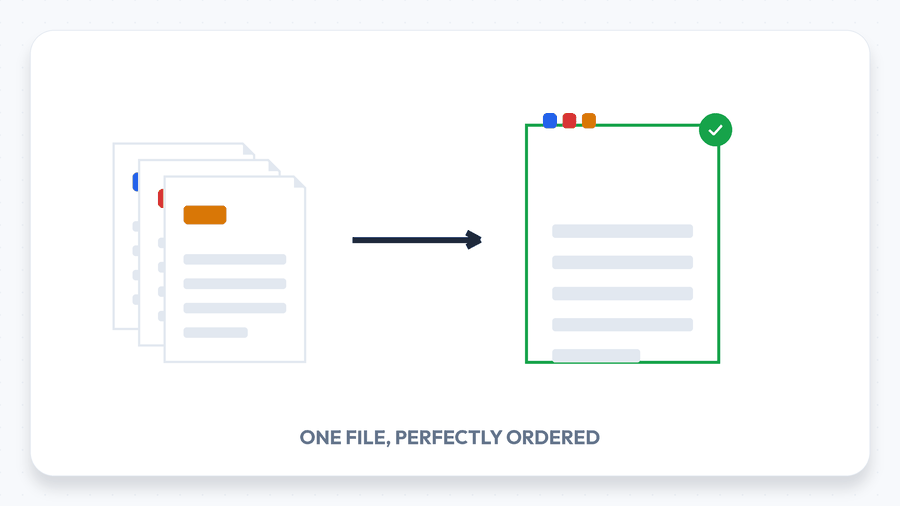
What Does It Mean to Merge PDF Files?
Merging (or “combining”) PDF files means taking two or more separate PDF documents and joining them into one continuous file, page by page, in the order you choose. Nothing is compressed, converted, or re-typed — every page keeps its original layout, fonts, and image quality. The only thing that changes is that your reader now opens one document instead of several.
This is different from merging a PDF with images, where photos or scans (JPG, PNG) are converted into pages and slotted in alongside existing PDF pages. If some of your files are still in Word, Excel, or PowerPoint format, you’ll want to convert them to PDF first using a tool like Word to PDF or Excel to PDF before merging, so every page in the final file looks consistent.
How to Merge PDF Files Online in 3 Simple Steps
You don’t need Adobe Acrobat or any desktop software installed to merge PDFs. Using a browser-based tool like Merge PDF, the whole process takes three steps and usually less than 30 seconds.
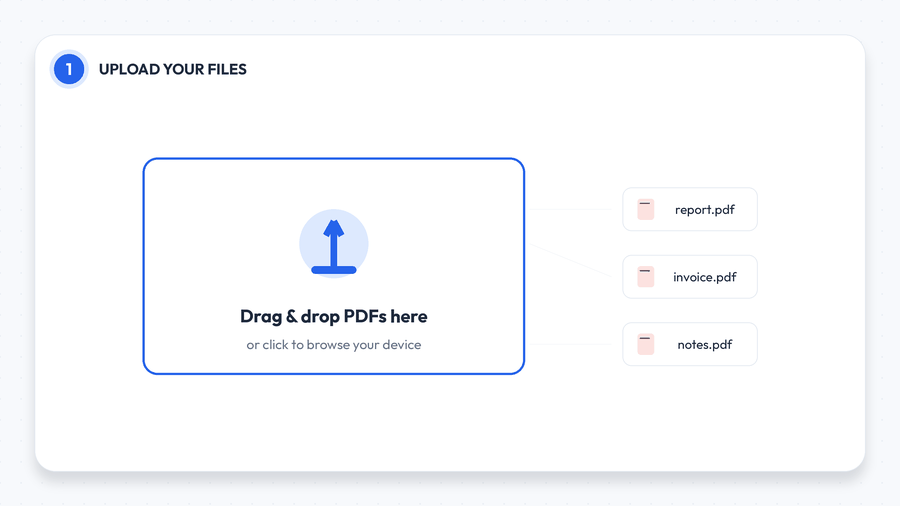
Step 1: Upload Your PDF Files
Open the Merge PDF tool and either drag your files directly onto the upload area or click to browse your device. You can add PDFs from your computer, and most browser-based mergers also accept multiple files at once — so there’s no need to upload them one at a time. If you’re merging more than two or three documents, it helps to rename the files beforehand (e.g., 01-cover-letter.pdf, 02-resume.pdf) so they’re easy to identify in the next step.
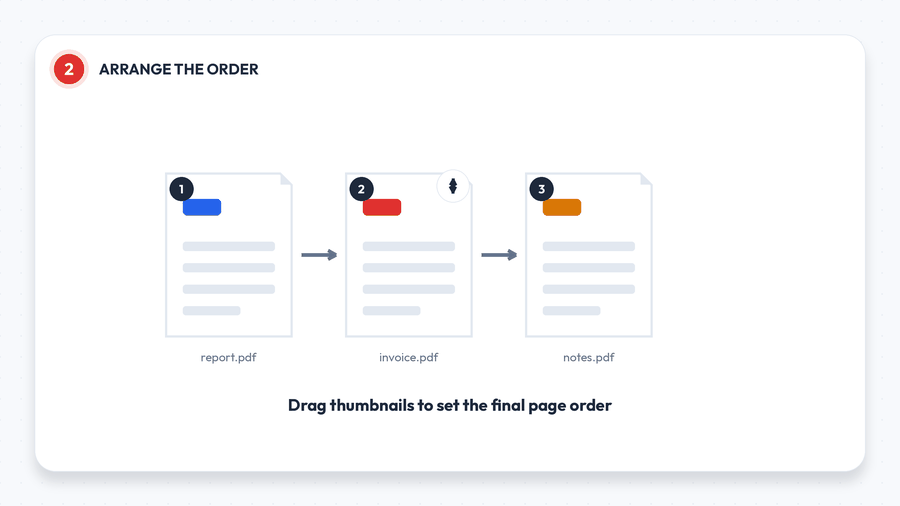
Step 2: Arrange the Page Order
Once your files are uploaded, you’ll see a thumbnail for each one. Drag them into the order you want the final document to read — this is the step people skip and regret, since a merged PDF is much harder to reorder after the fact. If a page ended up upside down or sideways during scanning, fix it now with Rotate PDF rather than after merging, and remove any blank or unwanted pages with Delete PDF Pages so they don’t end up baked into your combined file.
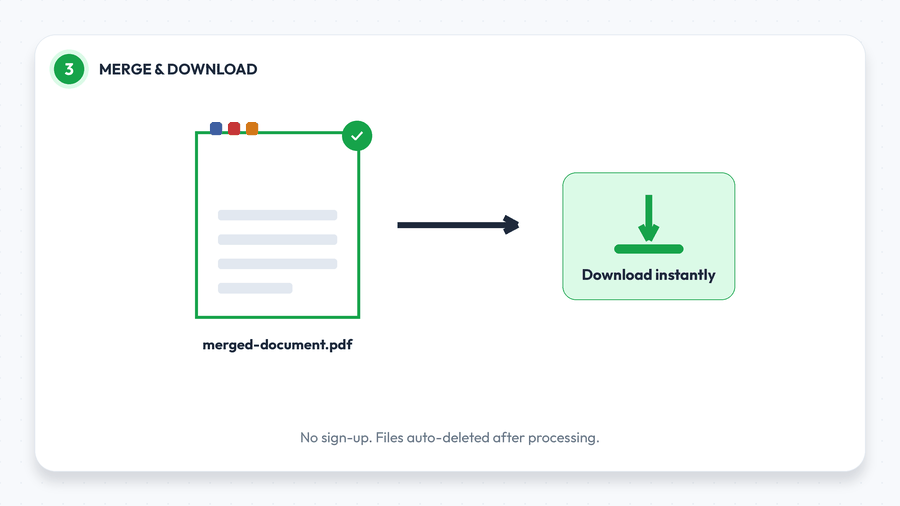
Step 3: Merge and Download Your File
Click the merge button and your combined PDF is generated in seconds. From here you can download it straight to your device — no account, no email address, and no software installation required. This particular tool runs entirely in your browser: your files are never actually uploaded to a server at all, so there’s nothing sitting on anyone’s servers to worry about, even briefly.
Why Merge PDFs Online Instead of Using Desktop Software?
A few years ago, combining PDFs usually meant buying Adobe Acrobat or installing a print-driver workaround. That’s no longer necessary for the vast majority of everyday use cases. Here’s how the options actually compare:
- Online tools work on any device with a browser — Windows, Mac, Chromebook, or phone — and need zero installation. This is the fastest option for a one-off task, and it’s free.
- Desktop software (like Acrobat Pro) makes sense if you’re merging PDFs constantly, need to work fully offline, or require advanced features like redaction and form-field editing.
- Mobile apps are convenient for merging scans on the go but usually have smaller feature sets and sometimes lock basic merging behind a subscription.
For most people — students submitting assignments, freelancers sending invoices, job seekers combining a resume and cover letter — a free online merger does the job in less time than it takes to open a desktop app. The trade-off is really about frequency and file sensitivity: someone merging PDFs a few times a month has nothing to gain from a paid license, while a legal team merging hundreds of confidential case files daily may prefer the offline control of desktop software. Splitting or merging rewrites no image data. The pages are copied as objects and the new file gets a fresh cross-reference table, so a 100 MB document splits into parts that together occupy roughly the same 100 MB.
What Happens to Your Files After You Merge
One of the most common hesitations people have about online tools is a reasonable one: where do my files actually go? With this particular merger, the honest answer is: nowhere. The tool runs entirely in your browser rather than on a remote server, so your PDFs are never actually uploaded anywhere in the first place — the merging happens locally on your own device, using your browser’s own processing power. No account or email address is required either, so there’s no login tied to the documents you’ve processed.
This is a meaningfully stronger privacy position than tools that upload-then-delete: there’s no window, however short, where your file exists on someone else’s server. It’s worth knowing this isn’t universal across every tool, though — some heavier PDF conversions genuinely require in-browser processing to run, so it’s worth checking what a specific tool actually does rather than assuming. For anything containing financial account details, medical information, or signed legal agreements, it’s still worth adding a password with Protect PDF after merging, simply as good practice for the file itself once it leaves your device by email or upload elsewhere.
Common Use Cases for Merging PDFs
Merging PDFs comes up more often than people expect. A few of the most common scenarios:
- Job applications: Combine your cover letter, resume, and references into a single PDF so hiring managers only need to open one attachment instead of hunting through three separate emails.
- Invoicing and bookkeeping: Merge monthly invoices, receipts, or expense reports into one file for your accountant or for tax records, rather than sending a folder full of loose scans.
- Students and researchers: Combine lecture notes, assignment cover sheets, and appendices into a single submission-ready document that matches what most course portals expect.
- Scanned paperwork: If you’ve scanned a multi-page contract as separate image files, convert them with Image to PDF first, then merge them into one clean document with the pages in the right order.
- HR and legal teams: Assemble onboarding packets, signed offer letters, or case files from multiple documents into a single archive-ready PDF for record-keeping.
- Real estate and property management: Merge a listing sheet, floor plan, and disclosure forms into one document buyers or tenants can review without downloading four separate attachments.
- Freelancers and consultants: Combine a signed contract, scope of work, and invoice into a single file for each client engagement, making it easier to find later.
Tips for a Cleaner, More Professional Merged PDF
A merged file can look sloppy if a few small details are ignored. Keep these in mind before you hit download:
- Set the order before merging. It’s much faster to drag thumbnails into place upfront than to split and re-merge a finished file.
- Fix orientation first. Sideways or upside-down scans stand out immediately in a combined document — straighten them with Rotate PDF before merging.
- Add page numbers after merging, not before, using Add Page Numbers, so the numbering runs continuously across the whole document instead of restarting per file.
- Shrink it down if needed. Combining several files can add up in size fast, especially with scanned pages. If the result is too large to email, run it through Compress PDF afterward.
- Protect sensitive documents. If your merged file contains financial or personal information, add a password with Protect PDF, or brand it with Watermark PDF before sharing it externally.
Troubleshooting Common Merge Problems
Most merges go smoothly, but a few issues come up often enough to be worth knowing in advance:
- “This file appears to be corrupted.” Older or badly-exported PDFs sometimes have damaged internal structure. Run the file through Repair PDF before uploading it again.
- Mixing PDFs with photos. If some of your source material is JPG or PNG rather than PDF, use Merge PDF & Image so everything lands in the right order without a separate conversion step.
- The merged file is too big to email. Gmail and Outlook typically cap attachments around 25MB. Run the finished PDF through Compress PDF to shrink it without noticeably affecting quality.
- Word or Excel files won’t upload. A merge tool only combines PDFs (and sometimes images) — convert Office documents first with Word to PDF or Excel to PDF.
Frequently Asked Questions
Is merging PDF files actually free?
Yes. Combining PDFs online doesn’t require any special software or file conversion, so there’s no technical reason for it to cost anything. A good browser-based merge tool lets you combine as many files as you need with no account, subscription, or watermark.
Is it safe to merge PDFs online?
With a browser-based merger like this one, yes — often more so than people expect, since the files are processed locally in your browser and never actually get uploaded to a server. If a document is highly sensitive, it’s still good practice to remove it from any shared or public device afterward and to add password protection with Protect PDF before sending it on.
Can I merge PDFs on my phone?
Yes — because the tool runs in your browser rather than as installed software, it works the same way on a phone or tablet as it does on a desktop. You can upload files from your device’s storage or cloud drive and download the merged result directly to your phone.
Can I combine a Word document and a PDF into one file?
Not directly — a merge tool combines existing PDF pages, so a Word file needs to become a PDF first. Inserting pages keeps both documents’ page sizes independently. Adding a Letter page (612 × 792 points) into an A4 document (595 × 842 points) is allowed and common, but the resulting file is mixed-size — which some printers handle badly, so it is worth normalising afterwards. Convert it with Word to PDF, then merge it alongside your other PDFs in whatever order you need.
Is there a limit to how many files I can merge?
This varies by tool, but most free online mergers comfortably handle a couple dozen files or a total size in the tens of megabytes, which covers the vast majority of everyday documents. For very large batches, it can help to merge in smaller groups and then combine the results.
Will merging reduce the quality of my PDF?
No. Merging only joins existing pages together — it doesn’t re-compress images or re-render text, so fonts, photos, and formatting look exactly as they did in the original files.
Do I need to install anything to merge PDFs?
No installation is needed for an online merger — it runs entirely in your web browser, whether that’s Chrome, Safari, Firefox, or Edge, on Windows, macOS, Linux, or a mobile OS. If you’d rather work offline or merge files in bulk as part of an automated workflow, that’s when dedicated desktop software becomes worth considering.
Can I merge PDFs without an internet connection?
Not with a browser-based tool, since the merging happens on a remote server. If you regularly need to combine PDFs while offline — on a flight, for example — a desktop PDF editor that runs locally is the better fit; for everyday connected use, an online tool is faster to reach for.
Final Thoughts
Merging PDFs is one of those small tasks that saves a disproportionate amount of hassle — for the person sending the file and the person opening it. Upload your documents, drag them into the right order, and download a single, clean PDF in the time it takes to make coffee. Try it now with the free Merge PDF tool, and once your file is combined, explore the related tools below to fine-tune it further.
Related tools: Split PDF · Compress PDF · Reorder PDF Pages · PDF to Word · Protect PDF · Browse All 84+ Tools
