A PDF that won’t attach to an email is one of the most common small annoyances in office life. You export a report, a scanned contract, or a slide deck, and suddenly the file is 30MB and bouncing back from your outbox. Compressing a PDF fixes this in seconds — it shrinks the file size dramatically while keeping the document readable, searchable, and printable.
The catch is that “compress” sounds like it should mean “lose quality,” and for a long time, with the wrong tool, it did. This guide covers how PDF compression actually works, how to compress a file online for free without wrecking it, and how to pick the right compression level so you get a small file that still looks the way it’s supposed to. We’ll also walk through when compression isn’t the right tool for the job, and what to do instead.
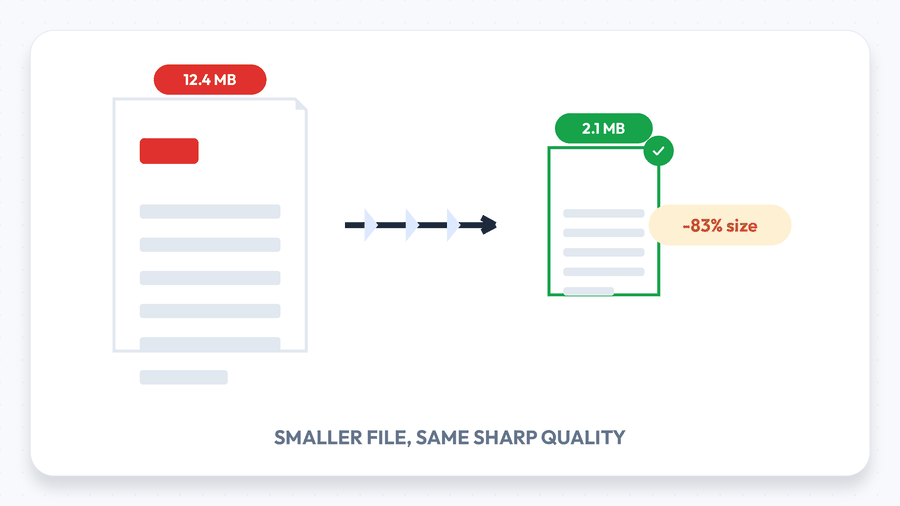
What Actually Makes a PDF File Large?
Text and vector graphics take up almost no space — a 40-page text-only PDF might only be a few hundred kilobytes. The size problem almost always comes from embedded images: scanned pages saved at high resolution, screenshots pasted into a report, or photos dropped into a slide deck end up stored at far higher quality than a screen or printer actually needs. Compression targets exactly that: it re-encodes and downsamples the embedded images while leaving the text, fonts, and page layout untouched.
This is also why two visually identical PDFs can compress very differently. A PDF built from a Word document with a few logo images will shrink a little. A PDF made by scanning twenty pages at 600 DPI will shrink enormously, because most of that resolution was invisible to begin with.
How to Compress a PDF Online in 3 Simple Steps
You don’t need Adobe Acrobat or any installed software to shrink a PDF. Using a browser-based tool like Compress PDF, the whole process takes well under a minute.
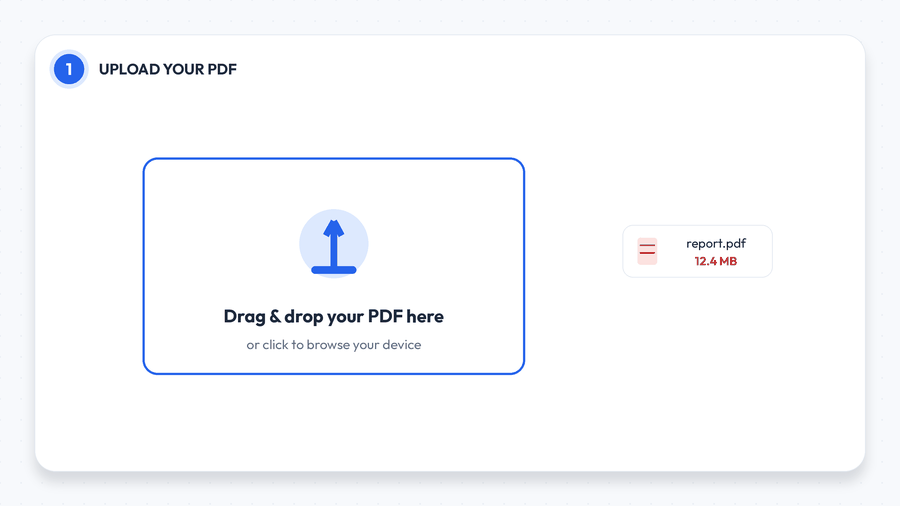
Step 1: Upload Your PDF
Open the Compress PDF tool and drag your file onto the upload area, or click to browse your device. If the file was recently assembled from several documents, it helps to merge them first and then compress the single combined file, rather than compressing each piece separately.
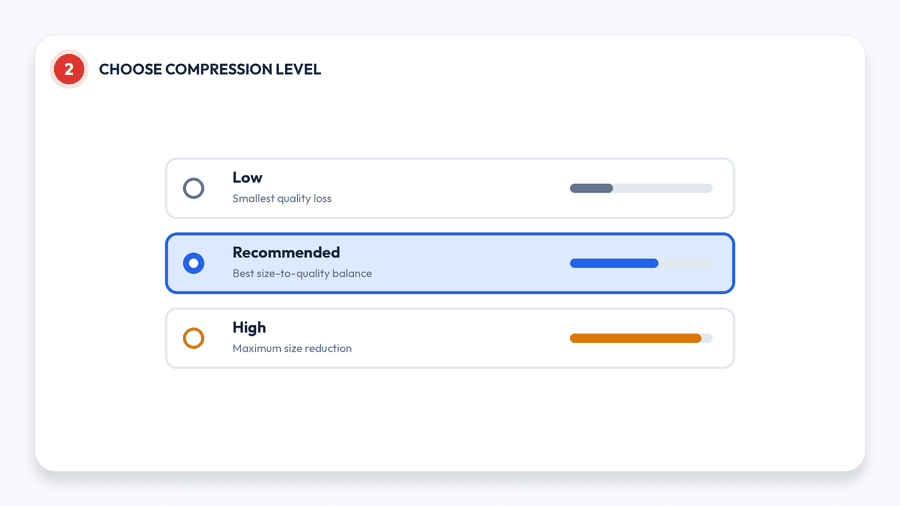
Step 2: Choose a Compression Level
Every tool offer a simple choice between a light compression (smallest quality change, modest size reduction), a recommended balanced setting, and a high/maximum setting for when file size matters more than anything else. For most everyday documents — reports, invoices, assignments — the recommended setting is the right default, since it targets the invisible excess resolution first.
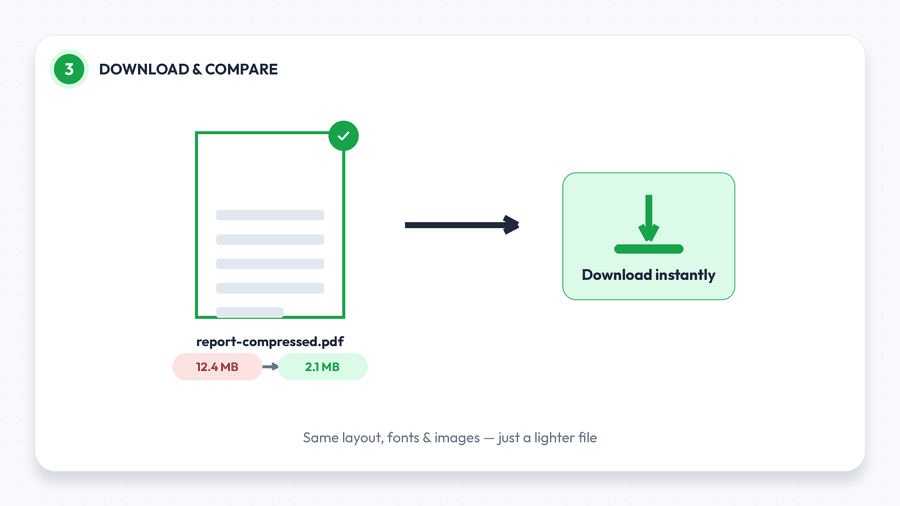
Step 3: Download and Compare
Click compress, and the tool processes your file in seconds. You’ll typically see the before-and-after file size side by side, so you can confirm the reduction before downloading. No account is required, and because this tool runs entirely in your browser, your PDF is never uploaded to a server — the compression happens locally on your own device, so the file never leaves your computer. PNG compresses with DEFLATE, a lossless algorithm, so re-saving a PNG never degrades the image — but it also cannot shrink it much. Repeated PNG re-saving costs nothing in quality and gains almost nothing in size.
Lossless vs. Lossy Compression: Which Should You Choose?
PDF compression comes in two broad flavors, and knowing the difference makes the “which setting do I pick” question much easier:
- Lossless compression removes redundant data — duplicate objects, unused fonts, unnecessary metadata — without touching image quality at all. The size reduction is smaller, but nothing about how the document looks changes, even under close inspection.
- Lossy compression re-encodes embedded images at a lower resolution or higher JPEG compression ratio. This is where most of the size savings come from, and at reasonable settings, the difference is invisible on a screen or standard printout — it only becomes noticeable if you zoom in far past normal reading size.
A “Low” setting usually leans lossless-ish with minimal image re-encoding; “High” pushes lossy compression much further for maximum size reduction. A scanned page is worth keeping at 300 DPI for print and 150 DPI is usually enough for on-screen reading. Below 150 DPI text starts to soften; dropping to 72 DPI typically cuts the file to roughly a quarter while making small print harder to read. If the document is going to print at large format or needs to preserve fine image detail (architectural drawings, medical scans, product photography), stick to a low or recommended setting. For emailing a report or uploading a form, high compression is almost always fine.
Will Compressing Reduce Quality? What Actually Changes
This is the question most people really care about, and the honest answer is: it depends what’s in the file. Body text, headings, and vector graphics (charts, logos exported as vectors, form fields) are rendered mathematically, not as pixels, so compression doesn’t affect their sharpness at all — they’ll look identical before and after. Only raster images — scans, photos, screenshots — are actually re-encoded, and at a recommended compression setting, the resolution reduction targets detail that’s well beyond what a screen or laser printer can even display.
Where people do notice a difference is when a document is compressed repeatedly, or compressed at the highest setting and then compressed again later — image artifacts can compound the way they do with a JPEG saved multiple times. The fix is simple: always compress from the original, uncompressed file rather than re-compressing an already-compressed PDF.
How Compression Compares to Other Ways of Shrinking a PDF
Compressing isn’t the only way to get a smaller file, and it’s worth knowing when a different approach actually serves you better:
- Re-scanning at a lower resolution avoids the problem entirely for future documents, but it’s not useful for a file you already have, and going back to rescan paperwork is rarely worth the time.
- Removing pages you don’t need with Delete PDF Pages reduces size by cutting content, not by re-encoding it — the right move when a document has appendices or blank pages nobody needs, rather than when every page matters.
- Converting to a different format, like PDF to Image for a single page, can sometimes produce a smaller file for a specific use case, but it sacrifices the searchable text and multi-page structure that makes PDF useful in the first place.
- Splitting a large file into smaller sections with Split PDF doesn’t reduce total size at all — it just distributes the same bytes across more files, which helps when a portal has a strict per-file limit rather than a real bandwidth concern.
In practice, compression is the right first move almost every time, because it’s the only option that shrinks the file while keeping every page, every word, and the original format intact. Resizing and re-encoding are different operations. Resizing changes pixel dimensions and genuinely discards detail; re-encoding at the same dimensions only repacks the data. Doing both in one pass costs quality twice.
Common Situations Where You Need to Compress a PDF
- Email attachment limits: Gmail and Outlook cap attachments around 25MB, and a scanned contract or a report with a handful of high-resolution images can easily blow past that on its own, especially once several pages are combined into one file.
- Application and portal uploads: Job application systems, university admissions portals, and government forms frequently enforce their own, often much smaller, file size caps — sometimes as low as 2–5MB per document.
- Website performance: PDFs linked from a website — brochures, spec sheets, menus — load faster and use less bandwidth for visitors when compressed, which also tends to help with page-speed scores.
- Cloud storage limits: Free-tier storage on Google Drive, Dropbox, or a company intranet fills up fast with uncompressed scans; compressing archived documents buys back space without deleting anything.
- Bulk document archives: Law firms, HR departments, and accounting teams that store years of case files or receipts benefit enormously from compressing before long-term storage, since the savings multiply across thousands of files.
Tips for the Smallest File Without Hurting Readability
- Merge before you compress, not after. If you’re combining several files, use Merge PDF first, then compress the single result — compressing five small files separately is usually less effective than compressing one combined file once.
- Remove pages you don’t need with Delete PDF Pages before compressing, so you’re not shrinking content that’s getting deleted anyway.
- Flatten forms and annotations using Flatten PDF if the document has a lot of interactive form fields, which can otherwise add overhead that basic compression doesn’t touch.
- Fix a broken file first. If a PDF won’t compress properly or throws an error, it may have corrupted internal structure — run it through Repair PDF before trying again.
- Compress images separately when needed. If you’re building a PDF from scratch, compressing your source photos first with Compress Image often gives better control than compressing the final assembled PDF.
Troubleshooting Common Compression Problems
- “The file barely got smaller.” This usually means the PDF was already efficiently encoded, or it’s mostly text and vector graphics with little image data to shrink — there’s simply not much left to compress.
- “Scanned text looks blurry after compressing.” High compression pushed the scan’s resolution below a comfortable reading threshold. Re-compress the original at the Low or Recommended setting instead of High.
- “The file is still too big to email.” For very large multi-hundred-page documents, consider splitting it into logical sections with Split PDF and sending or uploading them separately.
- “I need it even smaller and image quality doesn’t matter.” Try the High setting, and if the source contains full-page scanned images, converting them to grayscale first with PDF to Grayscale can shrink color scans significantly further.
Frequently Asked Questions
Is compressing a PDF actually free?
Yes. A browser-based compressor needs no special license to re-encode images and strip redundant data, so a good free tool lets you compress files with no account, watermark, or hidden fee.
Will compressing make my PDF blurry?
At a low or recommended setting, no — text and vector content are unaffected, and embedded images are only downsampled to a resolution well beyond normal screen or print requirements. Blurriness only shows up if you push the highest compression setting on an image-heavy scan.
Can I compress a scanned PDF?
Yes, and scanned documents are usually where compression makes the biggest difference, since scans are often saved at a far higher resolution than needed for reading or printing.
Does compressing a PDF remove the text or make it unsearchable?
No. Compression only affects file size and image encoding — if your PDF’s text was selectable and searchable before compressing, it stays that way afterward.
What’s the difference between Low, Recommended, and High settings?
Low prioritizes preserving image quality with a modest size reduction; Recommended balances size and quality for most everyday documents; High pushes compression further for the smallest possible file, at the cost of some fine image detail.
Can I compress a PDF on my phone?
Yes — since the tool runs in a browser rather than as installed software, it works the same way on a phone or tablet as it does on desktop.
Does compressing remove metadata like author or creation date?
Some compression processes do strip incidental metadata as part of removing redundant data, which is one of the reasons files shrink even before any image re-encoding happens. If you need to preserve specific metadata, check the file afterward with a tool like PDF Info Viewer.
Is there a limit to how large a file I can compress?
Most free online compressors handle typical documents — reports, scanned contracts, presentations exported as PDF — without issue. Extremely large files (several hundred megabytes, often hundreds of pages of high-resolution scans) may take longer to process or hit a size cap, in which case splitting the document first with Split PDF and compressing each part can help.
Do I need to compress a PDF more than once?
No — and you generally shouldn’t. Compressing an already-compressed file rarely shrinks it further and can introduce visible artifacts in any embedded images. If the first result isn’t small enough, go back to the original file and try a higher compression setting instead of compressing the output again.
Final Thoughts
A bloated PDF is almost always an easy fix — upload it, pick the recommended compression level, and download a file that’s a fraction of the size with no visible difference in quality. Try it now with the free Compress PDF tool, and if your document started out as several separate files, check out our guide on how to merge PDF files online to combine them first.
Related tools: Merge PDF · Split PDF · Repair PDF · Flatten PDF · Compress Image · Browse All 84+ Tools
