Sometimes the problem isn’t too many files — it’s one file that’s too much. A 40-page scanned handbook when you only need chapter 3. A signed contract where someone only needs page 7. A huge report where each department only cares about their own section. Splitting a PDF solves this: it takes one document and divides it into exactly the pieces you actually need to share, store, or send.
It comes up in almost every job that deals with paperwork: a teacher separating student worksheets from an answer key bound into the same scan, a paralegal pulling one exhibit out of a lengthy filing, an HR coordinator sending each new hire only their own onboarding pages instead of the entire company packet. In every case, the information you need already exists — it’s just trapped inside a document that’s bigger than what the moment calls for.
This guide covers how to split a PDF online for free, the different ways to split a file depending on what you’re trying to do, and how to avoid ending up with the wrong pages in the wrong place. We’ll also cover a detail that’s easy to miss: not every online PDF tool works the same way behind the scenes, and for splitting specifically, that difference is worth knowing about.
What Does It Mean to Split a PDF?
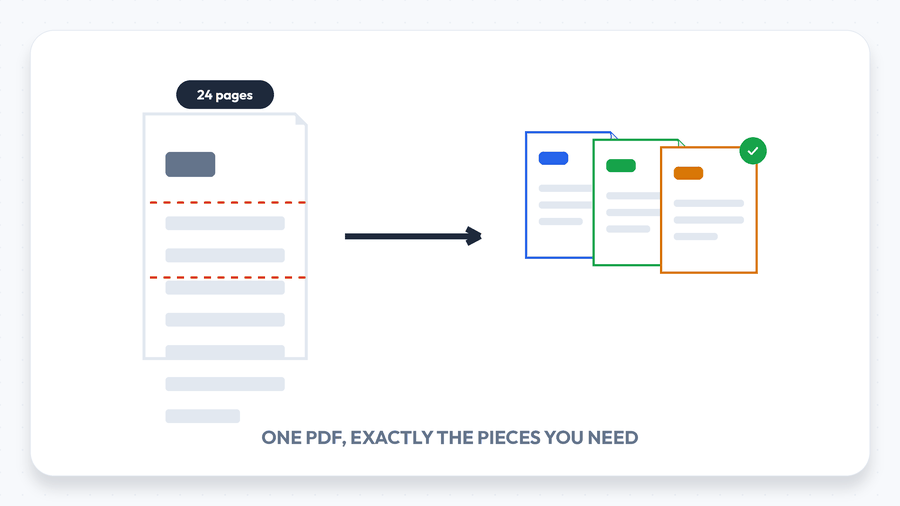
Splitting a PDF means taking one document and dividing it into two or more separate PDF files, based on page ranges or specific pages you choose. Nothing about the content changes — each resulting file keeps the exact formatting, fonts, and image quality of the original, just with fewer pages in it. The original file itself is untouched; splitting creates new files rather than modifying the one you uploaded.
This is different from deleting pages, which permanently removes pages from a single file rather than dividing it into multiple outputs. If you just want to drop a couple of blank or unwanted pages and keep working with one document, deleting is the simpler tool for that job.
How to Split a PDF Online in 3 Simple Steps
You don’t need any installed software to split a PDF. Using a browser-based tool like Split PDF, the whole process takes well under a minute.
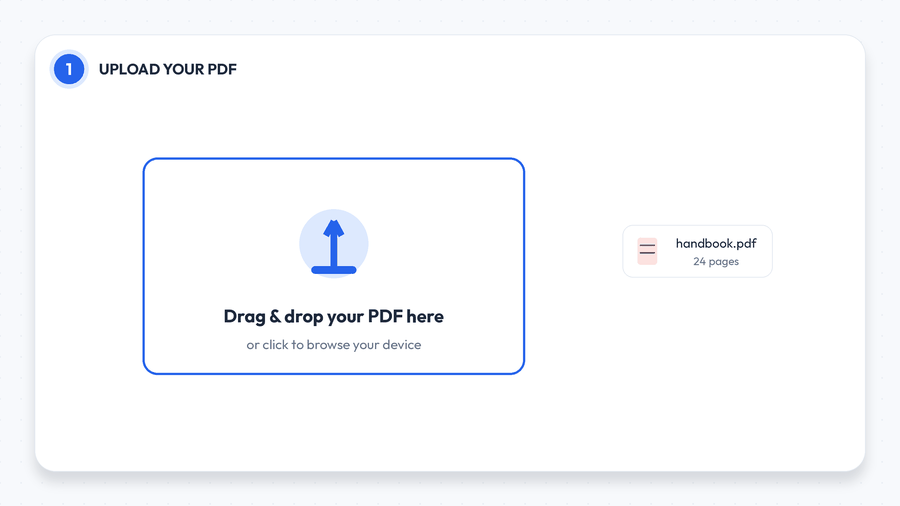
Step 1: Upload Your PDF
Open the Split PDF tool and drag your file onto the upload area, or click to browse your device. It’s worth checking the page count of your document beforehand — either by glancing at your PDF viewer or using PDF Info Viewer — so you know exactly which page numbers you want to split around.
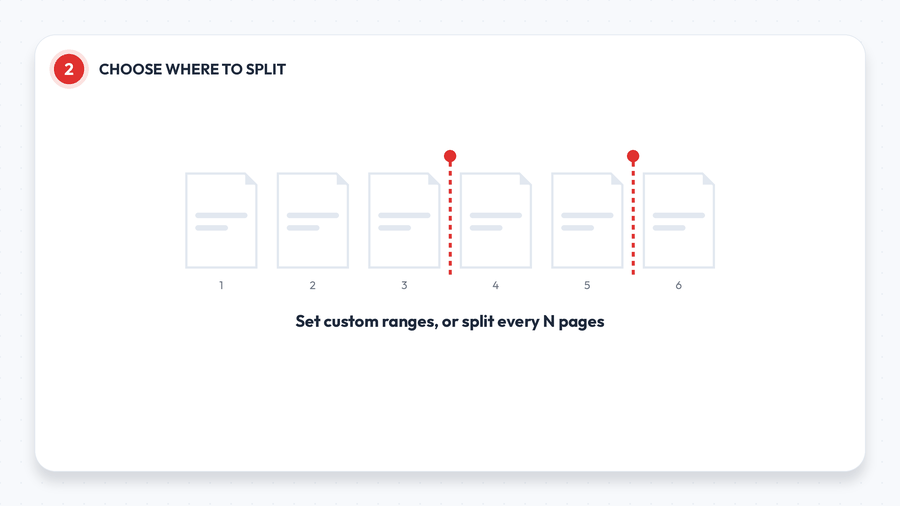
Step 2: Choose Where to Split
Set custom page ranges (for example, pages 1–10 and 11–24 as two separate files), split at a fixed interval (every 2 pages, every 5 pages, and so on), or select individual pages to extract on their own. Which mode makes sense depends entirely on what you’re trying to accomplish — more on that below.
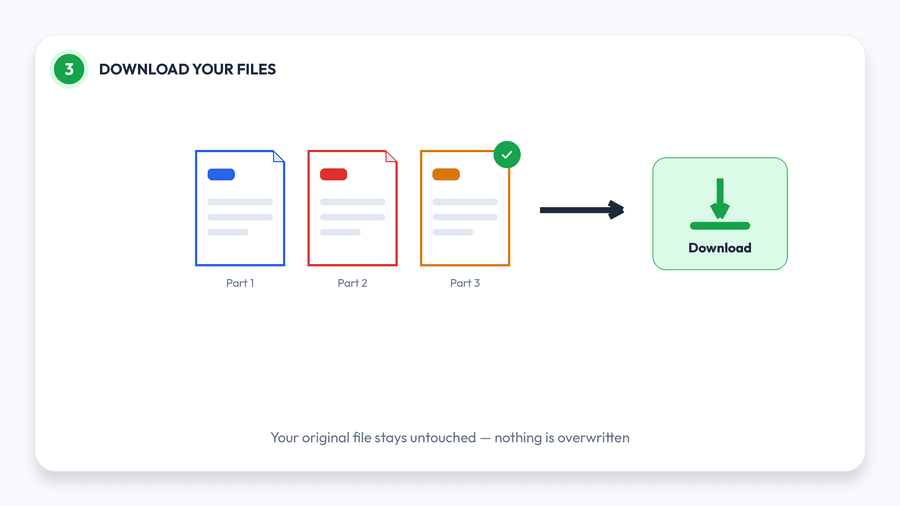
Step 3: Download Your Split Files
Download your split PDFs individually or as a single ZIP file, depending on how many you created. One detail worth knowing: a browser-based splitter like this one processes the file entirely on your own device rather than uploading it to a server first, since a plain page-split doesn’t need any in-browser processing to perform — your file never actually leaves your computer during the process.
Different Ways to Split a PDF (and Which One Fits)
Most splitting tools offer a few distinct modes, and picking the right one saves you a step later:
- Custom ranges — you define exactly which pages go into each output file (e.g., 1–12, 13–20, 21–24). Best when a document has a natural structure, like chapters or sections, and you know roughly where those breaks fall.
- Fixed intervals — every file gets the same number of pages (e.g., every 5 pages becomes a new file). Useful for evenly chopping up a long, unstructured document like a scanned book or a stack of receipts.
- Extract specific pages — you hand-pick individual, possibly non-consecutive pages (say, pages 2, 7, and 15) to pull out as their own file or files. Best when you need just a few specific pages out of a much longer document.
- Extract every page individually — each page of the original becomes its own single-page PDF. Useful when a document needs to be broken down to the page level for a system that only accepts one page per upload.
If you’re not sure which mode fits, think about the shape of what you need afterward: a small number of clean sections points to custom ranges, an even chop through a long unstructured file points to fixed intervals, and a handful of scattered pages points to hand-picked extraction.
Why This Particular Tool Processes Files Differently
Some PDF jobs — like converting a PDF into an editable Word file — genuinely need in-browser processing, because the transformation is computationally heavy. Splitting is different: dividing an existing PDF into page ranges doesn’t require re-rendering anything, so this tool does the entire job locally, inside your browser, without ever uploading the file to a server at all. Every tool on this site work that way, including Compress PDF and Merge PDF; only a few heavier converters, like PDF to Word, use encrypted in-browser processing.
This matters most for sensitive documents — signed contracts, medical paperwork, financial statements — where you’d rather not have a copy touch a remote server even briefly, even if that server deletes files immediately afterward. It’s worth checking whether a given tool actually works this way rather than assuming; not every “free PDF splitter” online is built the same way under the hood, even when the interface looks identical.
Common Situations for Splitting a PDF
- Sharing part of a larger document. Send a colleague or client just the section relevant to them, instead of the entire report with everything else attached.
- Separating chapters or sections. Turn one long scanned book, manual, or course pack into individually named, easy-to-navigate files.
- Pulling one page out of a signed contract. Extract a single signature page or exhibit to send on its own, without resending the whole agreement.
- Undoing an accidental merge. If you merged several files together and realize you actually needed them separate, splitting at the right page numbers puts them back apart.
- Working around upload limits. Some portals cap how many pages or how much size they’ll accept per file — splitting a large document into compliant chunks gets around that without losing any content.
- Organizing scanned paperwork. A single scan of a stack of mixed documents can be split into the individual receipts, forms, or letters it actually contains.
Splitting vs. Other Ways to Break a PDF Apart
A few related tasks get confused with splitting, and picking the right one saves a wasted step:
- Splitting divides one PDF into multiple complete files, each keeping its own set of pages — the right choice when you need several usable documents out of one.
- Deleting pages removes specific pages from a single file permanently, leaving you with one smaller document rather than several — the right choice when some pages just don’t belong at all.
- Extracting images pulls out the pictures embedded in a PDF as standalone image files, rather than dividing the document itself — useful when what you actually need is the photos, not the pages.
- Reordering pages changes the sequence of pages within one file without reducing the page count at all — the right choice when the content is correct but out of order.
Tips for a Clean Split
- Know your page numbers before you start. Open the PDF in a viewer first and note exactly which pages belong together, rather than guessing mid-split.
- Watch out for blank or divider pages. Scanned documents often have blank separator pages that can throw off a fixed-interval split — consider removing them first with Delete PDF Pages.
- Name your output files clearly as soon as you download them, especially when splitting into many pieces — “part 1, part 2” gets confusing fast once you’re a week removed from the task, so a quick rename to something descriptive (like the actual chapter title or date range) saves confusion later.
- If you extracted several non-consecutive pages and actually want them as one file instead of separate ones, most splitters offer a “merge extracted pages” option, or you can run the results through Merge PDF afterward.
- If a split file is still too large for what you need, run it through Compress PDF after splitting.
Troubleshooting Common Splitting Problems
- “I’m not sure which page numbers I need.” Open the original file in any PDF viewer first and note the exact page numbers before starting — guessing mid-process is where most mistakes happen.
- “My PDF is locked or password-protected.” Remove the password first with Unlock PDF, since a splitter needs to read the file’s pages to divide them.
- “One of my split files is upside down or sideways.” Splitting doesn’t change page orientation — if a page was rotated in the original, it’ll stay that way. Fix it with Rotate PDF before or after splitting.
- “I split it, but now I need some of the pieces back together.” That’s exactly what Merge PDF is for — combine whichever split files you actually need as one document again.
Frequently Asked Questions
Is splitting a PDF actually free?
Yes. Dividing an existing PDF into pieces doesn’t require any special software license, so a good free tool lets you split files with no account, watermark, or hidden fee.
Is it safe to split a PDF online?
With a browser-based splitter, the file is typically processed locally on your own device rather than uploaded to a server at all, since dividing pages doesn’t require in-browser processing the way a format conversion does. That means the document never actually leaves your computer during the split.
Will I get one ZIP file or individual files?
This depends on how many files you create and the specific tool, but most splitters offer both — individual downloads for a couple of files, or a single ZIP archive when you’ve split a document into many pieces.
Can I split a PDF on my phone?
Yes — since the tool runs in your browser rather than as installed software, it works the same way on a phone or tablet as it does on a desktop.
Does splitting affect the quality of the pages?
No. Splitting only divides existing pages into separate files — it doesn’t re-compress images or re-render text, so every page looks exactly as it did in the original.
Can I split a password-protected PDF?
You’ll need to remove the password first with Unlock PDF, since the splitting tool needs to read the document’s pages in order to divide them.
Does splitting delete anything from my original file?
No. Splitting creates new files from the pages you select; your original PDF stays exactly as it was, untouched and unmodified.
Is there a limit to how many pieces I can split a PDF into?
Most free splitters handle a reasonably large number of output files without issue — splitting a 100-page document into 20 sections, or even into 100 single-page files, is well within normal range. Extremely large batch splits may simply take a little longer to process and package.
Can I preview the pages before I split them?
Most splitting tools show a thumbnail of each page before you confirm your ranges or selections, which is the easiest way to double-check you’ve picked the right page numbers before downloading.
Final Thoughts
Splitting a PDF is the flip side of merging one — instead of combining documents, you’re pulling exactly the pages you need out of one that’s grown too big or too broad to share as-is. Try it now with the free Split PDF tool, and if you ever need to put pieces back together afterward, our guide on how to merge PDF files online picks up right where this one leaves off.
Related tools: Merge PDF · Delete PDF Pages · Reorder PDF Pages · Compress PDF · Unlock PDF · Browse All 84+ Tools
